
Your Prompt, Reimagined as Cinema
With Sora 2 and Medeo, your words become moving pictures. Craft film-quality motion straight from text — enhanced with dynamic pacing, visual coherence, and story-driven rhythm. No studio, no crew, just AI-powered imagination.
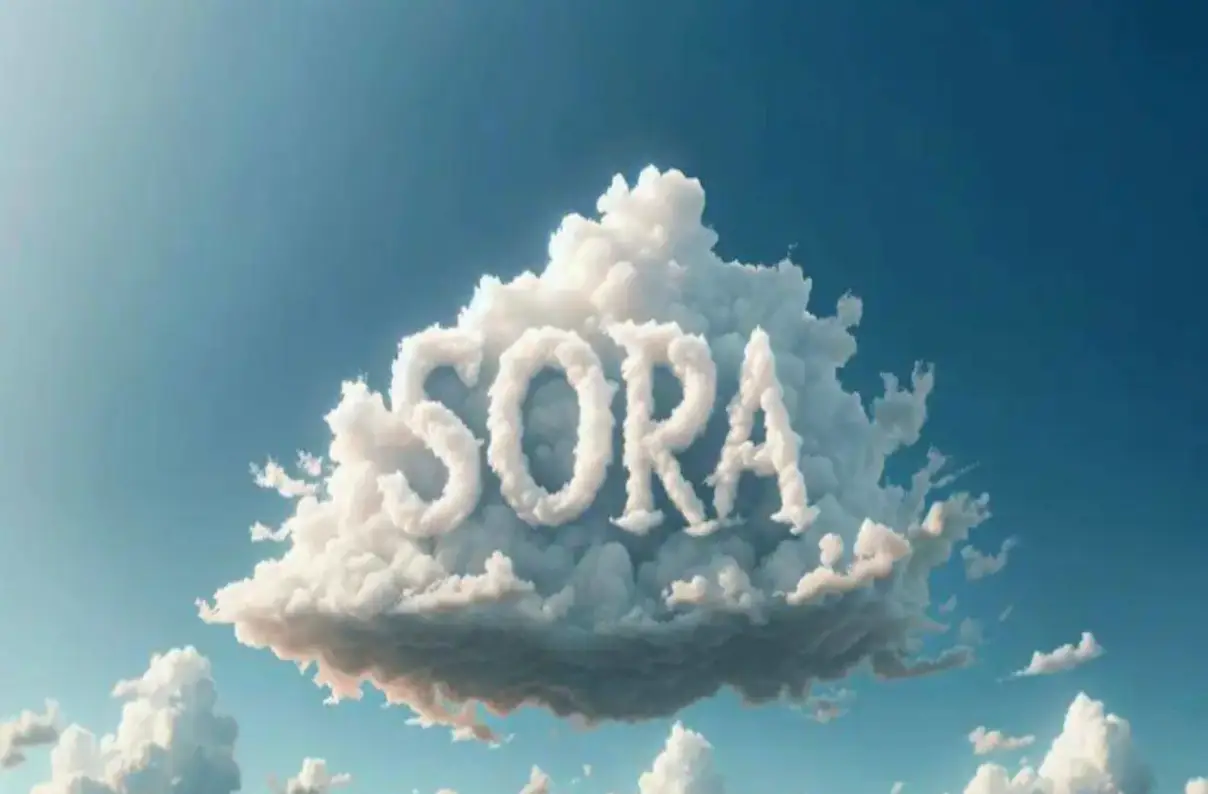
Before
After
Before
After
Reasons to Use Medeo for Sora 2 Video Creation
Concept to Movement
Medeo interprets your Sora 2 prompt into cinematic structure — shot composition, lighting, and narrative pacing.
Real-Time Scene
Fix awkward transitions or inconsistent frames from Sora 2 in seconds.
Without Sacrificing Style
Generate, polish, and export full scenes in under 10 minutes. Ideal for content creators, ad teams.
Key Features
AI Cinematic Presets
Apply one-click looks — Noir, Dreamscape, Neo-Future, Natural Light — fine-tuned for Sora 2 rendering styles. Achieve professional aesthetics instantly.
Scene Linker & Timeline AI
Automatically sequences multiple Sora 2 generations into a cohesive short film. Adjust transitions, tempo, and cuts with a drag-and-drop interface.
Smart Prompt Enhancer
Medeo suggests visual and emotional cues to improve your Sora 2 prompts — guiding you toward cinematic quality and thematic coherence.
How to Create a Film from Prompts with Sora 2 + Medeo?
Step 1
Step 1 — Write a Visual Prompt
Describe your scene: mood, camera angles, characters, and environment. Use cinematic language — “wide shot,” “dusk glow,” or “slow pan.”
Step 2
Step 2 — Generate Base Footage in Sora 2
Run the prompt and review outputs. Pick the most expressive version — it doesn’t have to be perfect, Medeo will handle refinement.
Step 3
Step 3 — Enhance and Edit in Medeo
Upload the clip to Medeo. Use AI filters to stabilize motion, color-correct lighting, and sync audio automatically.
Step 4
Step 4 — Build a Narrative Sequence
Combine multiple scenes, add captions or soundtracks, and let Medeo’s AI timeline stitch your mini film together.
FAQs
Can I use voiceovers or subtitles?
Yes. Medeo syncs auto-generated narration or imported audio, and adds multilingual subtitles with AI timing.
How does Medeo improve Sora 2 footage?
Medeo corrects color mismatches, improves transitions, and enhances realism — creating a coherent short film from fragmented outputs.
What’s the best kind of prompt for Sora 2 cinematic videos?
Detailed visual cues work best. Include setting, lighting, and action (“a neon-lit alley chase at night, cinematic close-up on the runner”).