

Create High-Energy Velocity Edits in Just a Few Clicks
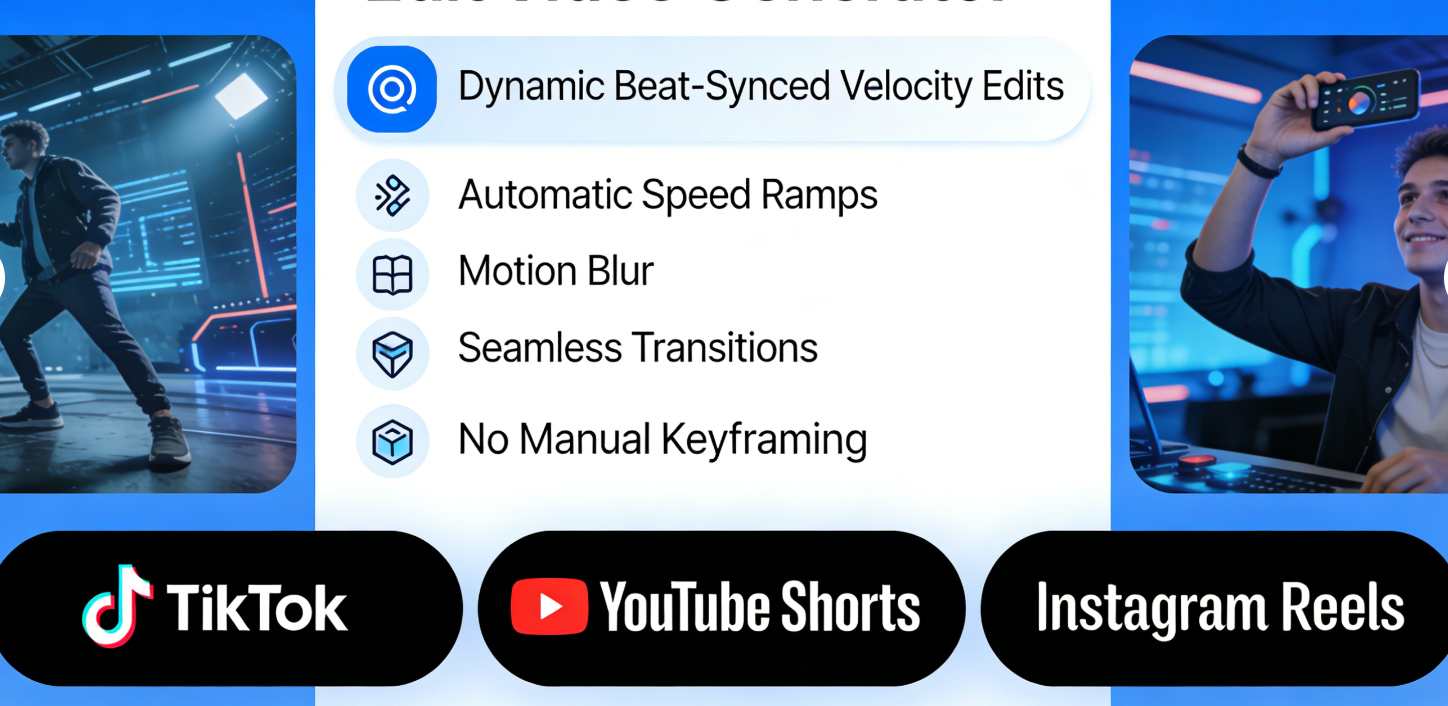
Medeo’s AI Velocity Edit Video Generator helps you create dynamic, beat-synced velocity edits automatically. Upload your clips, choose a music style, and let AI add speed ramps, motion blur, and seamless transitions—no manual keyframing required. Perfect for TikTok, YouTube Shorts, and Instagram Reels.

Powered by world-class AI models


What is an AI Velocity Edit Video Generator?
An AI Velocity Edit Video Generator automatically applies speed ramping, motion blur, and beat-synced transitions to your videos. Instead of manually editing velocity curves like in CapCut or After Effects, AI analyzes the music and footage, then generates smooth, professional velocity edits in seconds.
From Plain Clips to Viral Velocity Edits — Instantly
See how AI transforms normal footage into beat-synced motion edits
Before
Basic video clips with no motion effects

After
High-energy velocity edit with synced beats
Before
Basic video clips with no motion effects
After
High-energy velocity edit with synced beats
Why Choose Medeo’s AI Velocity Edit Generator?
The fastest way to create CapCut-style velocity edits without complex editing
Automatic Beat Sync
AI detects music beats and syncs motion effects perfectly.
Lightning-Fast Generation
Create velocity edit videos in 10–30 seconds.
Smooth Speed Ramping
Professional slow-fast-slow transitions without manual curves.
Motion Blur & Dynamic Effects
Adds cinematic blur and motion energy automatically.
Social Media Optimized
Designed for TikTok, Reels, Shorts, and YouTube edits.
Beginner-Friendly
No CapCut, no After Effects—just upload and generate.
Perfect for High-Energy Short-Form Content
Velocity edits boost watch time, replays, and engagement
Influencer & Creator Content
Stand out with professional motion effects.
Music & Beat Visuals
Turn songs into visually rhythmic edits.
YouTube Shorts & Reels
Optimized pacing for short-form vertical video.
Gaming Highlights
Perfect for FPS, sports, and montage-style clips.
Anime & Character Edits
Popular for anime, K-pop, and character fan edits.
TikTok Velocity Edits
Create viral beat edits that grab attention instantly.
How to Create a Velocity Edit Video with Medeo?
Step 1
Upload Your Clips
Upload your video clips or highlights.
Step 2
Choose Music or Beat Style
Select a soundtrack or rhythm preset.
Step 3
AI Velocity Processing
AI applies speed ramps, beat sync, and transitions.
Step 4
Export & Share
Download and post your POV video on social platforms instantly.