AI Video Editor for the Changes Your Video Needs
Upload your video and make it ready to share. Trim clips, adjust playback speed, customize subtitles, and change the audio with Medeo’s AI video editor. Describe changes through chat or fine-tune them directly on the timeline.
Powered by world-class AI models


Edit Videos with AI—from Clips to Captions
Your video may already have the right footage but still need a tighter cut, clearer subtitles, better pacing, or cleaner sound. Medeo brings the main editing tools into one workspace, so you can describe a change or make it directly on the timeline.
Edit Videos with Simple Commands
Tell Medeo what to change in simple language. Refer to a clip by its content or scene number, then ask the AI to shorten it, change its pace, update the visual style, or adjust the sound.
Trim Clips and Remove Scenes
Cut a slow opening, shorten a shot, or delete a scene that no longer fits. Drag the edges of a clip to set its duration and keep only the footage your video needs.
Control Speed and Pacing
Speed up an action shot, slow down an important moment, or improve the rhythm of the full video. Use the playback controls for a specific clip or ask Medeo to adjust the overall pacing.
Edit Individual Scenes with AI
Work on one part without losing track of the full video. Update the style, action, shot, or visual elements in a selected scene, then preview how it fits with the scenes around it.
Customize Your Subtitles
Edit subtitle text and choose the font, size, color, outline, bold styling, and animation. Medeo can generate subtitles from your script or voiceover, and you can refine them at any time.
Get the Sound Right
Adjust clip volume, lower audio that competes with the narration, or replace the music and AI voice. You can also upload your own soundtrack or recorded voiceover for a more personal and branded result.
Edit Videos Online with Chat and Timeline Controls
Medeo combines simple AI commands with direct timeline editing. Describe the result you want, then use the timeline when you need more control over a specific clip, subtitle, or sound.
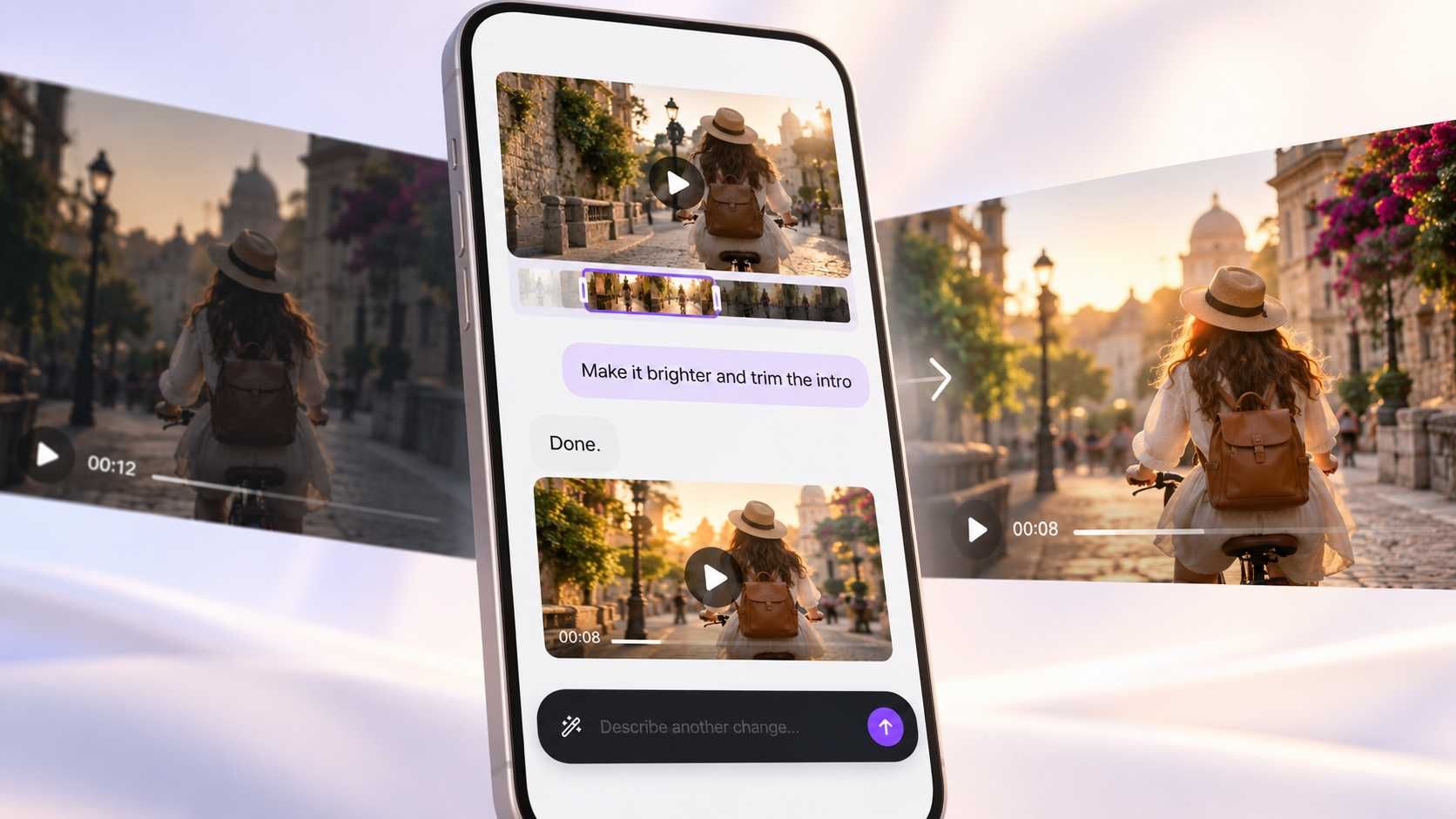
Ask for Changes in Plain Language
Refer to a clip by its content or scene number, such as “the clip where the kitten is walking” or “Scene 3.” Then explain what you want to change. You do not need to write a technical prompt.
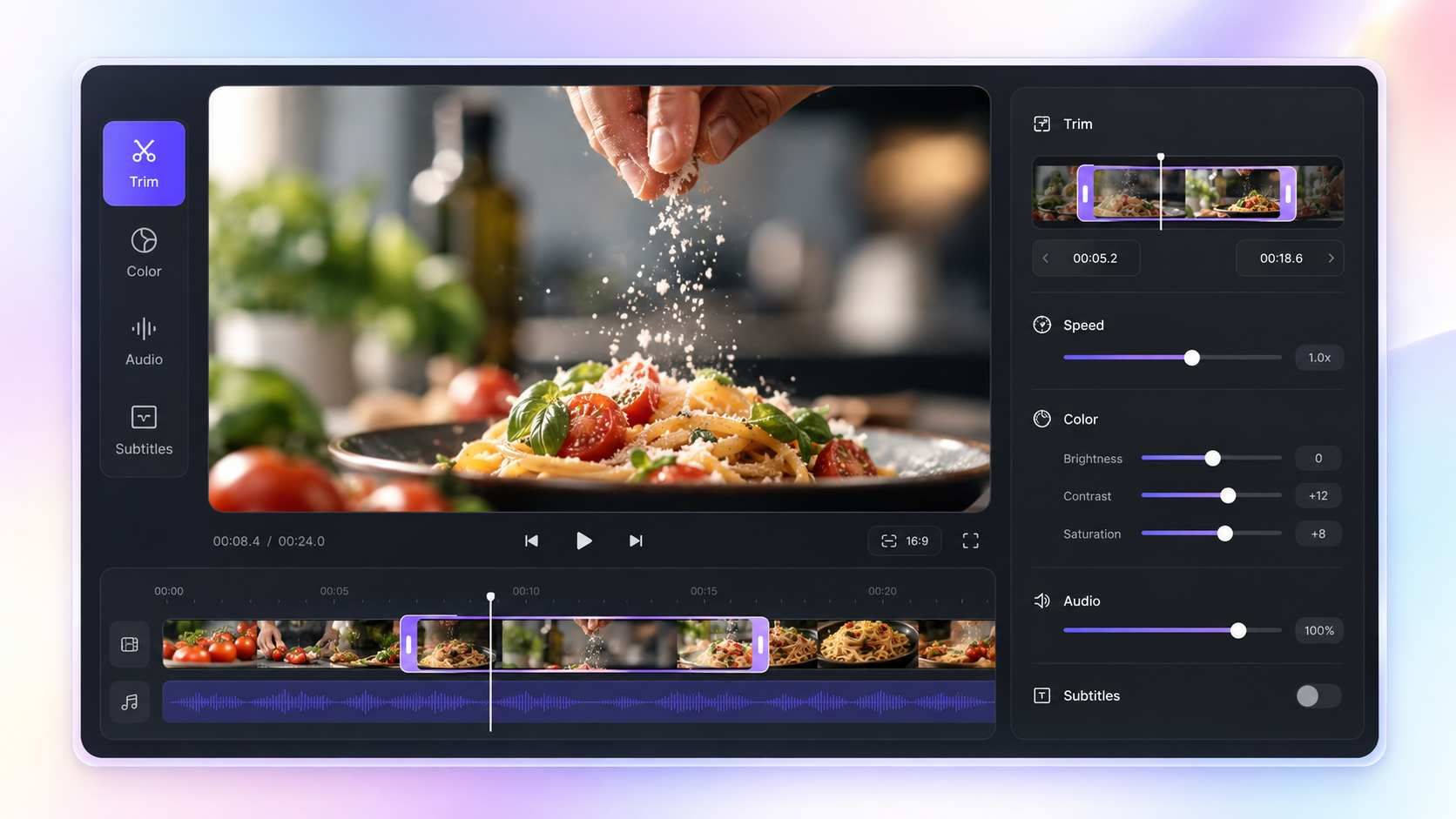
Fine-Tune the Details Yourself
Drag a clip’s edges to trim it. Select a clip to delete it, adjust its volume, or change its speed. Open the subtitle toolbar to edit the text and appearance.
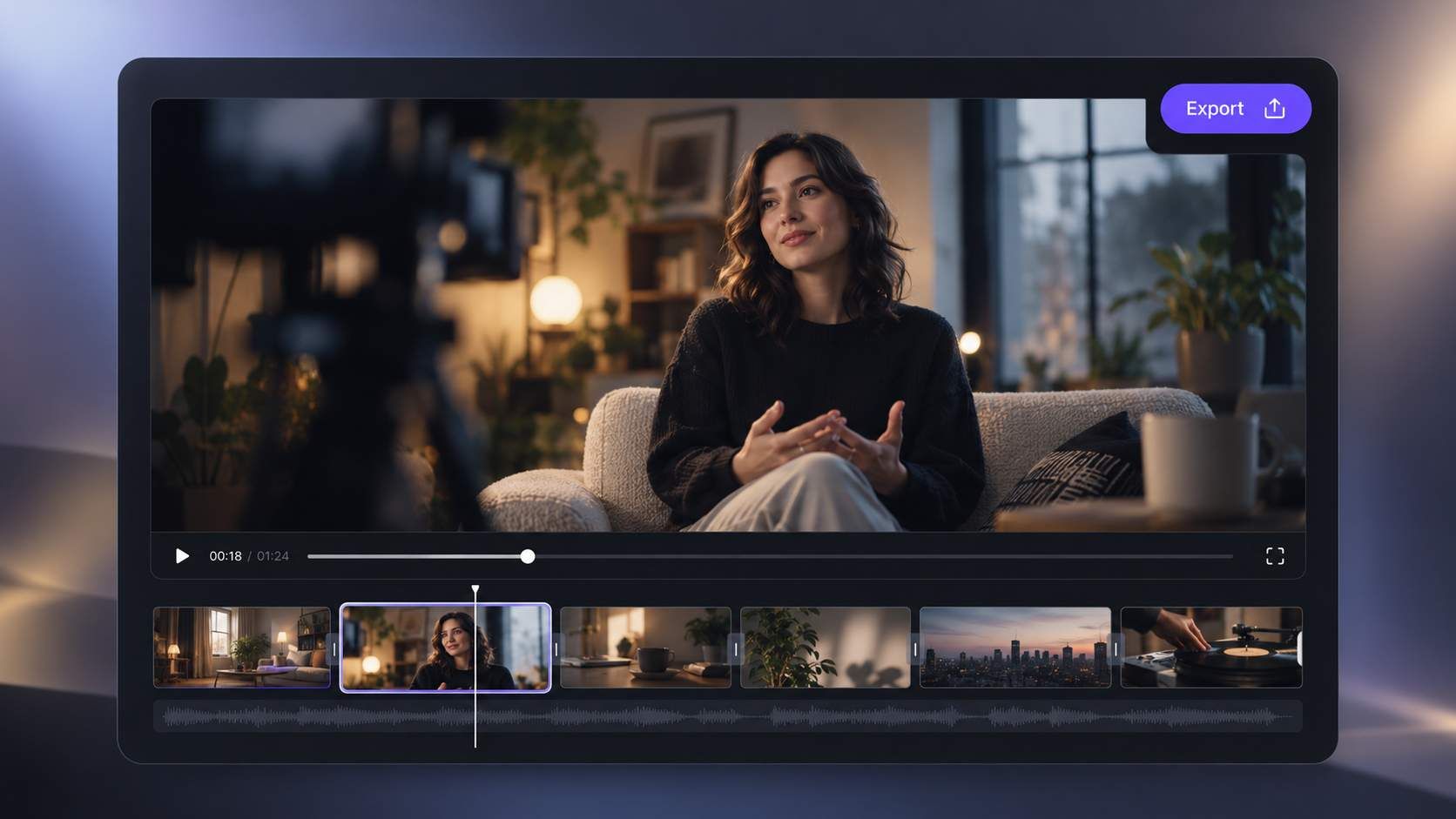
Preview the Full Video
Watch the result and check how the changes work together. Refine the pacing, review subtitle wording, and listen for overlapping audio before sharing your video.
How to Edit a Video with AI in 3 Steps
Step 1
Upload Your Video
Start a project in the aspect ratio you need, then upload your video and add it to the timeline. You can also bring in images, music, or a voiceover.
Step 2
Make Your Edits
Tell Medeo which clip needs a change, or use the timeline controls directly. Trim footage, adjust speed and volume, style subtitles, or replace a generated voiceover.
Step 3
Review and Export
Preview the full video to check timing, text, and sound. Make any final adjustments, then export in up to 1080p.
See Medeo’s AI Video Editor in Action
Compare the original video with the edited version. See how a focused change can make the final video clearer, smoother, and more ready to share.
Before
The video takes too long to reach the main subject.
After
The video starts closer to the key moment and gets to the point faster.
AI Video Editing Prompts You Can Try
Tell Medeo which part of the video you mean and what should change. For precise timing, subtitle styling, or volume levels, you can also use the timeline controls.
| What you want to edit | Prompt to try |
|---|---|
| Shorten a scene | “Make Scene 2 shorter and keep the product close-up.” |
| Change the pacing | “Make the opening faster, but slow down the final product shot.” |
| Update a specific clip | “Change the clip where the kitten is walking.” |
| Adjust the visual style | “Give Scene 3 a warmer and more cinematic look.” |
| Balance the audio | “Lower the built-in clip audio so the narration is easier to hear.” |
| Replace the voice | “Replace the current narration with [voice name].” |
AI Video Editing for Social Media, Ads, and More

Social Media Clips
Tighten your footage, adjust the pace, and make subtitles easier to read on a small screen. Start in a vertical format when editing for Reels, TikTok, or YouTube Shorts.
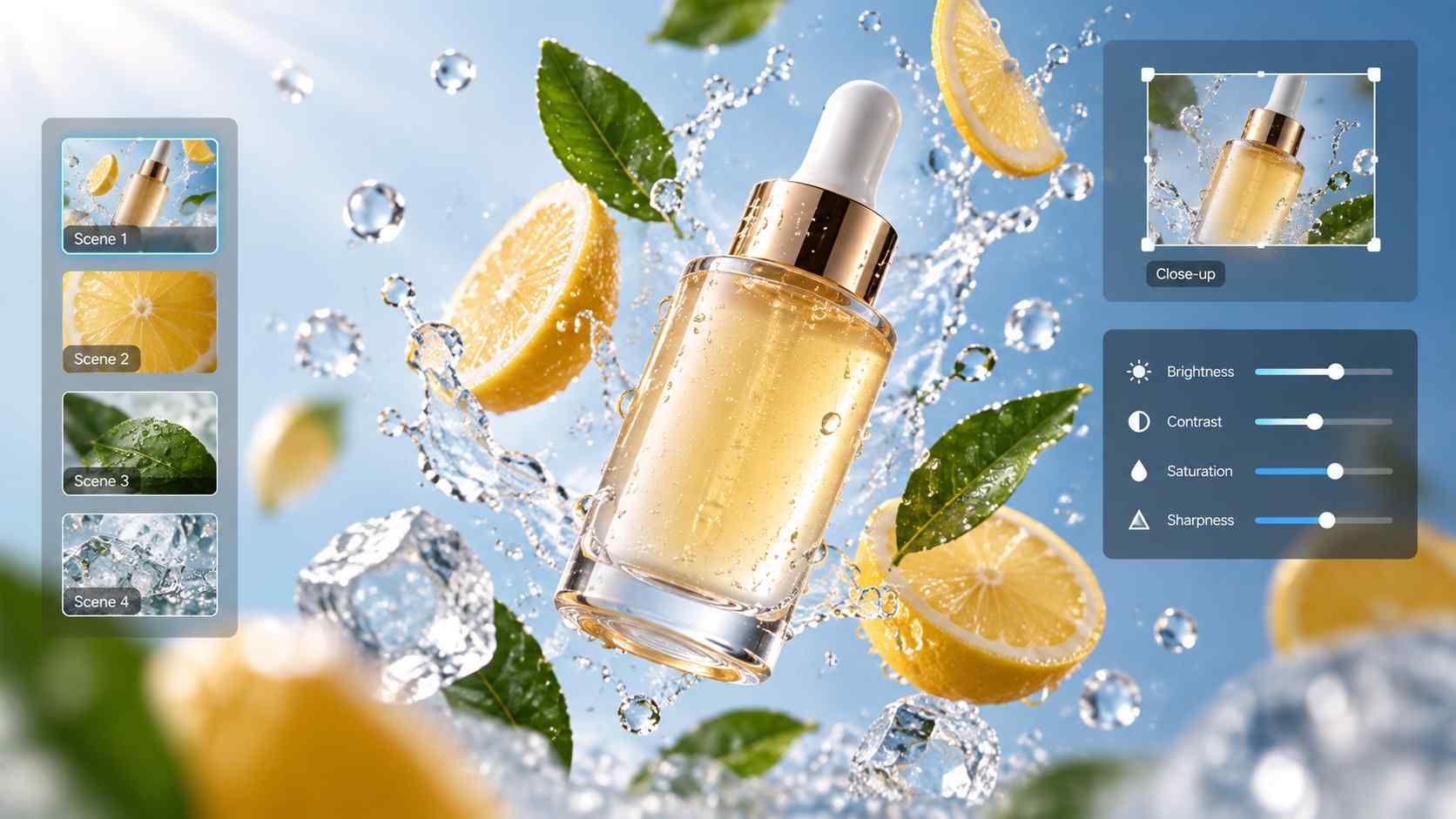
Product Demos and Ads
Shorten shots that run too long, slow down a useful product detail, and update the music or narration. Help viewers understand the product without making them wait for the main point.
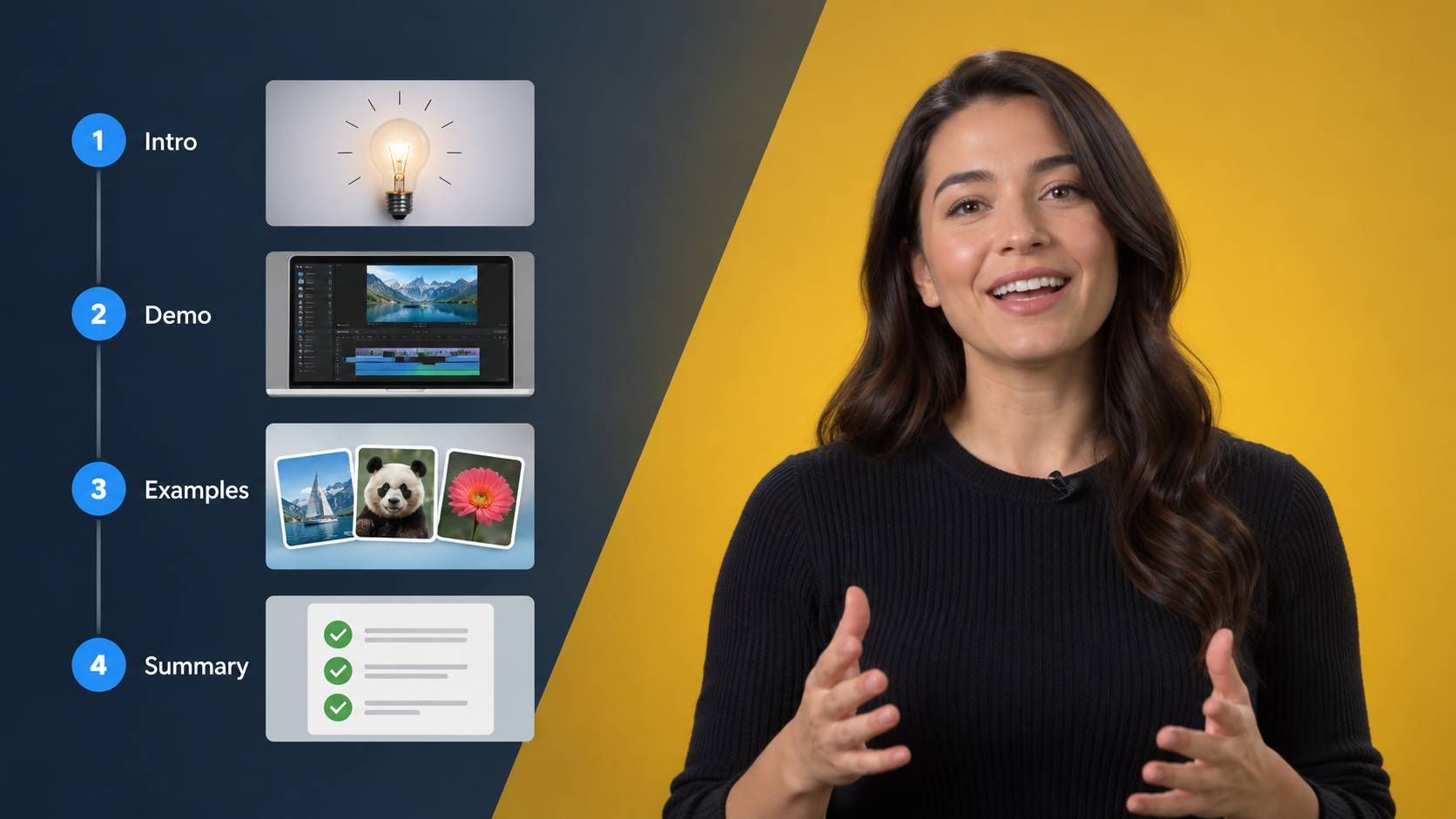
Tutorials and Explainers
Trim repeated instructions, correct subtitle text, and give viewers enough time to follow each step. Balance the voiceover and background sound so the explanation stays clear.
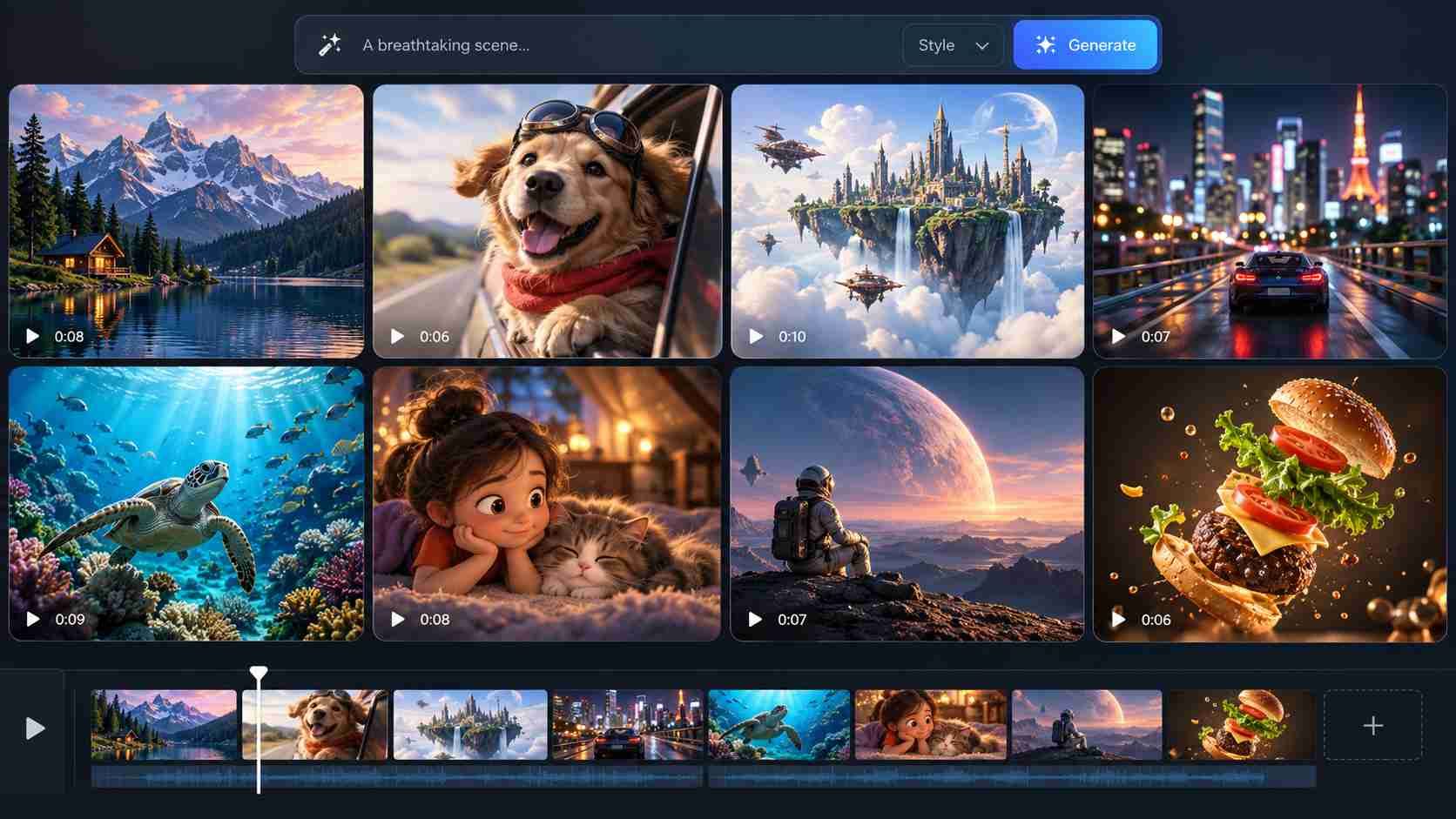
AI-Generated Video Projects
Polish generated clips before publishing. Adjust their length, playback speed, volume, subtitles, or voiceover, and update individual scenes that do not fit the rest of the video.
What Creators Say About Medeo AI Video Editor
"I usually know what I want to say, but putting the video together takes time. With Medeo, I can get a first cut from my idea and adjust the parts that don’t feel right."
Emma Collins
Content Creator
"The chat editing is what I use most. If a scene feels too slow or a caption needs work, I can just ask for a change instead of starting the edit over."
Daniel Rivera
Social Media Manager
"I usually know what I want to say, but putting the video together takes time. With Medeo, I can get a first cut from my idea and adjust the parts that don’t feel right."
Emma Collins
Content Creator
"The chat editing is what I use most. If a scene feels too slow or a caption needs work, I can just ask for a change instead of starting the edit over."
Daniel Rivera
Social Media Manager
"I needed a short product video but didn’t have footage or editing experience. Medeo gave me something I could work with, and I could keep refining it until it fit my brand."
Priya Sharma
Small Business Owner
"It’s useful when I want to test an idea before spending hours on it. I can see how the story flows, change a scene, and decide whether the video is worth taking further."
Marcus Bennett
YouTube Creator
"I needed a short product video but didn’t have footage or editing experience. Medeo gave me something I could work with, and I could keep refining it until it fit my brand."
Priya Sharma
Small Business Owner
"It’s useful when I want to test an idea before spending hours on it. I can see how the story flows, change a scene, and decide whether the video is worth taking further."
Marcus Bennett
YouTube Creator