AI Video Upscaler: Upscale Videos to 4K Online
Turn low-resolution footage into clearer, higher-resolution video with Medeo's AI video upscaler. Upload a clip, choose 1080p or 4K output, and let AI enhance the frames for sharper playback. Export the result or continue building your video in Medeo.
Upload Your Video Here and Tell Medeo How to Upscale It
Enhance Video Quality with AI
More pixels alone do not make a video look better. Effective AI video upscaling should improve perceived clarity while keeping motion, textures, and the original visual character in balance. Use Medeo to prepare low-resolution clips for modern screens, creative edits, and finished video projects.
Sharpen Soft and Low-Resolution Footage
Give small, soft, or compressed clips a cleaner presentation at a higher output resolution. AI examines visual patterns in each frame and enhances edges and textures where useful, helping footage appear more defined during playback. Results still depend on the source, so beginning with the clearest available original gives the upscaler more reliable information to work with.
Preserve Natural Detail Across Frames
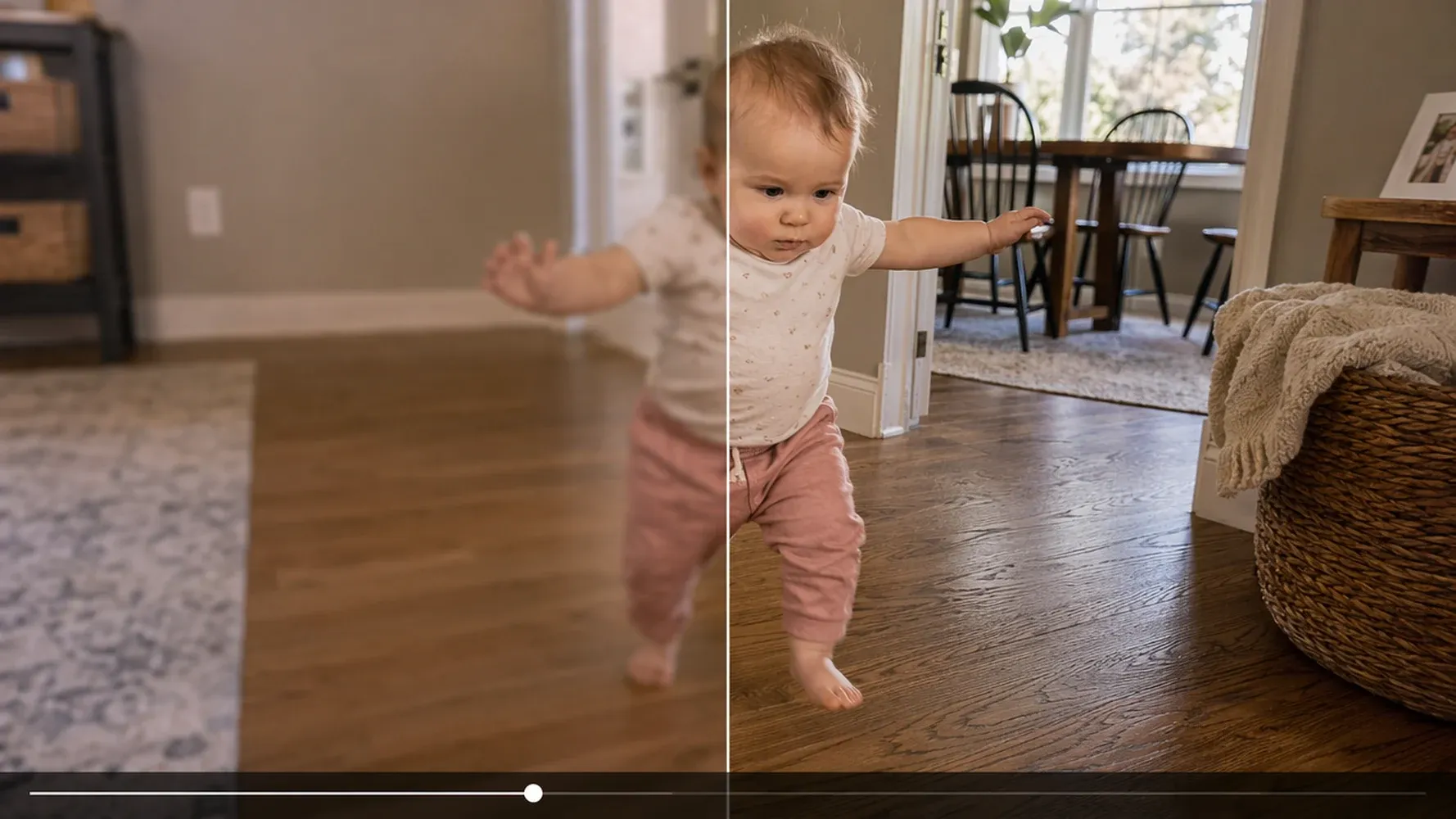
Video enhancement must look coherent in motion, not only in a paused comparison. Medeo processes the clip as video so textures, edges, and moving subjects can remain visually balanced from frame to frame. This helps reduce the harsh, overprocessed look that can appear when sharpening is pushed too far, especially around faces, clothing, text, and fine patterns.
Prepare Clearer Video for Larger Screens
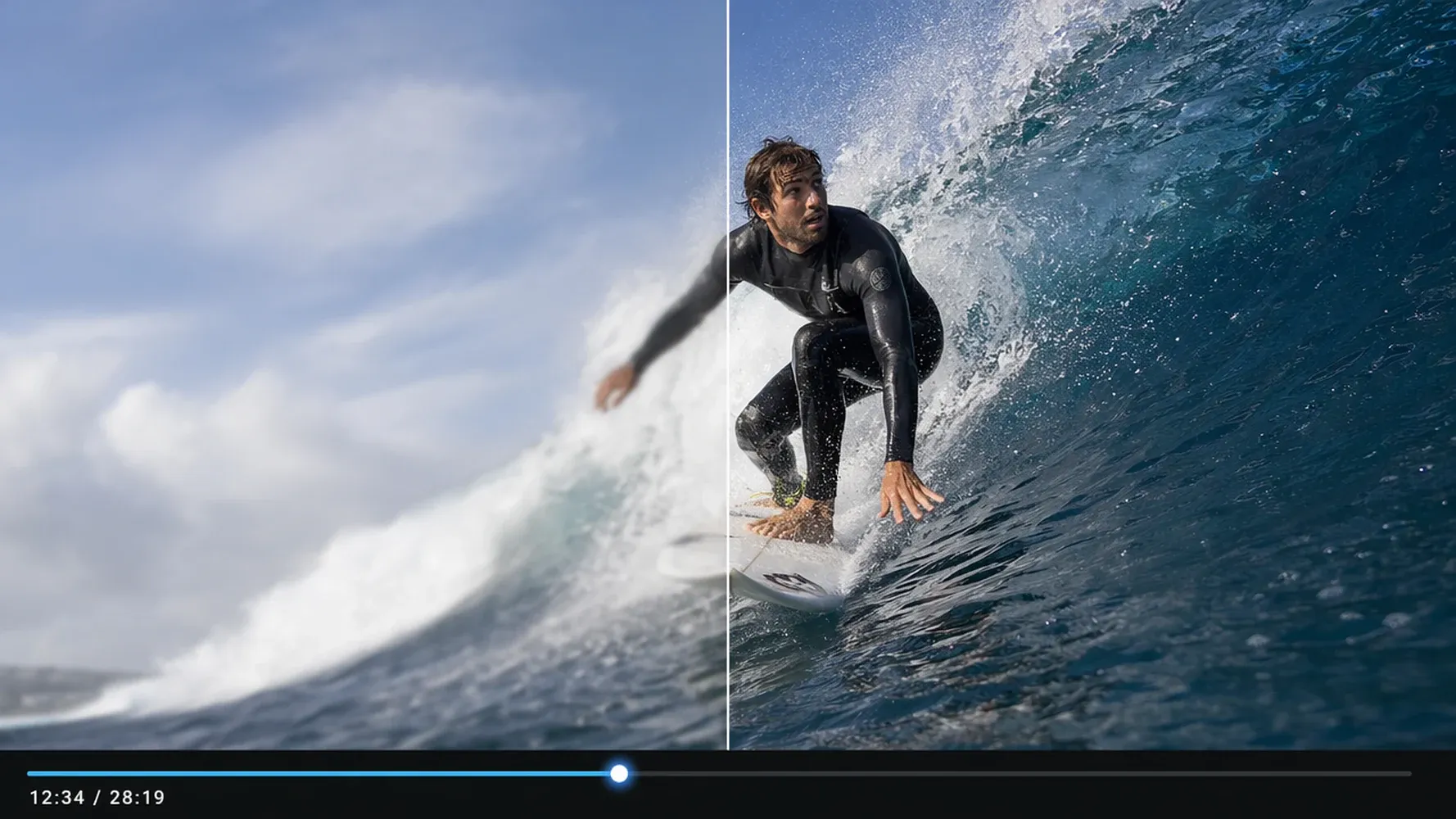
Low-resolution footage can look acceptable on a phone but visibly soft when expanded across a laptop, television, projector, or presentation display. Upscaling creates a larger output frame and improves perceived clarity for those viewing conditions. Use it to prepare older clips, cropped footage, and creator assets for layouts where the original resolution no longer fills the screen comfortably.
Upscale Video to 1080p or 4K
Choose an output that fits the way your video will be watched. HD is practical for everyday publishing, while 4K gives compatible projects a larger frame for high-resolution displays and production workflows. The best choice depends on your source, platform, processing budget, and final delivery needs.
Convert Low-Resolution Video to HD
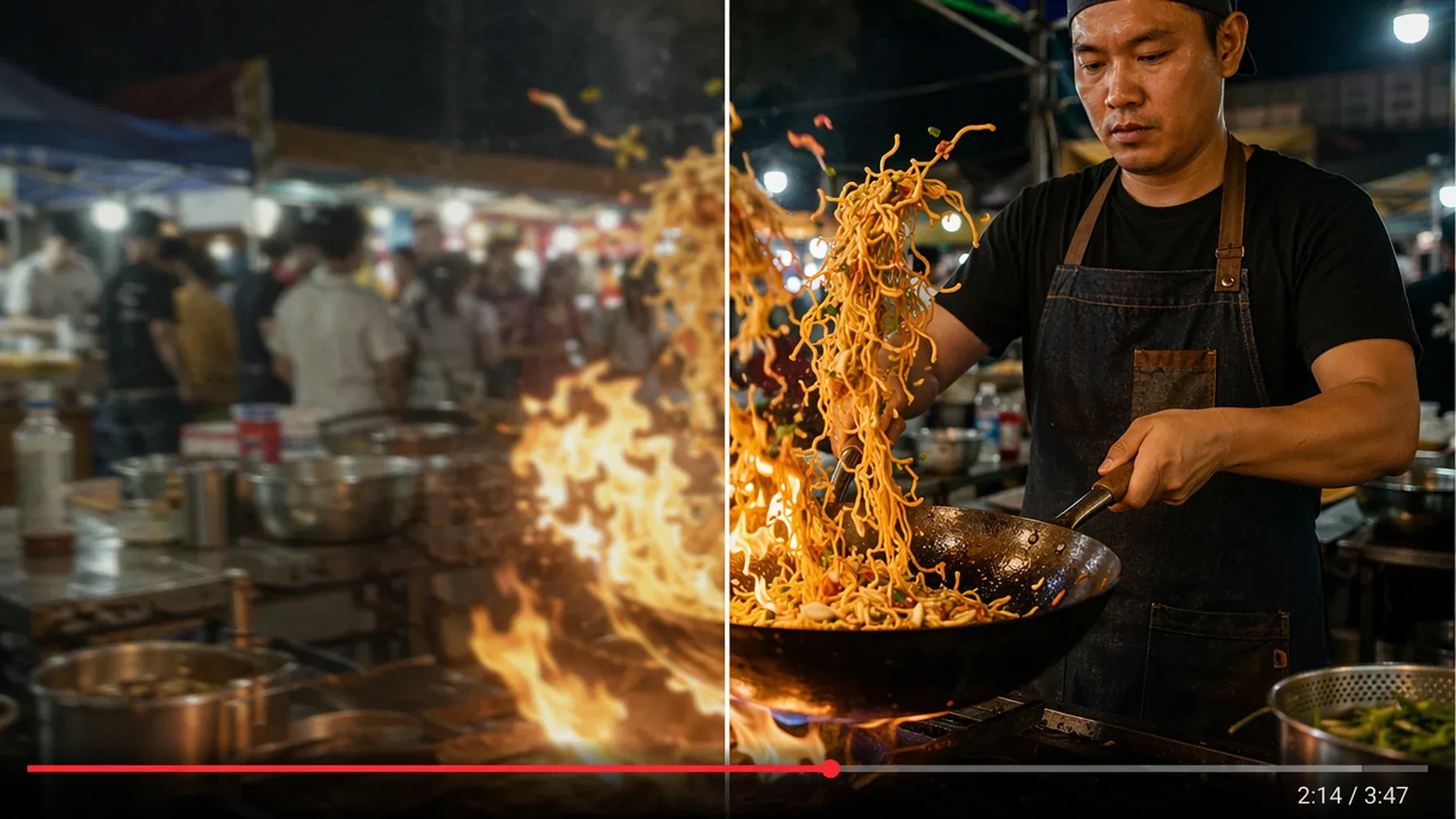
Upscale smaller footage to 1080p HD for presentations, websites, social posts, and standard video platforms. The larger frame can integrate more naturally with current editing timelines and screen layouts without leaving a visibly undersized source. For the strongest result, review fine text, faces, and heavily compressed areas before using the enhanced clip in a final production.
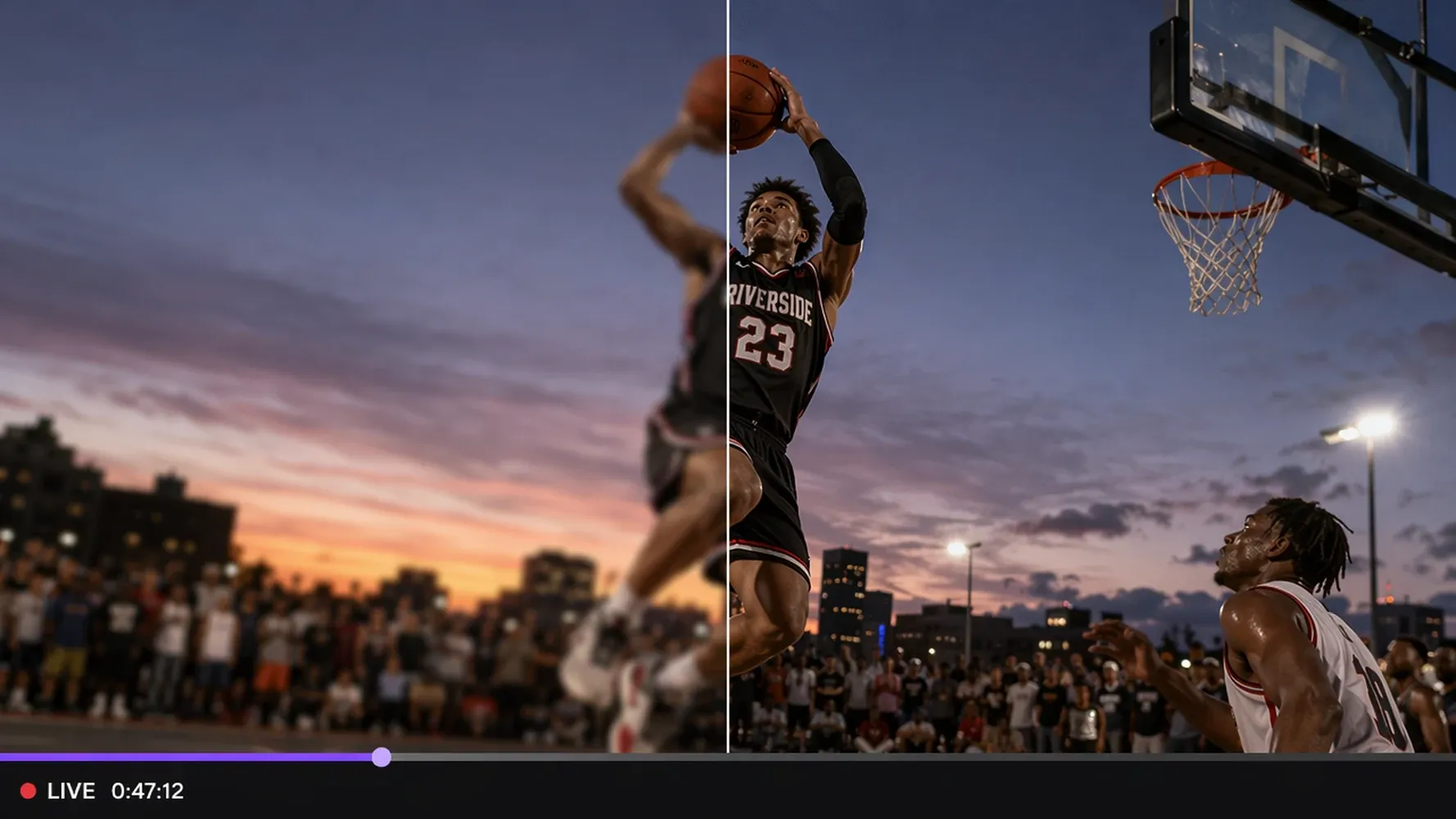
Create 4K Video for High-Resolution Playback
Choose 4K when your delivery format, display, or editing workflow benefits from a larger output frame. AI 4K upscaling can make lower-resolution footage easier to use alongside modern assets, but it cannot perfectly reconstruct every detail missing from the source. Treat the result as an enhanced interpretation and review it at the size viewers will actually see.
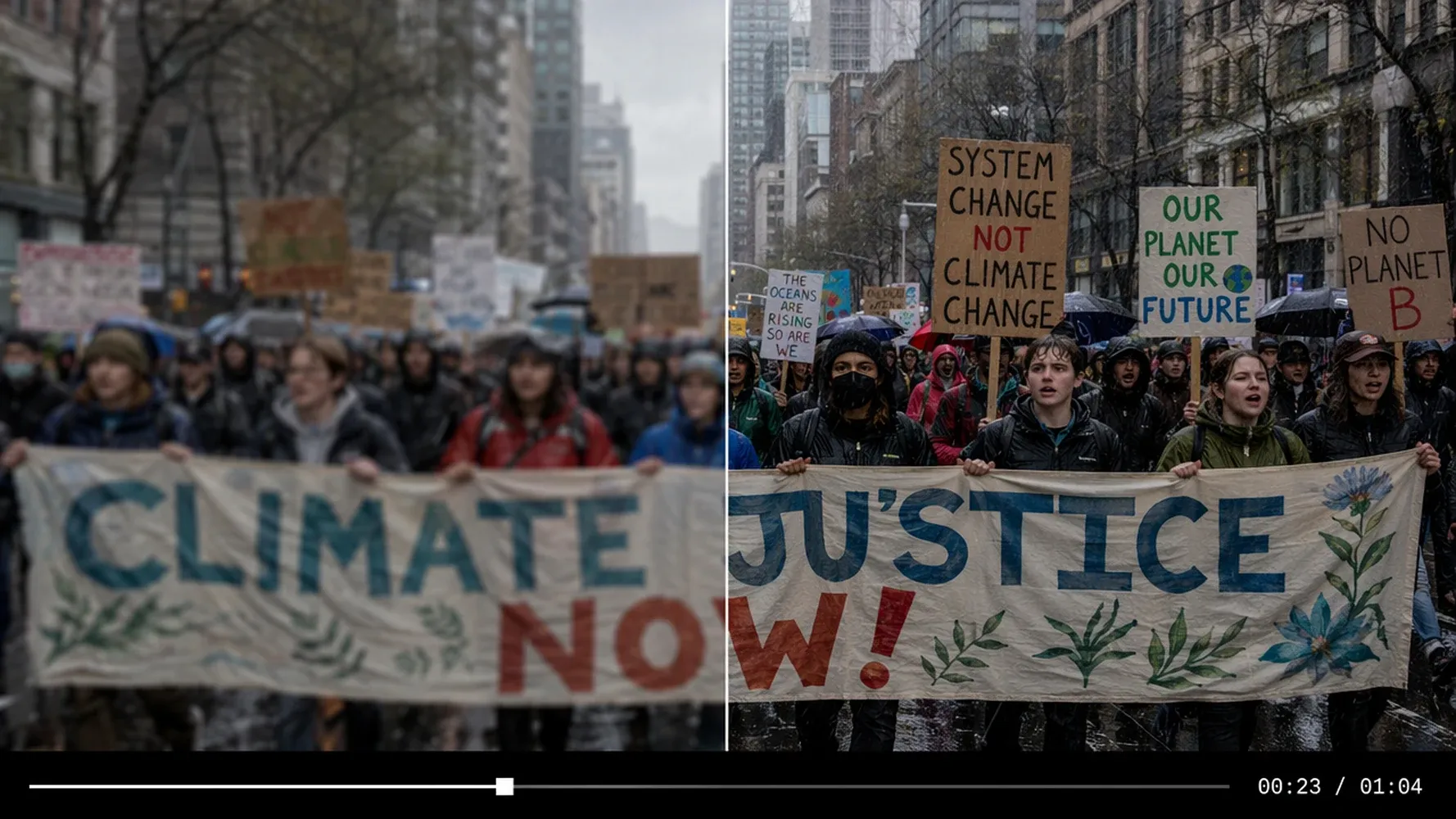
Preview the Difference Before Export
Compare the original and enhanced video before committing the result to a larger project. Look beyond a single sharp frame: play sections with movement, faces, texture, text, gradients, and compression artifacts. A useful preview helps you choose the resolution that improves the viewing experience without adding unnecessary processing or making the footage appear unnaturally crisp.
AI Video Upscaling for Every Kind of Footage
An AI video resolution upscaler can help when a useful clip does not match the quality or dimensions of the project around it. From archived memories to fresh campaign assets, enhance footage with a clear purpose and judge the result in its final viewing context.
Restore Old and Archived Videos
Give family recordings, historic footage, early digital video, and older project archives a more watchable presentation on current screens. Upscaling can enlarge the frame and improve perceived clarity without changing the events captured in the source. Severe blur, damage, and compression may remain, so preserve the original file and review the enhanced version as a respectful interpretation.
Improve Social Media and Creator Clips
Reuse a promising clip that was downloaded, cropped, recorded at a smaller resolution, or pulled from an older content library. Upscale it before adding captions, reframing for vertical formats, or combining it with newer footage. Creators and social teams can make more of existing material while keeping visual quality more consistent across posts, shorts, promos, and channel updates.
Polish Product Videos and Marketing Assets
Prepare demonstrations, testimonials, campaign clips, and product footage for landing pages, sales decks, advertisements, and larger displays. A higher-resolution output can fit more comfortably beside current brand assets and interface captures. Marketing teams can extend the useful life of approved footage without scheduling another shoot simply because the original frame is too small for a new layout.
Prepare AI-Generated Clips for Final Production
Bring generated scenes and supporting clips closer to the resolution required by the final edit. Upscale selected assets before arranging them with narration, music, captions, product shots, and other footage in a complete sequence. This gives creators a practical bridge between generating an interesting moment and delivering a cohesive video with consistent dimensions across the timeline.
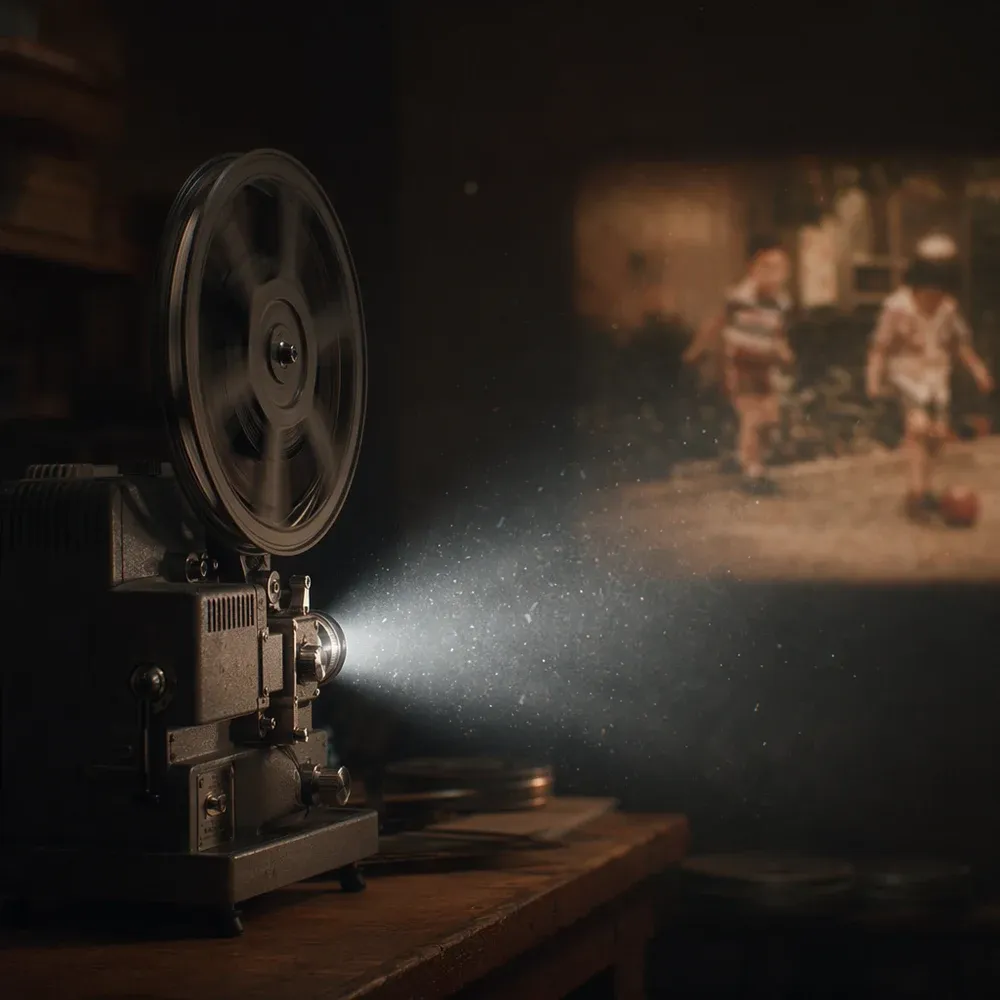
How to Upscale a Video with AI
You do not need to resize every frame manually. Start with the best source available, choose an output resolution that matches your destination, and inspect the enhanced clip before publishing or continuing your edit.
Step 1
Upload Your Video
Choose the low-resolution or soft-looking clip you want to enhance. Starting with the original file usually gives AI more useful information than a copy that has already been downloaded, recompressed, or repeatedly exported.
Step 2
Choose Your Target Resolution
Select 1080p for common HD delivery or 4K for a larger output frame. Match the setting to your platform and source quality; a higher number does not automatically produce a more natural-looking result.
Step 3
Let AI Upscale the Video
Start processing and let Medeo analyze the visual information across the clip. Processing time can vary with video length, source resolution, output resolution, and current system demand.
Step 4
Export or Continue Creating in Medeo
Review motion, faces, text, and detailed areas, then download the enhanced clip or continue building in Medeo. Add scenes, voice, music, captions, and timing to turn the upscaled asset into a complete video.
Why Choose Medeo as Your AI Video Upscaler
The best AI video upscaler is the one that fits the entire job, not just the resolution change. Medeo gives creators a straightforward enhancement step and a path forward, helping an improved clip become part of a structured ad, explainer, social post, music visual, or story.
Simple Online Video Upscaling
Move from upload to enhanced output through a focused online workflow without learning a dense professional restoration interface. Choose the video and intended resolution, start the process, and review the result in a few clear steps. This makes AI video upscaling approachable for marketers, creators, and small teams that need useful footage without turning every task into a technical project.
Clearer Results That Respect the Original Look
Enhancement should support the footage rather than bury it under artificial texture. Medeo aims for a balanced result that improves perceived definition while retaining the source video's recognizable colors, subjects, and visual mood. You stay responsible for the final judgment, with room to compare the output, inspect difficult moments, and decide whether it suits the intended audience and screen.
A Connected Path from Enhanced Clip to Complete Video
An upscaled file is often only one part of the work. Continue from the enhanced clip into a broader creation flow with scenes, narration, music, captions, and timing. Medeo helps agencies, marketers, and independent creators move from fixing a source asset toward assembling a complete video while keeping the message, style, and creative direction in their own hands.
AI Video Upscaler FAQs
Get straightforward answers about AI upscaling, 1080p and 4K output, free trial access, source quality, processing, and the difference between video and image enhancement.
See Why Creators Choose Medeo
Creators use Medeo to move from source assets and early ideas toward complete videos while retaining control over the message, visual direction, and final result.
"Medeo's AI Video Upscaler transformed several old, low-resolution clips into sharp, professional-looking videos. The improvement in clarity was immediately noticeable."
Michael Turner
Video Producer
"I regularly upscale videos for social media, and Medeo delivers excellent results. The footage looks cleaner, sharper, and much more engaging."
Sophia Carter
Content Creator
"Many of our archived videos were too low-quality for modern campaigns. Medeo helped us enhance them quickly without the need for expensive editing software."
Daniel Foster
Marketing Specialist
"Medeo's AI Video Upscaler transformed several old, low-resolution clips into sharp, professional-looking videos. The improvement in clarity was immediately noticeable."
Michael Turner
Video Producer
"I regularly upscale videos for social media, and Medeo delivers excellent results. The footage looks cleaner, sharper, and much more engaging."
Sophia Carter
Content Creator
"Many of our archived videos were too low-quality for modern campaigns. Medeo helped us enhance them quickly without the need for expensive editing software."
Daniel Foster
Marketing Specialist
"What impressed me most is how well Medeo preserves details while increasing resolution. The upscaled videos look natural rather than artificially sharpened."
Olivia Bennett
Creative Director
"Medeo's AI Video Upscaler gave new life to my older content. The enhanced quality makes previously unusable footage suitable for publishing again."
Ryan Mitchell
YouTube Creator
"The speed and quality are outstanding. Medeo improves video resolution while maintaining smooth motion and visual consistency throughout the clip."
Emma Roberts
Freelance Video Editor
"What impressed me most is how well Medeo preserves details while increasing resolution. The upscaled videos look natural rather than artificially sharpened."
Olivia Bennett
Creative Director
"Medeo's AI Video Upscaler gave new life to my older content. The enhanced quality makes previously unusable footage suitable for publishing again."
Ryan Mitchell
YouTube Creator
"The speed and quality are outstanding. Medeo improves video resolution while maintaining smooth motion and visual consistency throughout the clip."
Emma Roberts
Freelance Video Editor
Explore More AI Video Tools
Continue after upscaling. Generate new footage, shape the wider edit, or enhance a still asset with related Medeo tools built for different parts of the creative workflow.

Learn More About Video Quality Enhancement
Explore practical guides to resolution, AI enhancement, and source quality before choosing settings for an important video project.
How to Make Educational Videos with AI: Step-by-Step Guide
Learn how to make educational videos with AI using lesson notes, slides, scripts, visuals, voiceovers, captions, and templates for courses, classrooms, training, and social learning content.
TIAN YUAN · May 9, 2026 · 19 min read
How to Make Brainrot Videos with AI (Step-by-Step Guide)
Medeo Brainrot videos are everywhere right now — and they're pulling millions of views on TikTok, YouTube Shorts, and Instagram Reels.
TIAN YUAN · Apr 29, 2026 · 13 min read

7 Best AI Love Story Video Generators in 2026 (Tested & Compared)
Discover the 7 best AI love story video generators in 2026 — tested and compared. From cinematic narratives to anniversary films, find the right tool for every romantic occasion.
TIAN YUAN · Apr 29, 2026 · 13 min read