GPT Image 2 AI Image Generator: Create and Edit Images Online
Turn a written idea or reference image into a visual you can keep refining. Use GPT Image 2 in Medeo to generate images, make focused edits, and carry your strongest results into a larger video workflow—all from one creative workspace.


What Is GPT Image 2?
GPT Image 2 is OpenAI’s newer image-generation experience. It brings image creation and editing into a conversational workflow, so you can describe what you want and refine the result with follow-up instructions.
What the GPT Image 2 Model Can Create
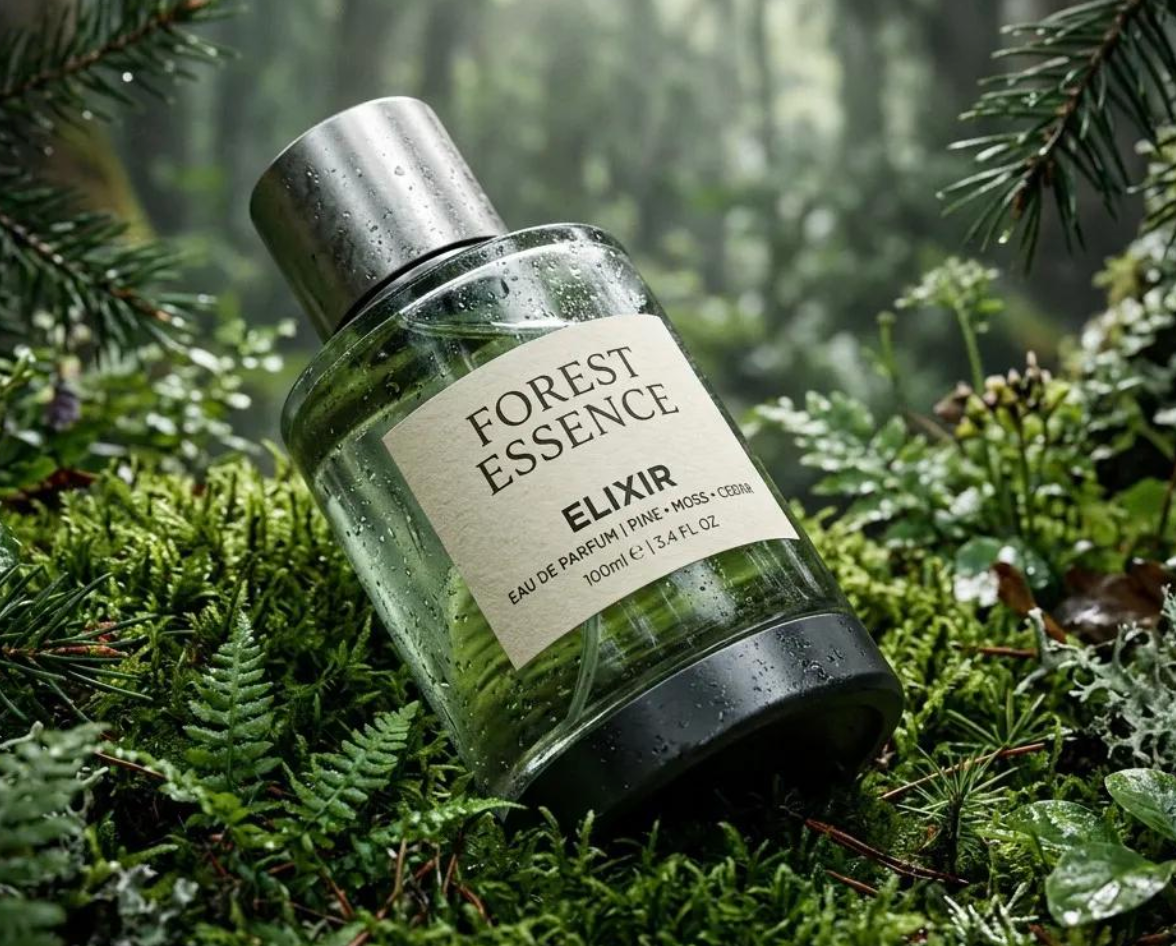
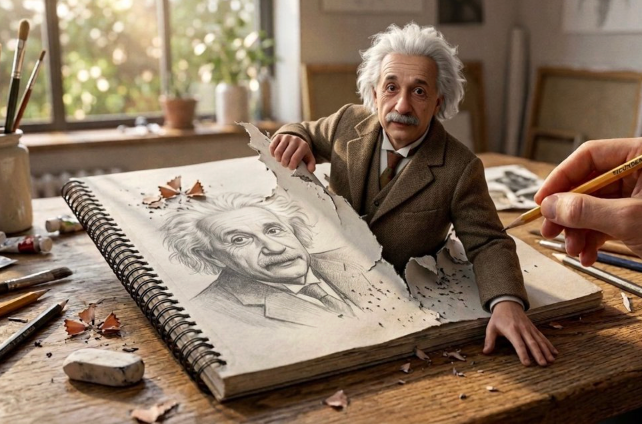
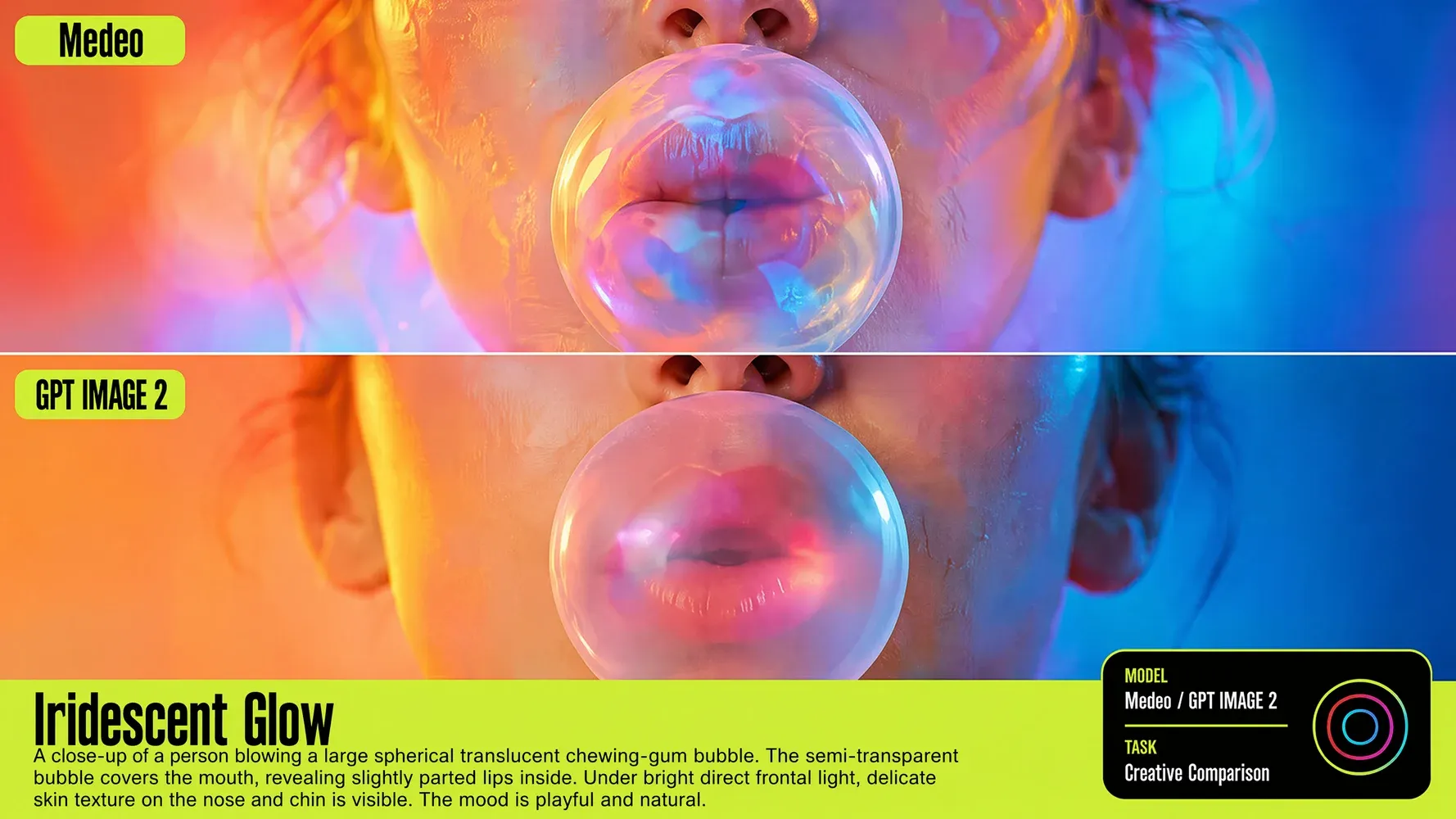
Use GPT Image 2 for illustrations, campaign concepts, product scenes, posters, social graphics, storyboards, and other visual drafts. You can begin with a text prompt, provide a reference image, or request an edit to an existing visual. The result can then become a standalone asset or the starting point for a video in Medeo.
Create Images with GPT Image 2 in Medeo
Move from an initial idea to a usable visual without breaking your flow across separate tools. Medeo gives you a conversational place to generate, review, and refine images before continuing into broader content creation.
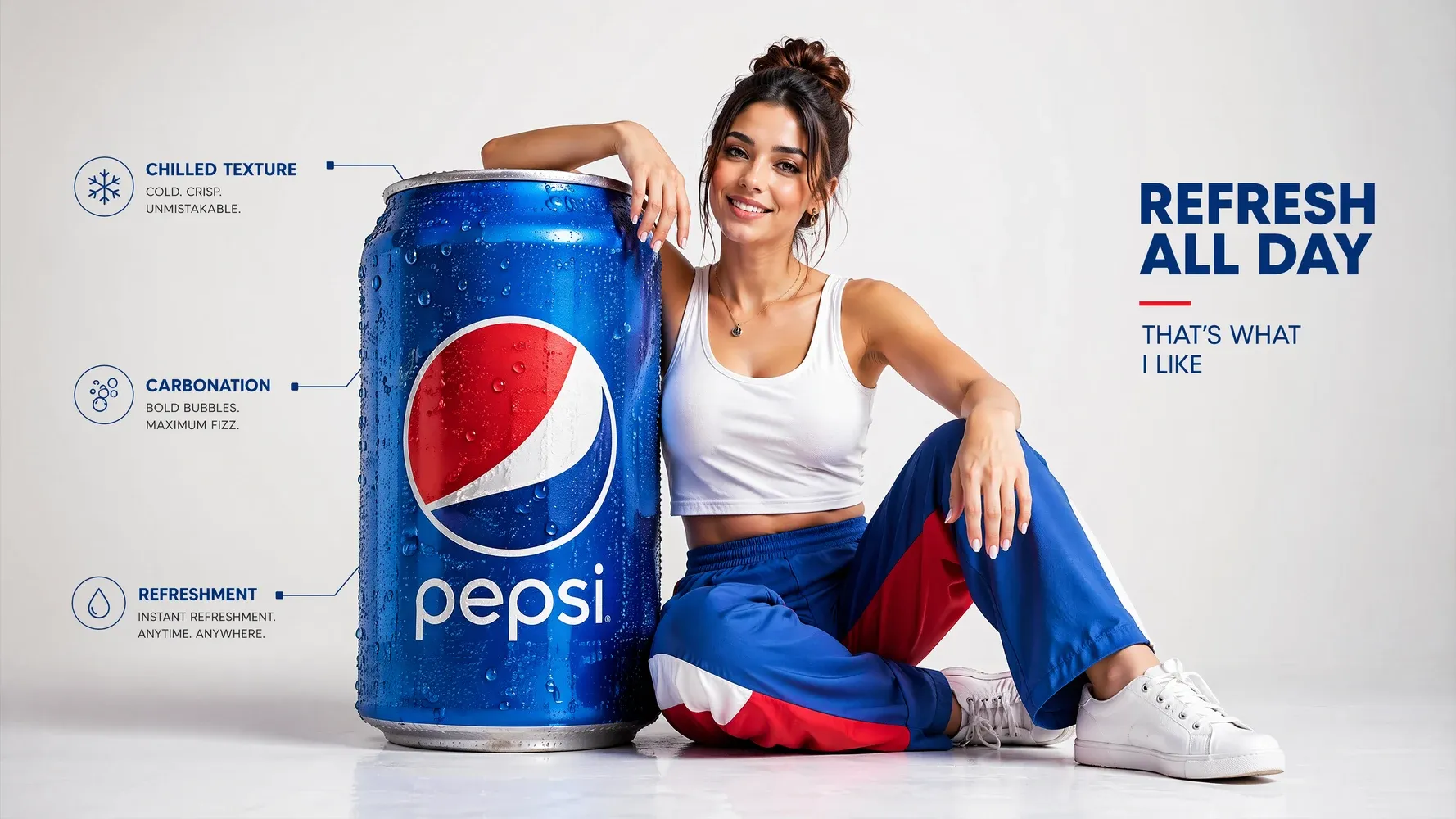
Generate Images from Text Prompts
Describe the subject, setting, composition, mood, and visual style you want to see. GPT Image 2 interprets those instructions together, helping you move from a rough concept to a clear visual direction. This is useful for creators and marketers who need to explore campaign ideas, story frames, or branded concepts before committing to production.
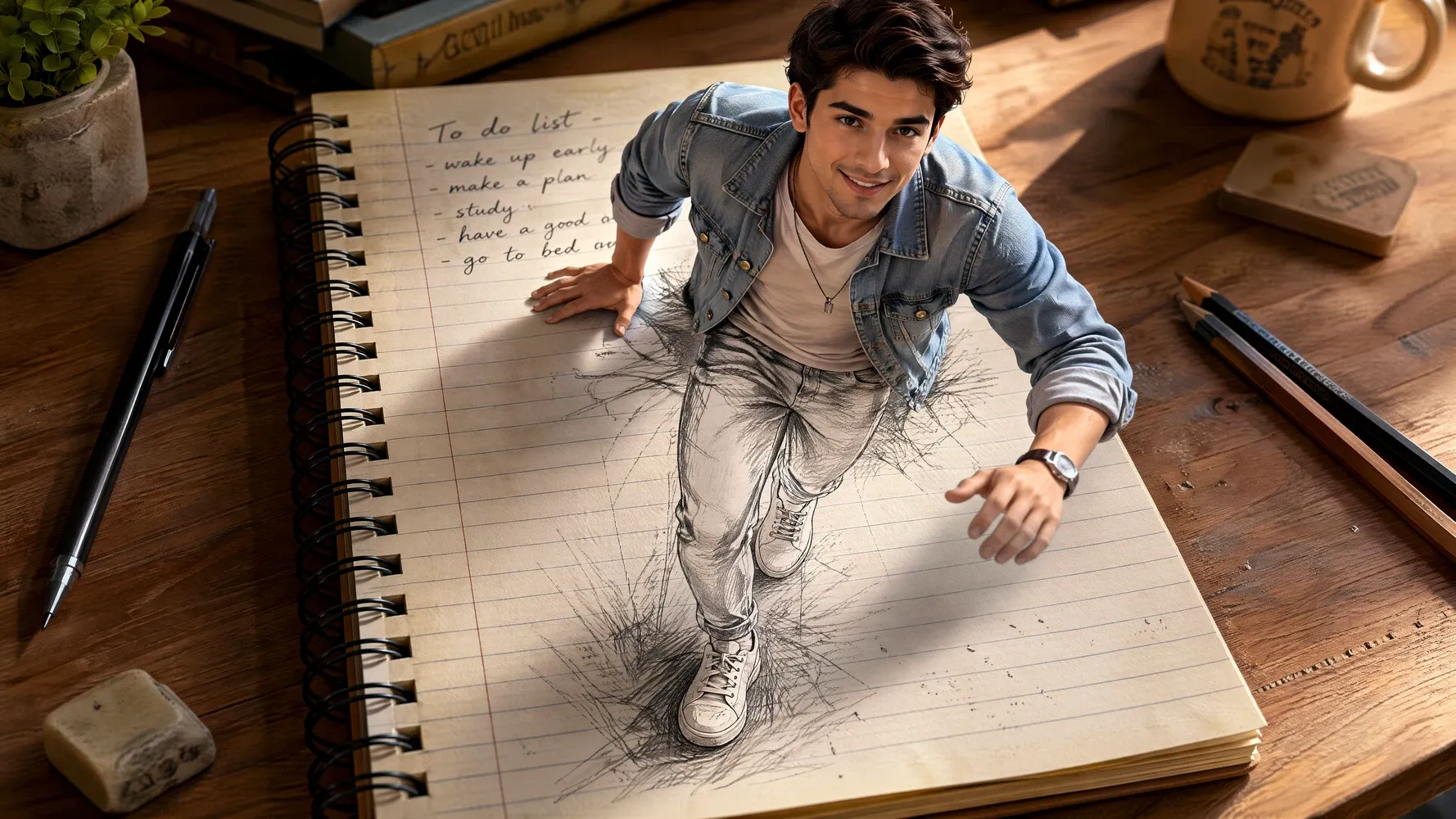
Edit Images with Natural Language
Ask for focused changes in everyday language instead of rebuilding the whole image manually. You can describe the element to adjust, the result you want, and what should remain unchanged. This conversational editing flow makes it easier to test alternate backgrounds, colors, layouts, or details while keeping your original creative direction visible throughout the process.
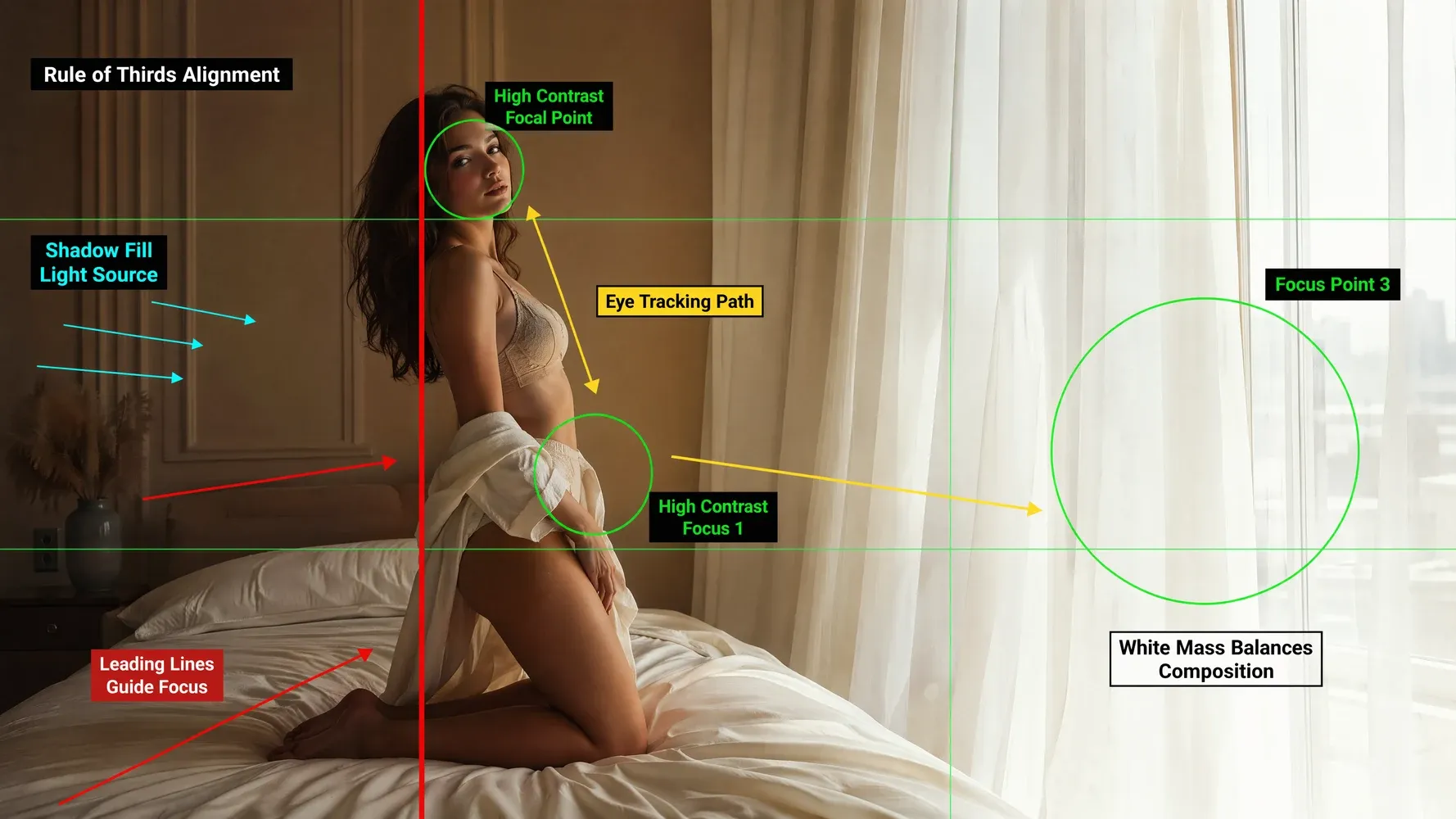
Create from Reference Images
Upload a reference when words alone cannot capture the look, character, product, or composition you have in mind. The reference gives the model a visual starting point while your prompt explains what to preserve or transform. This helps teams explore new scenes and variations without losing the recognizable qualities that made the source image useful.
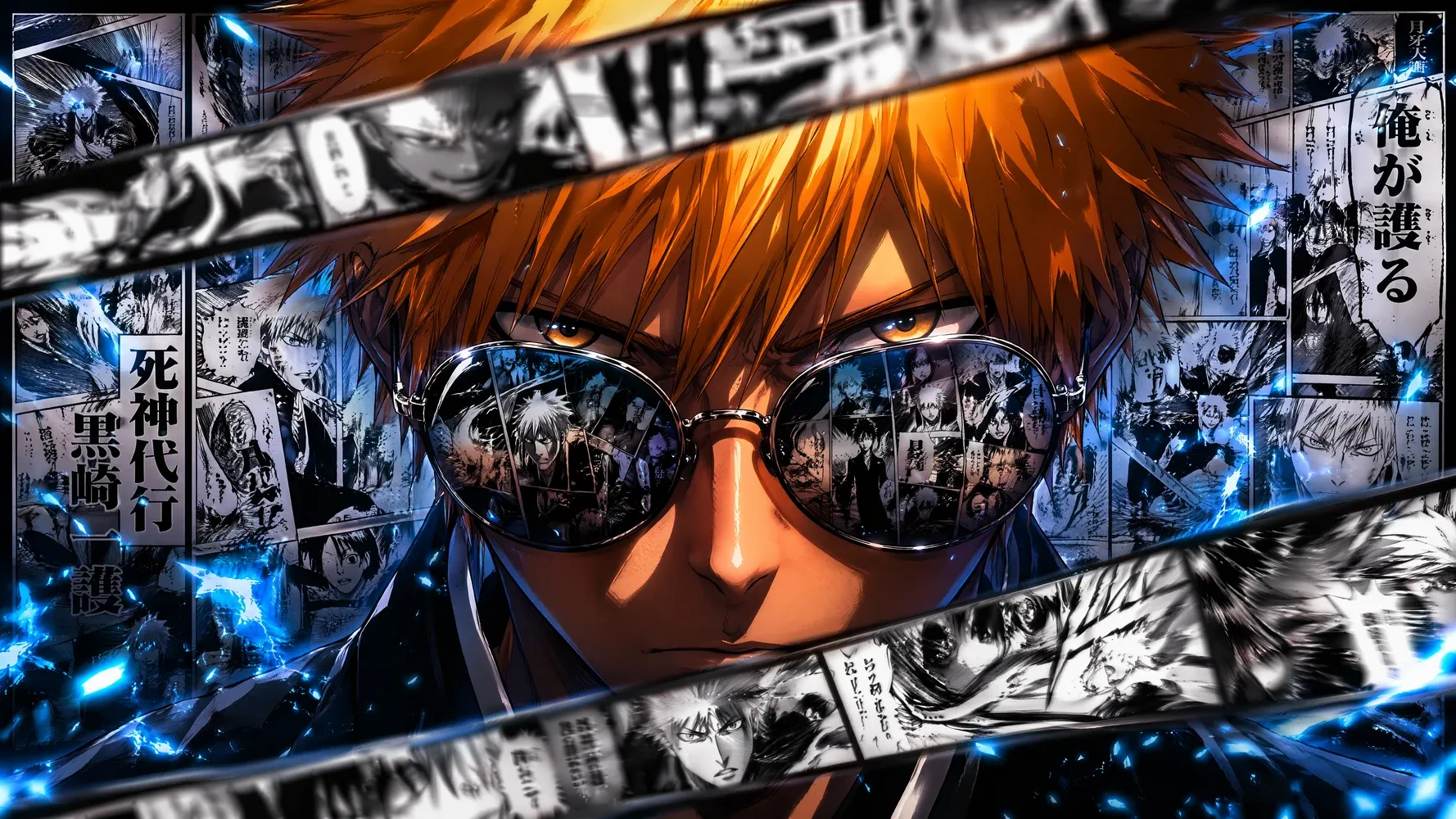
Refine Images Through Conversation
Treat the first generation as a draft rather than a final answer. Continue the conversation to improve framing, correct details, simplify the scene, or explore a new treatment. Iterative refinement keeps creative decisions in your hands and lets the model handle execution, so you can reach a stronger result without writing one enormous prompt upfront.
Bring More Control to AI Image Creation
Good image generation is not only about producing something attractive. It is about directing the details that make a visual useful for a real campaign, story, product, or audience.
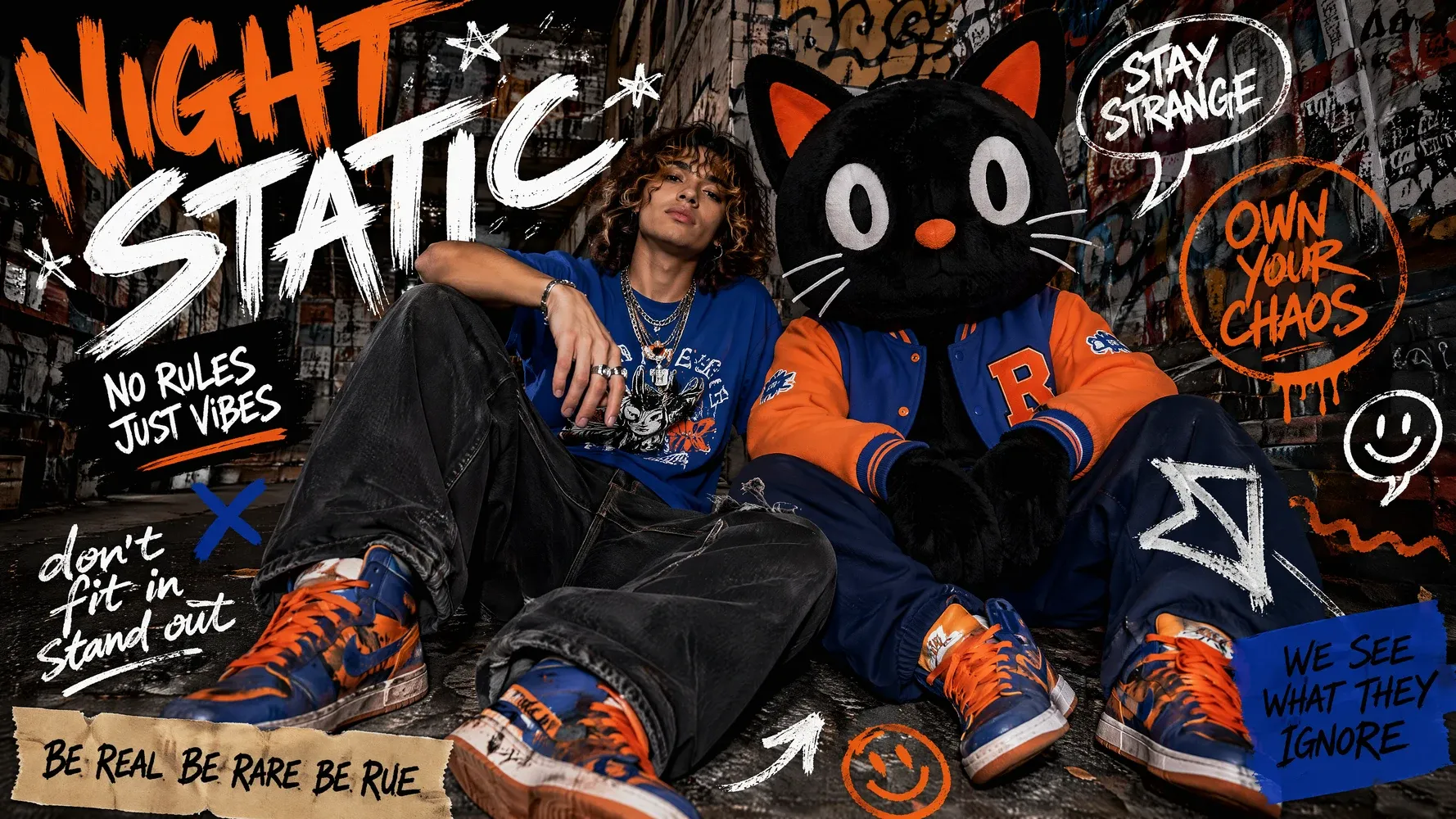
Design Text-Heavy Visuals
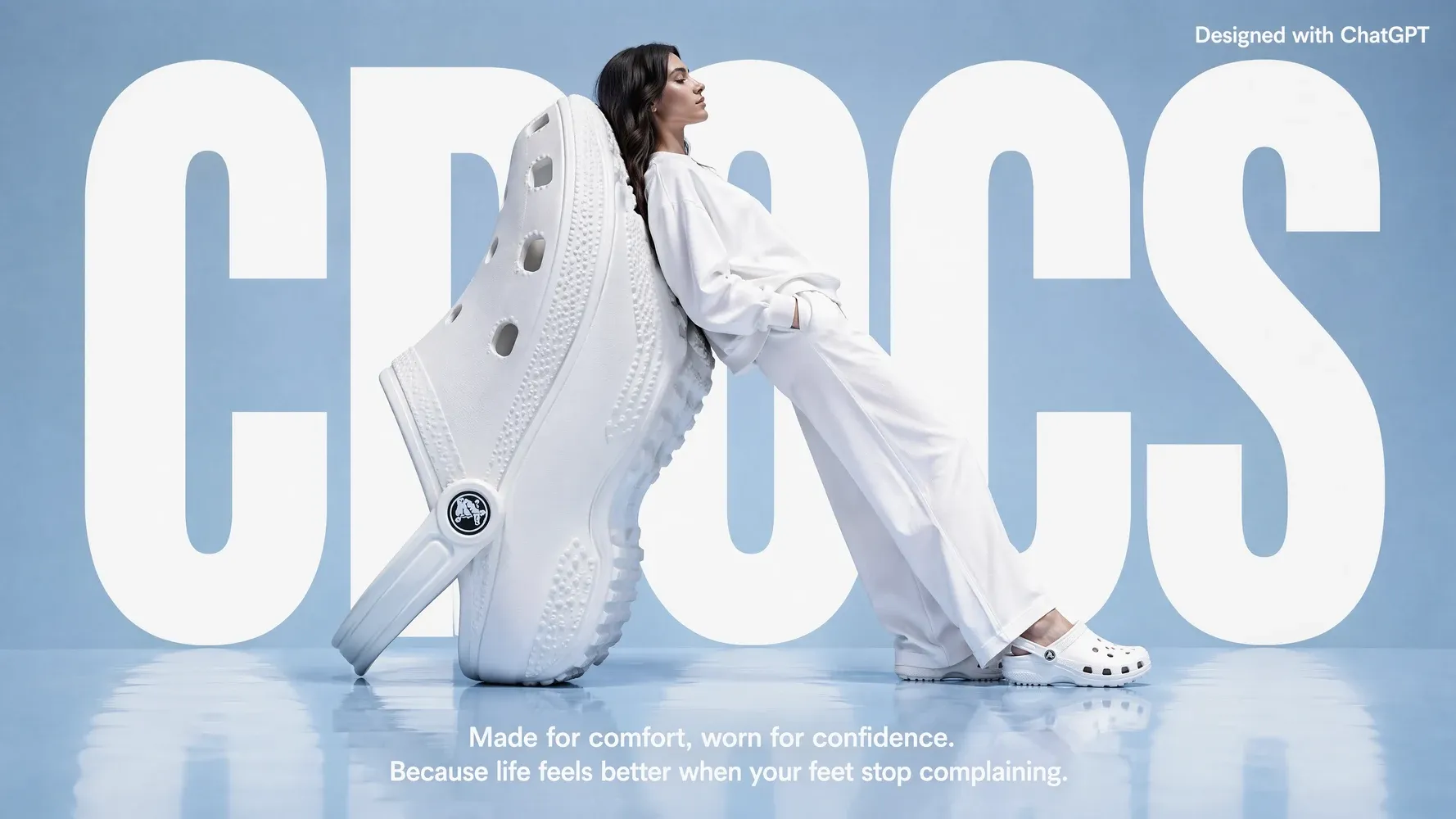
Create concepts for posters, covers, menus, packaging, and social graphics where words are part of the composition. Specify the exact copy, its placement, hierarchy, and surrounding design in your prompt. Clear instructions help you explore layouts faster and reduce the gap between a visual idea and an asset that a designer can refine.
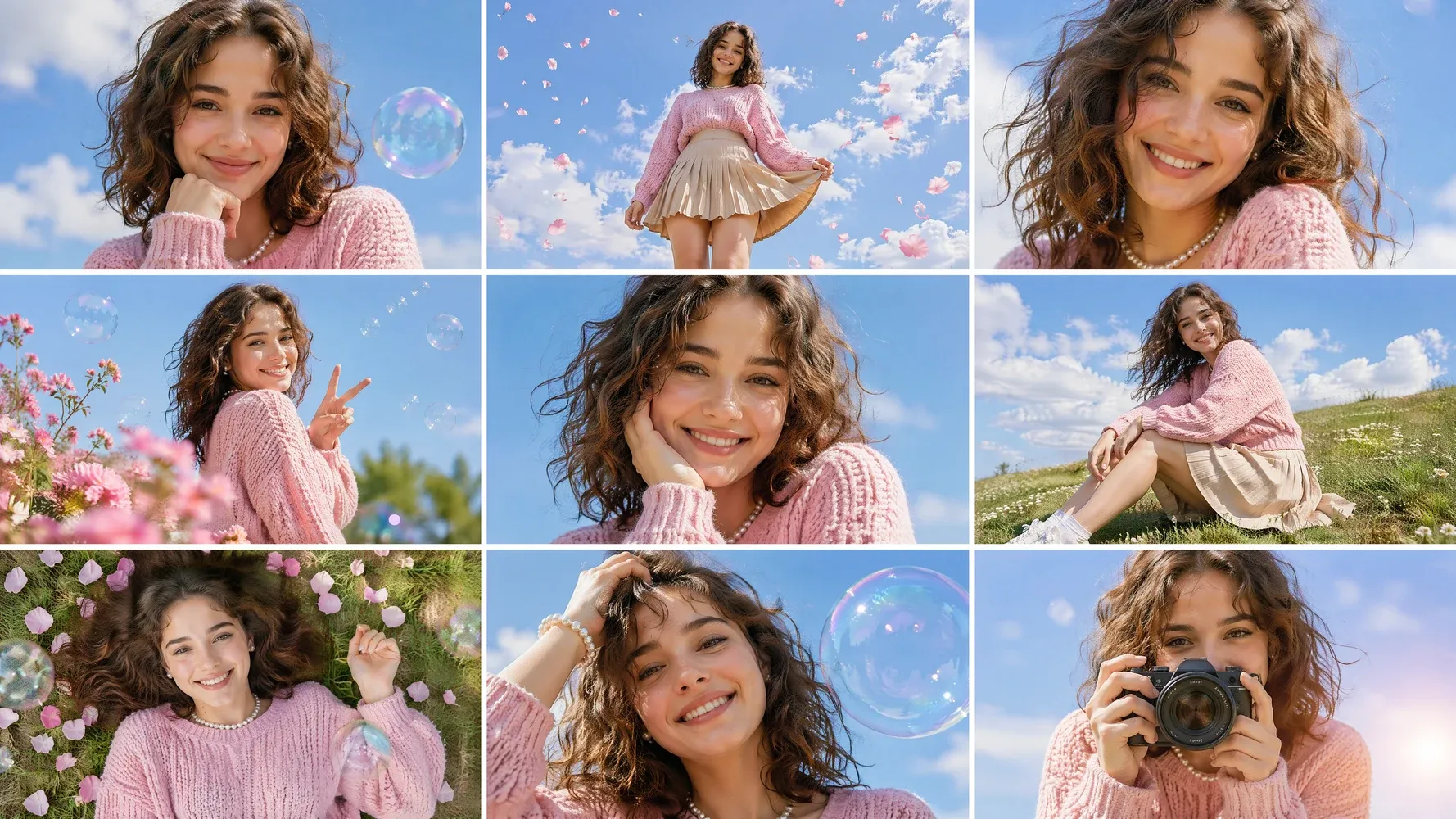
Maintain Characters and Visual Direction
Use references and repeated creative instructions to guide characters, products, colors, and atmosphere across related images. A consistent visual direction matters when you are building a sequence rather than a single post. By carrying key details forward, you can develop storyboards, campaign variations, and scene concepts that feel connected instead of randomly generated.
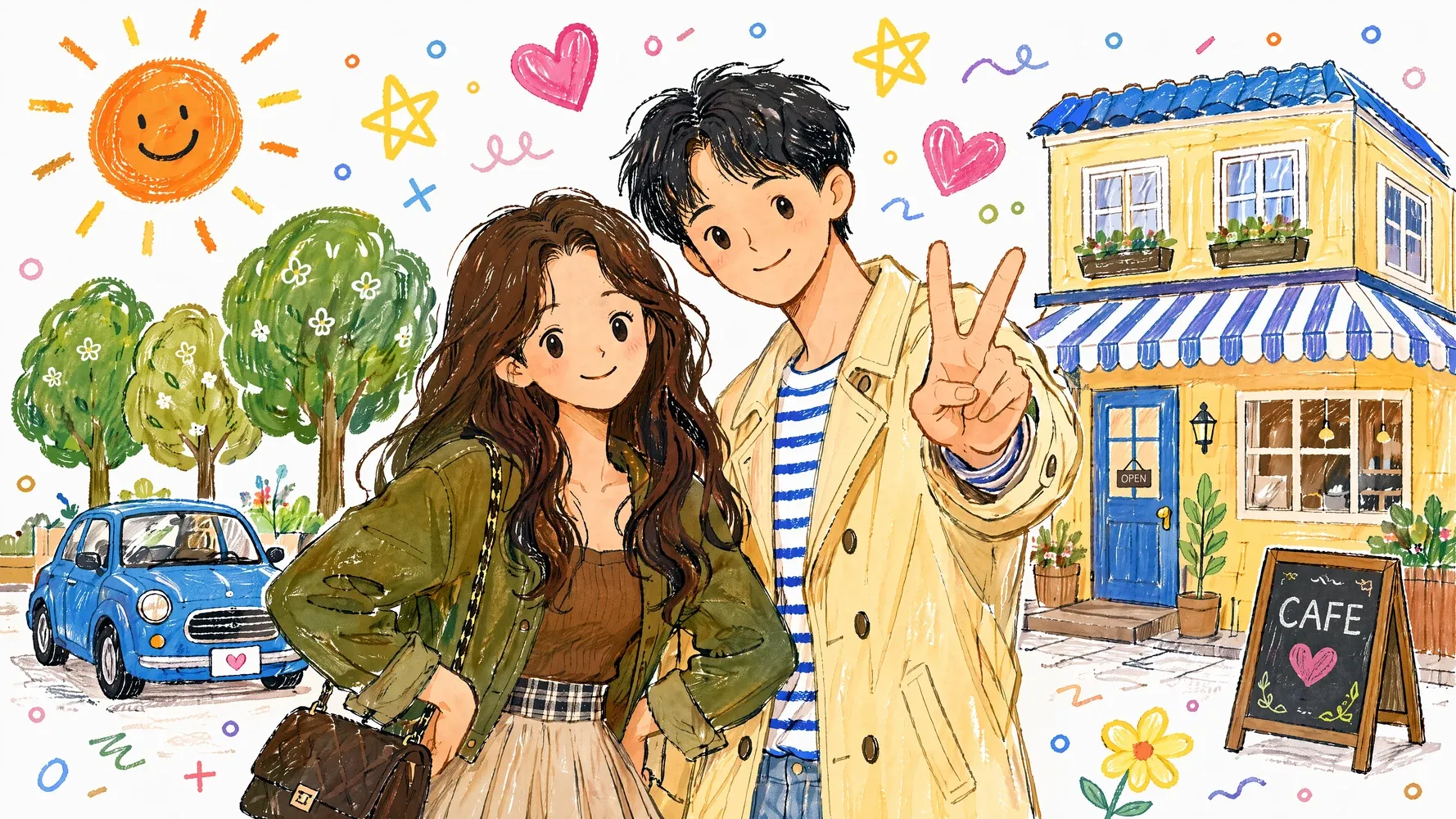
Refine Specific Details Without Starting Over
When most of an image works, describe only the part that needs attention. Ask to change an object, expression, background element, lighting choice, or piece of text while preserving the broader composition. Focused edits protect the decisions you already like, shorten the revision loop, and make experimentation feel more deliberate and less disposable.
Use GPT Image 2 Across Creative Workflows
GPT Image 2 can support quick ideation as well as more structured production. Start with the format your audience needs, then shape the image around its message, channel, and next creative step.
Social Media Graphics and Marketing Banners
Develop visual directions for launch posts, event announcements, paid ads, and channel-specific campaigns. Include the intended platform, aspect ratio, headline, focal subject, and brand mood in your prompt. Marketers can compare several concepts quickly, select a direction, and refine it before turning the approved visual into a broader set of campaign assets.
Product Visuals and Ecommerce Creatives
Place a product into seasonal, lifestyle, or conceptual scenes without organizing a new photoshoot for every early idea. Reference images help communicate the product’s appearance, while prompts define the environment and campaign angle. This workflow is useful for exploring storefront banners, promotional concepts, launch stories, and creative variations before final asset review and production.
Concept Art and Storyboards
Translate a script, scene description, or character note into visual frames that make an idea easier to discuss. Directors, educators, agencies, and independent creators can use generated images to test composition and tone before animation or filming. Clear frames help collaborators align earlier, spot missing story beats, and make production decisions with more context.
Turn GPT Image 2 Images into Videos
An image does not have to remain an isolated output. Bring a selected GPT Image 2 result into Medeo’s video workflow, then develop motion, narration, music, and additional scenes around it. This connection helps you move from visual exploration to a structured piece of content while keeping the original creative direction at the center.
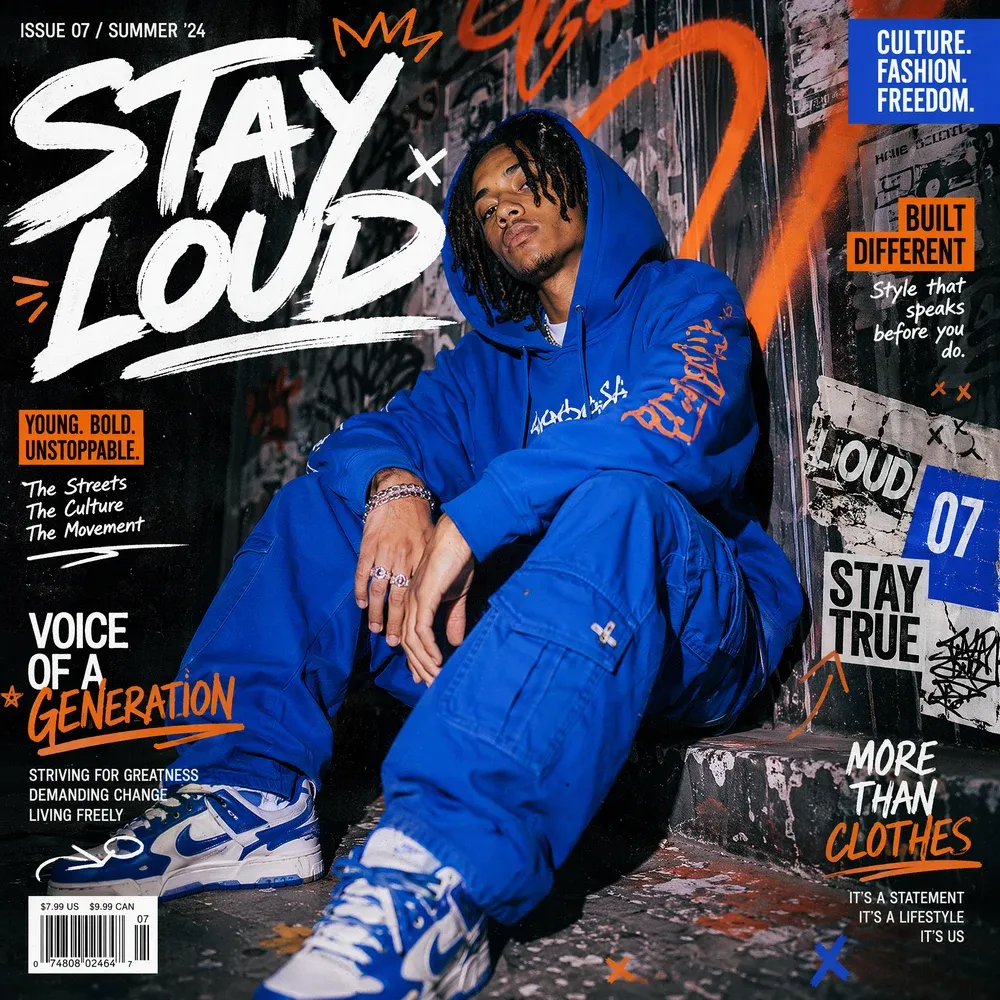
How to Use GPT Image 2 on Medeo
You do not need to master a complicated prompt formula before starting. Give Medeo enough context to understand your goal, review the first result, and improve it through clear follow-up instructions.
Step 1
Enter a Prompt or Upload a Reference Image
Describe what you want to create, including the subject, scene, purpose, and style. Upload a reference image when a specific character, object, product, or composition needs to guide the result.
Step 2
Choose Your Format and Generate
Select the format that fits your intended channel or project. Generate the first version and evaluate the composition, message, visual hierarchy, and details rather than judging style alone.
Step 3
Review and Refine the Result
Tell Medeo what should change and what should remain. Focus each follow-up instruction on a clear revision, such as replacing the background, correcting text, adjusting lighting, or simplifying the frame.
Step 4
Continue Creating with Your Image
Download the visual when you need a standalone image, or keep working in Medeo. Use it as a reference, storyboard frame, campaign asset, or starting point for an AI-generated video.
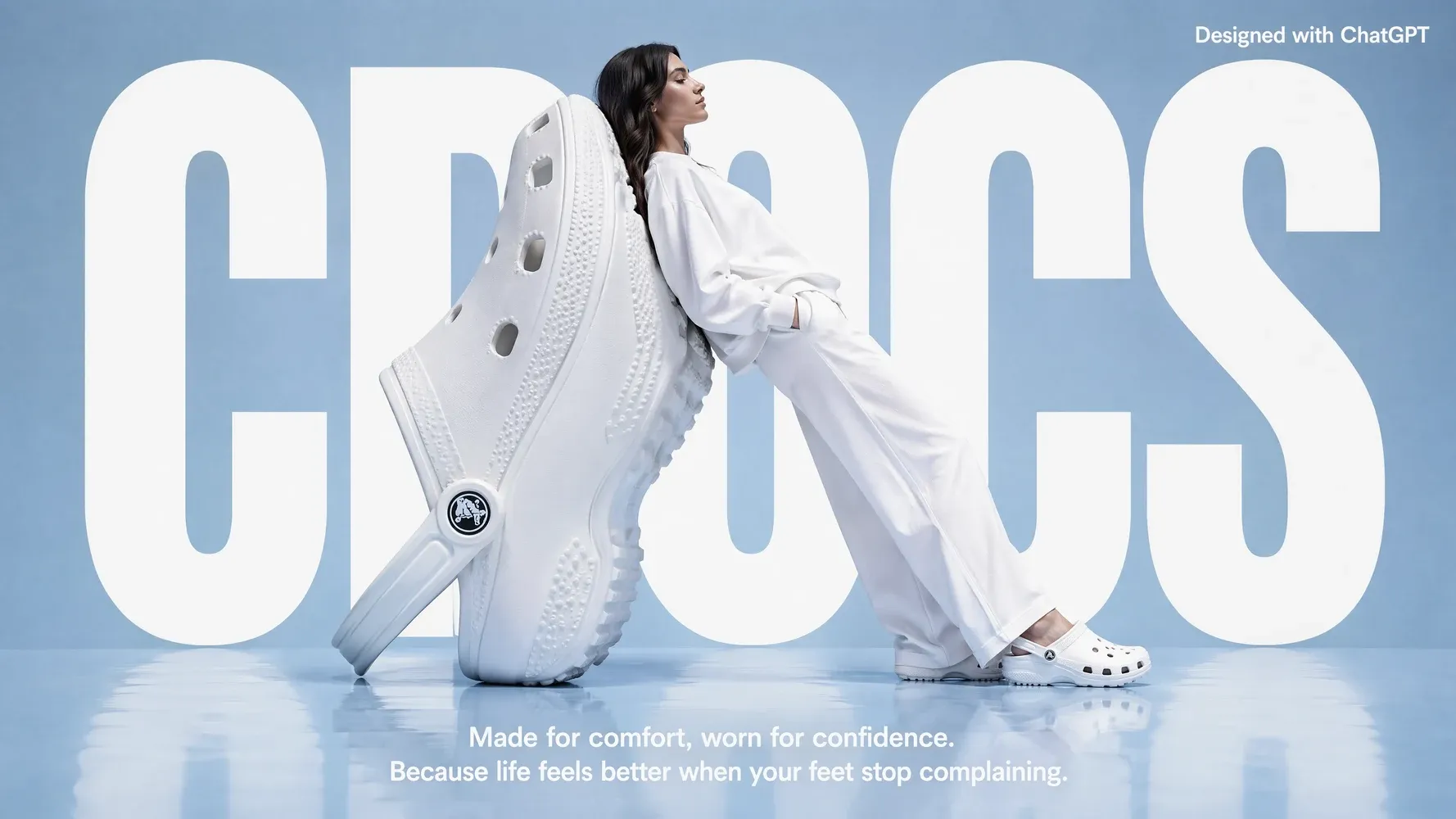
How to Write Better GPT Image 2 Prompts
The best GPT Image 2 prompt communicates intent, not just a list of visual adjectives. Give the model enough structure to understand what matters, then use shorter follow-up instructions to refine individual decisions.
Describe the Subject and Composition
Start with the main subject and action. Add the setting, camera distance, perspective, lighting, mood, and where important elements should appear. For example: “A ceramic coffee bottle on a stone counter, centered product shot, warm morning light, soft shadows, room for a headline above.”
Specify Text, Layout, and Visual Style
Put required wording in quotation marks and state where it belongs. Describe hierarchy rather than saying only “make a poster.” Identify the headline, supporting copy, type treatment, color direction, and intended audience. Keep critical text concise, then inspect spelling and layout carefully before using the image publicly.
Use Focused Instructions for Image Editing
For edits, identify the target, requested change, and protected elements. Try: “Replace the background with a quiet evening street. Keep the person, clothing, pose, and camera angle unchanged.” Focused instructions reduce ambiguity and make it easier to understand which revision produced the improvement you wanted.
GPT Image 2 Compared with Other AI Image Models
There is no universal best image model for every brief. Compare models against the work you actually produce: text-heavy designs, character scenes, product concepts, rapid exploration, or images that need to continue into video.
GPT Image 2 vs Nano Banana Pro
Compare both models with the same prompt, reference image, and intended use rather than relying on a generic leaderboard. Examine instruction following, text placement, character details, editing behavior, and the number of revisions needed. GPT Image 2 may suit conversational creation workflows, while the better final choice depends on your subject and preferred visual treatment.
GPT Image 2 vs Midjourney
Choose based on how you like to direct the work. If your process depends on conversational instructions, visible text, and focused image edits, test GPT Image 2 first. If you are exploring highly stylized visual directions, compare Midjourney on the same brief. Keep the model that reaches your usable result with fewer compromises and revisions.
GPT Image 2 vs GPT Image 1.5
Use a repeatable test to judge whether switching models improves your own workflow. Run the same prompts through both versions and compare composition, text handling, reference fidelity, editing precision, and overall usability. A newer model is most valuable when it reduces manual correction or helps you reach the intended visual direction more consistently—not simply because its version number changed.
Detailed Comparison Chart
Compare GPT Image 2 vs Nano Banana Pro, Midjourney, and Grok with the same prompt, reference image, aspect ratio, and intended output. Specifications may vary by model version and product surface.
| Model | Developer | Supported Inputs | Editing and References | Public Output Resolution | Primary Access |
|---|---|---|---|---|---|
| GPT Image 2 | OpenAI | Text and image inputs | Conversational editing and reference-guided creation | Options up to 4K | ChatGPT Images and supported platforms such as Medeo |
| Nano Banana Pro | Google DeepMind | Text and multiple image inputs | Generation, editing, composition, and reference transformations | Options up to 4K | Gemini products, Gemini API, and Google Cloud; Medeo |
| Midjourney | Midjourney | Text and image prompts | Variations, region-based edits, and image editing tools | Depends on model version, aspect ratio, and upscaling option | Midjourney web app and Discord; Medeo |
| Grok (Imagine) | xAI | Text and image uploads | Image creation, editing, and image-to-video | Options up to 2K | Grok web and mobile products; API availability may vary; Medeo |
Try GPT Image 2 with Free Trial Credits
Turn your next idea into an image, refine it through conversation, and see how it fits into a larger creative workflow. New users receive free trial credits after signing up. When you are ready to create more, Medeo continues through a paid-credit model.
Frequently Asked Questions About GPT Image 2
These answers cover the questions people commonly ask when deciding how to access GPT Image 2, what it can do, and how to use it in a practical creative workflow.
See Why Creators Choose Medeo
Creators use Medeo to move beyond isolated generations and shape images, scenes, sound, and motion inside one connected creative process. Add verified customer feedback here to show how that workflow affects real projects, revision time, creative control, and final delivery.
"GPT Image 2 on Medeo generates incredibly detailed artwork from even simple prompts. The image quality and prompt understanding are among the best I've used."
Emily Parker
Illustrator
"What impressed me most is how accurately GPT Image 2 follows instructions. Complex scenes, specific styles, and fine details are reproduced with remarkable consistency."
Daniel Foster
Creative Director
"We use GPT Image 2 through Medeo to create campaign visuals and social media graphics. The results look polished and require very little editing afterward."
Sophia Kim
Marketing Designer
"GPT Image 2 on Medeo generates incredibly detailed artwork from even simple prompts. The image quality and prompt understanding are among the best I've used."
Emily Parker
Illustrator
"What impressed me most is how accurately GPT Image 2 follows instructions. Complex scenes, specific styles, and fine details are reproduced with remarkable consistency."
Daniel Foster
Creative Director
"We use GPT Image 2 through Medeo to create campaign visuals and social media graphics. The results look polished and require very little editing afterward."
Sophia Kim
Marketing Designer
"GPT Image 2 produces images that feel both creative and realistic. Medeo makes it easy to experiment with different concepts and generate professional-quality visuals quickly."
Ryan Mitchell
Content Creator
"The text rendering and overall image composition are excellent. GPT Image 2 helps us create marketing assets that align closely with our brand vision."
Olivia Bennett
Brand Strategist
"I've tried many AI image models, and GPT Image 2 consistently delivers some of the most reliable results. Combined with Medeo's workflow, it's become an essential tool in my creative process."
Michael Chen
Product Designer
"GPT Image 2 produces images that feel both creative and realistic. Medeo makes it easy to experiment with different concepts and generate professional-quality visuals quickly."
Ryan Mitchell
Content Creator
"The text rendering and overall image composition are excellent. GPT Image 2 helps us create marketing assets that align closely with our brand vision."
Olivia Bennett
Brand Strategist
"I've tried many AI image models, and GPT Image 2 consistently delivers some of the most reliable results. Combined with Medeo's workflow, it's become an essential tool in my creative process."
Michael Chen
Product Designer
Explore More AI Image Models and Creative Tools
Different briefs benefit from different visual engines. Explore more models inside Medeo, compare their creative strengths, and choose the route that best supports your visual direction and next production step.
Learn More About AI Image Creation
Build a stronger workflow with practical guides for prompting, model selection, editing, and turning still images into motion. Link these cards to the corresponding articles when they are published.
7 Best Idea to Video AI Tools in 2026 (Tested & Compared)
Compare the 7 best idea to video AI tools in 2026 — tested across output quality, format coverage, and ease of use. Find the right tool for your content workflow.
TIAN YUAN · Apr 29, 2026 · 13 min read
7 Best AI Love Story Video Generators in 2026 (Tested & Compared)
Discover the 7 best AI love story video generators in 2026 — tested and compared. From cinematic narratives to anniversary films, find the right tool for every romantic occasion.
TIAN YUAN · Apr 29, 2026 · 13 min read
Best Short Drama Video Tools in 2026
Compare the best short drama video tools for creating cinematic micro-dramas, emotional story clips, serialized TikTok dramas, Reels, and YouTube Shorts with AI.
TIAN YUAN · May 7, 2026 · 16 min read