From Static Post to Viral IG Reel
With Medeo, you can instantly transform your static Instagram posts into high-quality videos optimized for Reels, Stories, and carousels. Whether you’re an influencer, brand marketer, or casual creator, our Instagram Post to Video Generator helps you ride trends, boost engagement, and go viral faster.

Powered by world-class AI models


What is an Instagram Post to Video AI tool?
It's an artificial intelligence-powered platform that converts static Instagram posts (images, text) into dynamic video content. The AI automatically adds motion, transitions, music, and even voiceovers, making your content more engaging and suitable for various video platforms.
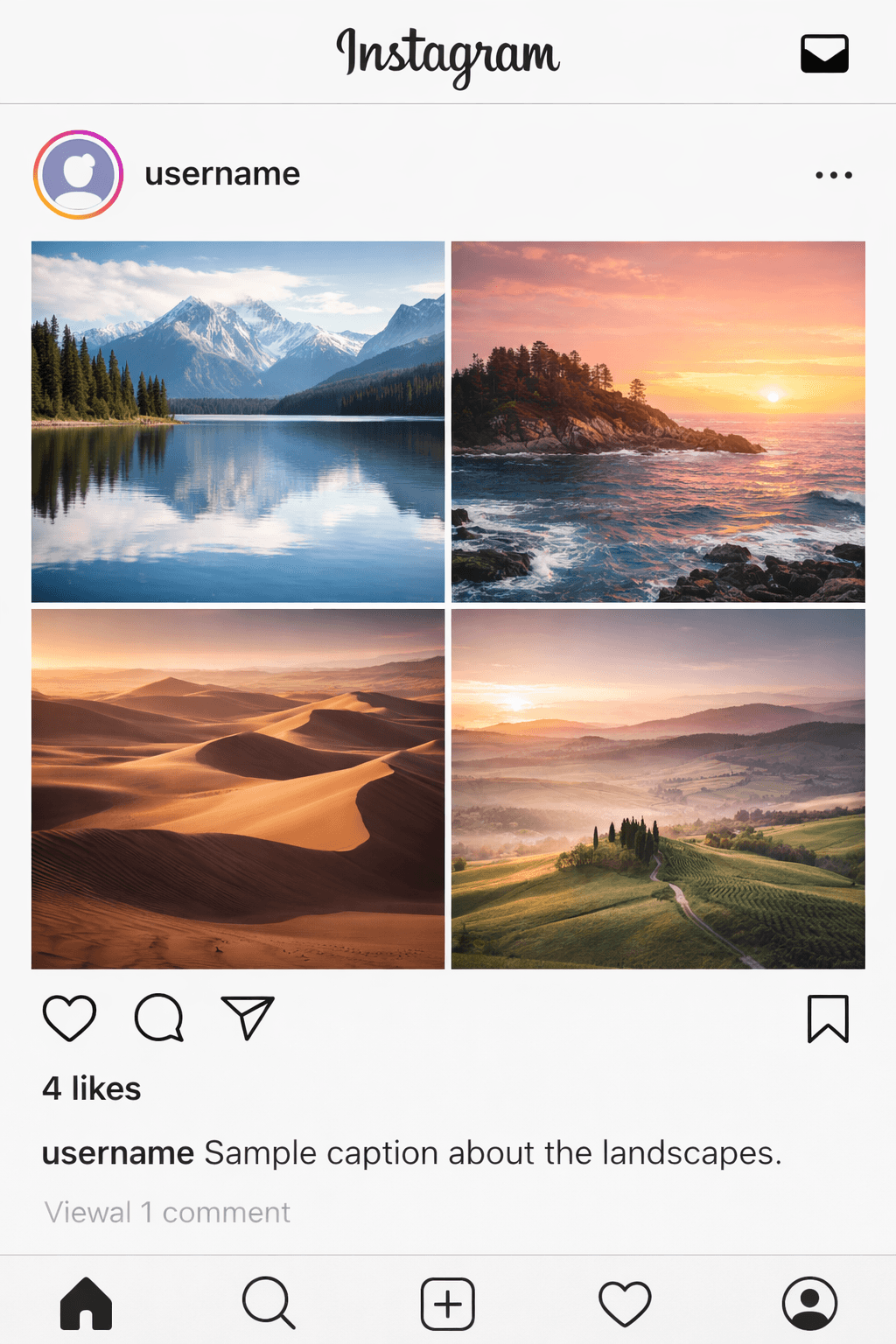
From Static Grids to High-Velocity Reels
Professional-grade Instagram production that captures the "Vibe" of 2026
Before
Static photos
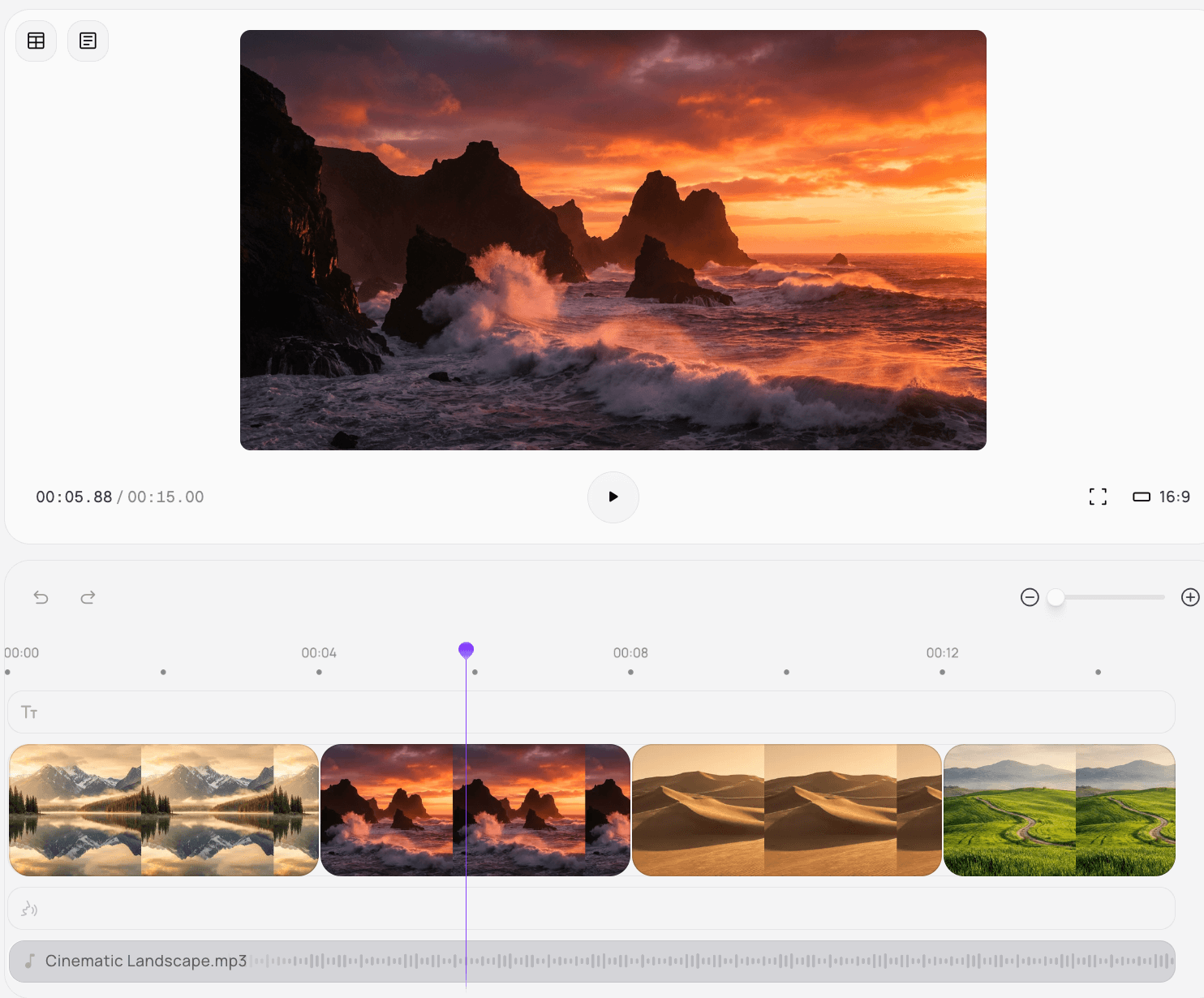
After
Generate scroll-stopping Reels in minutes
Reasons to Use Medeo for Instagram Post Videos
The ultimate toolkit for creators who demand high-fidelity visuals and rapid growth
Stay on Trend
Turn posts into trending IG reels and stories that match the latest viral formats and challenges.
Engagement Rates
Animated posts and reels get more likes, comments, and shares than static images.
Monetize Your Growth
For influencers, e-commerce sellers, and small businesses, turning posts into videos increases visibility.
From Static Post to Viral IG Reel.
Instagram Reel Templates
Access a wide range of pre-designed Instagram reel templates inspired by trending aesthetics, viral challenges, and influencer content styles.
Post-to-Video Converter
Medeo transforms static Instagram content—whether it’s a single photo, a carousel, or even a graphic post—into dynamic video content with transitions, animations, and effects.
Music & Viral Sound Library
Boost engagement with trending Instagram sounds. Medeo gives you access to a huge audio library including viral tracks, meme sounds, and aesthetic background music.
How to Create Instagram Post Videos with Medeo?
Step 1
Step 1: Import Your Post
Upload a single image, carousel, or graphic from your Instagram content.
Step 2
Step 2: Pick a Video Style
Choose from aesthetic edits, trendy reels, or viral meme-style animations.
Step 3
Step 3: Add Music & Captions
Use trending Instagram sounds and generate captions or hashtags.
Step 4
Step 4: Export & Share
Generate an IG-ready video in Reels, Story, or Feed format and download it to post.
Find the story hiding inside your Instagram post
A post already contains a visual starting point, but a video needs an order of ideas. Choose a reason for the viewer to move from the opening image to the closing thought.
Explain a saved detail
Take a room photo and build the video around one design choice, such as placing a reading chair beside the window. Upload the image and explain the decision in the prompt so the video offers something beyond a moving copy of the photo.
Turn a carousel into an argument
A carousel about packing light might contain a problem, a checklist, and a finished bag. Identify which slide establishes the problem and which delivers the answer, then ask for a narrated sequence that connects them rather than simply reading every slide.
Add context to an announcement
For a workshop announcement, explain who the session is for and what attendees will practice. Supply the exact event details in your brief, and review them in the draft so decorative scenes do not replace the information someone needs to decide.
Tell the story behind a photo
A finished ceramic bowl can introduce the choices that led to its shape or glaze. Pair your photo with a short account of the process, distinguishing your actual experience from any generated scenes used to illustrate the explanation.
Prepare a post for a spoken version
Instagram captions often depend on surrounding comments or earlier posts. Give Medeo enough context to make the video understandable to someone seeing your work for the first time.
Step 1
Separate the message from the extras
Copy the useful explanation into your brief and leave out unrelated hashtags or engagement prompts. Write one sentence stating what the viewer should learn, then identify any product names or phrases that need to stay exactly as written.
Step 2
Assign a role to each image
Label your uploaded images in the prompt by purpose: opening overview, close detail, and final result. Explain any sequence that matters, especially when the images show stages of a project that would be confusing or misleading in a different order.
Step 3
Write for the ear
Replace long caption sentences with a direct spoken explanation. Ask for narration that connects the pictures without describing every visible object, leaving room for the image itself to communicate color, texture, atmosphere, or a finished arrangement.
Try a more useful angle than a photo slideshow
These prompt ideas add a reason to watch while keeping the original post at the center. Replace the example details with information from your own images and caption.
From outfit post to styling lesson
Try: Use my outfit images to explain why I paired a loose jacket with straight pants, then show the shoe choice that finishes the look. Keep the narration practical and focus on proportions instead of inventing fabric details or shopping information.
From dish photo to hosting idea
Try: Turn this dinner table post into a video about arranging a relaxed meal for friends, starting with the shared serving dishes. Explain the setup using my notes, and avoid adding recipes or ingredients that I have not provided.
From project reveal to decision story
Try: Use this finished workspace photo to explain the storage problem I was trying to solve and the arrangement I chose. End with the detail that made the space easier to use, keeping the story grounded in my written description.
Keep the original post readable in motion
A video introduces narration and timing that a still post does not need. Review those extra layers together before exporting a vertical version for Reels.
Protect the focal point
Check whether captions compete with the item the post is about, such as a small accessory or a label on a package. Ask for a simpler scene when the viewer has to choose between reading the explanation and seeing the important detail.
Replace missing context
Watch without opening the original caption. If the narration says this changed everything, identify what this refers to and revise the line so the video can stand alone when someone encounters it outside your profile grid.
Give the ending a purpose
Finish with the conclusion your source post supports, such as the completed arrangement or the main styling lesson. If you include an invitation, make it specific to the topic instead of adding an unrelated request that distracts from the story.