Turn Your Videos into Captioned Content with AI
Medeo adds synced subtitles to the narration in the videos you create, so viewers can follow along with or without sound. No manual transcription or timeline editing.

Powered by world-class AI models


What is an Auto Subtitle Generator?
An Auto Subtitle Generator is an AI-powered tool that turns the narration in your video into time-synced captions. With styling options for font, size, and color, it allows creators to produce professional subtitled videos quickly.
From Silent Video to Captioned Masterpiece — In Seconds
Watch your video come alive with AI-powered subtitles
Before
Raw audio & Manual subtitling chaos
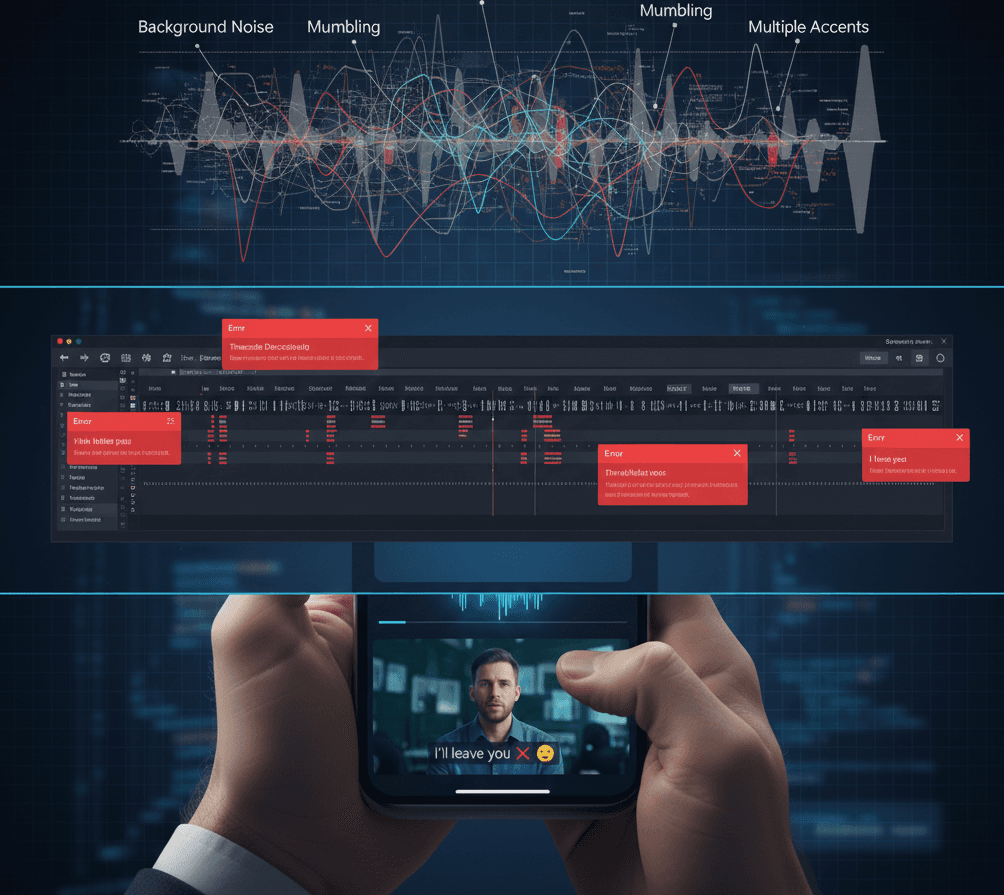
After
Instantly generate crisp, high-fidelity subtitles
Why Choose Medeo's Auto Subtitle Generator?
The ultimate efficiency toolkit for the modern, multi-platform storyteller
Instant Accuracy
Our AI delivers highly accurate transcriptions in moments, dramatically reducing manual effort and proofreading time. Get clean, editable captions that you can review before export.
Multi-Language Support
Subtitles follow the language of your narration, so you can make versions in other languages for a global audience.
Customization Options
Tailor subtitle appearance, font styles, sizes, and colors to perfectly match your brand and video aesthetics. Full creative control at your fingertips.
Boost SEO & Engagement
Subtitles improve video SEO, making your content more discoverable. They also increase viewer engagement and retention across platforms.
Effortless Integration
Subtitles stay in place when you export in 9:16, 16:9, or 1:1, so one project covers every platform.
Time-Saving Automation
Automate the entire subtitling process, freeing up valuable time for you to focus on content creation. No more manual transcription.
Specialized Tools for Global Reach
Professional-grade captioning tools for the borderless internet
Social Media Managers
Quickly add captions to TikTok, Instagram Reels, and YouTube Shorts. Maximize reach and performance on all short-form video platforms.
Educators & Trainers
Create accessible online courses, lectures, and training materials. Ensure all students can follow along regardless of hearing ability.
Marketers & Businesses
Improve engagement on social media ads, product demos, and promotional videos. Capture viewers even when watching without sound.
Content Creators & YouTubers
Enhance accessibility and watch time for your YouTube videos, vlogs, and tutorials. Boost SEO and expand your viewer base globally.
How to Author Your Captions with Medeo?
Step 1
Upload Your Media
Describe your video, or upload the photos and clips you want to use. Medeo writes the narration and builds the scenes.
Step 2
Generate Subtitles Automatically
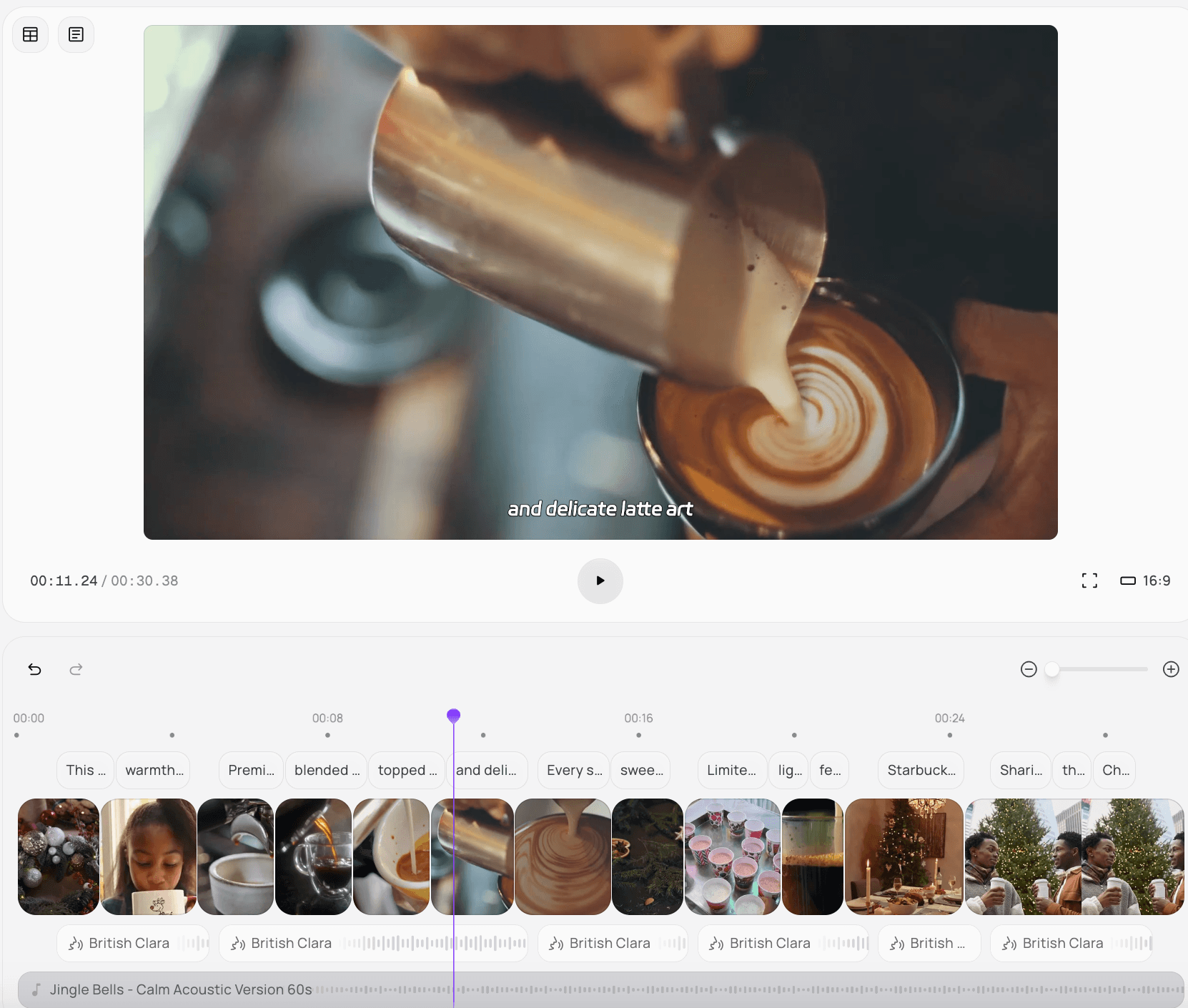
Medeo generates subtitles from the narration and times them to the voiceover in your chosen language.
Step 3
Review & Customize
Easily review the generated subtitles, make any necessary edits, and customize their appearance to match your video's style.
Step 4
Export & Share
Download the finished video with subtitles included, ready to post on any platform.
Write narration that is easier to follow in captions
Medeo generates captions from the narration. Clear spoken sentences give viewers a better foundation for reading along, especially when the video introduces unfamiliar terms or detailed instructions.
Name the object before the action
In a tutorial, replace put that over there with place the lid beside the empty bowl. Captions become more useful when the instruction still makes sense without relying on a pointing gesture or an object that appeared earlier.
Keep qualifications close
If a statement depends on a condition, include the condition in the same thought. Separating only for dry surfaces from the instruction it modifies can leave viewers with an incomplete message as they read the video one moment at a time.
Explain abbreviations naturally
Introduce an unfamiliar abbreviation with its full meaning in the narration before using the shorter form. For a course or internal training video, give Medeo a short glossary so the spoken explanation and captions use the same terminology throughout.
Check the words that carry the meaning
Proofreading is more than catching misspellings. Read captions alongside the narration and the picture to find places where the viewer could misunderstand the actual message.
Names and specialized terms
Compare product names, character names, and technical vocabulary with the script you supplied. A familiar-looking substitute can still be wrong, so review these terms deliberately rather than relying on a quick general watch-through.
Negation and contrast
Pay attention to words such as not, before, after, and except. These small words can reverse an instruction or change a comparison, making them more consequential than a minor punctuation difference elsewhere in the sentence.
Visual competition
Check captions over the busiest scenes, including patterned clothing, crowded diagrams, and product close-ups. If reading requires ignoring the subject of the shot, simplify the visual brief or shorten the narration so both layers remain useful.
Unexplained references
A caption such as that is the important part may be clear with a speaker gesture but unclear on its own. Rewrite the narration to name the important part explicitly, particularly when adapting a presentation into an illustrated video.
Review captions as part of the finished video
Use separate viewing passes to notice different problems. A captioned video should communicate a coherent idea when the viewer is reading, listening, or switching between the two.
Step 1
Read without sound
Mute the preview and follow the message using the captions and visuals. Note any missing context, unexplained pronouns, or moments where you cannot finish reading before your attention needs to move to a new visual idea.
Step 2
Listen while reading
Play the narration and compare its meaning with the caption text. After asking Medeo to change the script or regenerate a voice, check the revised sequence again so your review reflects the latest version rather than an earlier draft.
Step 3
Inspect the intended framing
Review the 9:16 version for Shorts or Reels separately from a 16:9 YouTube version. A composition that gives captions room in widescreen may place them near an important face, gesture, or demonstration detail in a vertical scene.