Pika AI is one of the AI video tools creators use when they want to move quickly from an idea to a short visual clip. Its biggest appeal is that it feels playful and direct: write a prompt, upload an image, generate a video, extend a clip, adjust the mood, or add audio that matches the scene.
That makes Pika useful for social videos, short creative experiments, product concepts, memes, AI art animation, music visuals, and quick story tests. But to get good results from Pika, you need more than a random prompt. You need to think like a director for a few seconds before you generate.
This guide walks through how to use Pika AI in a practical way, where it works well, and when a broader platform like Medeo may be a better fit.
What Is Pika AI?
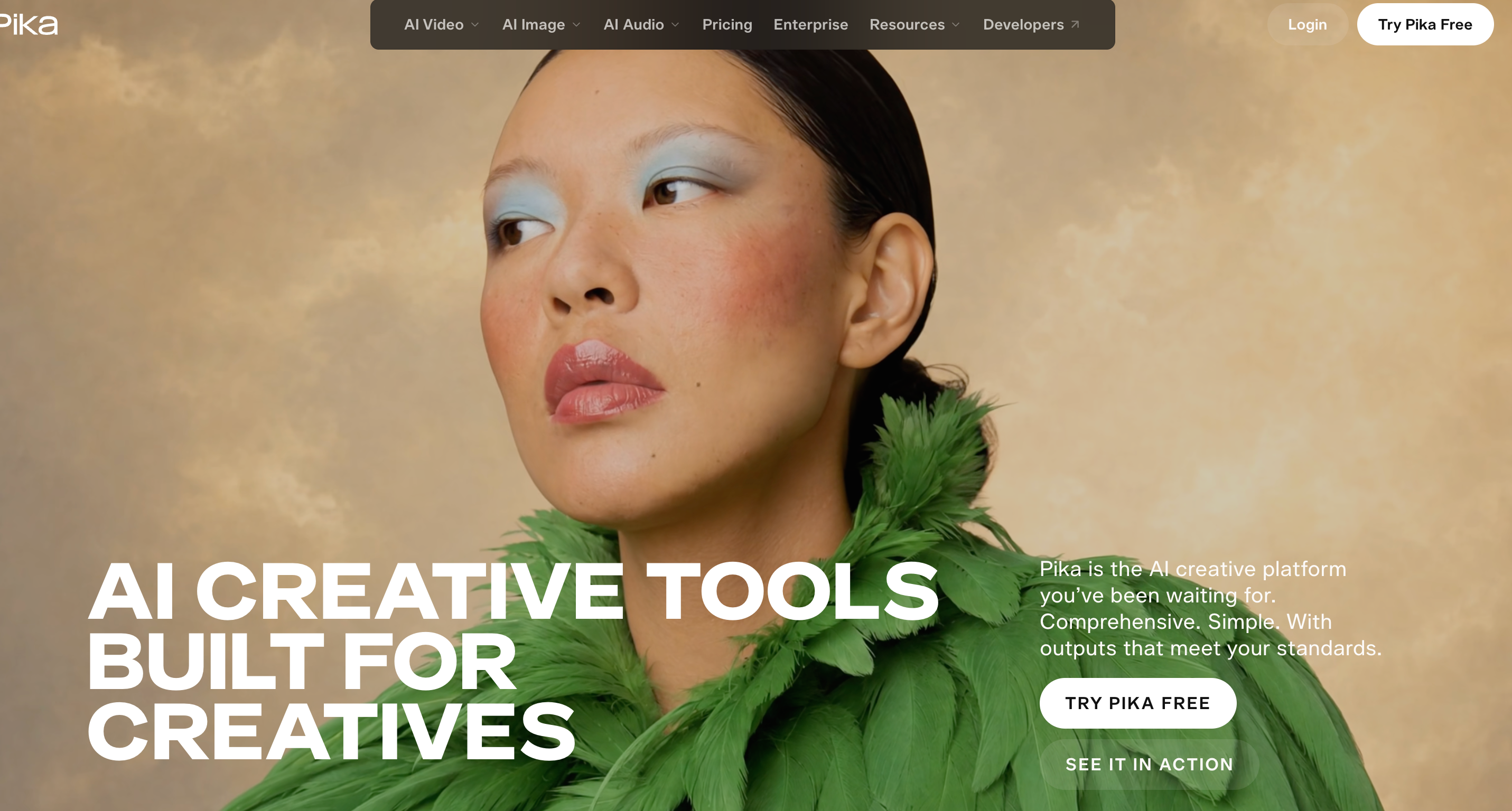
Pika is an AI creative platform for video, image, and audio generation. Its official site highlights tools such as Video Studio, Color Grade, Extend Video, Pika Soundtrack, and image editing. In simple terms, Pika helps creators generate short videos, animate images, lengthen clips, adjust visual mood, and create audio that matches the action.
Pika is useful when you want a fast creative output rather than a traditional editing timeline. You can start with a text idea, a still image, or an existing clip and use AI to create motion, atmosphere, or variations.
The best way to use Pika is not to expect one perfect generation. Treat it like a fast sketchpad for motion.
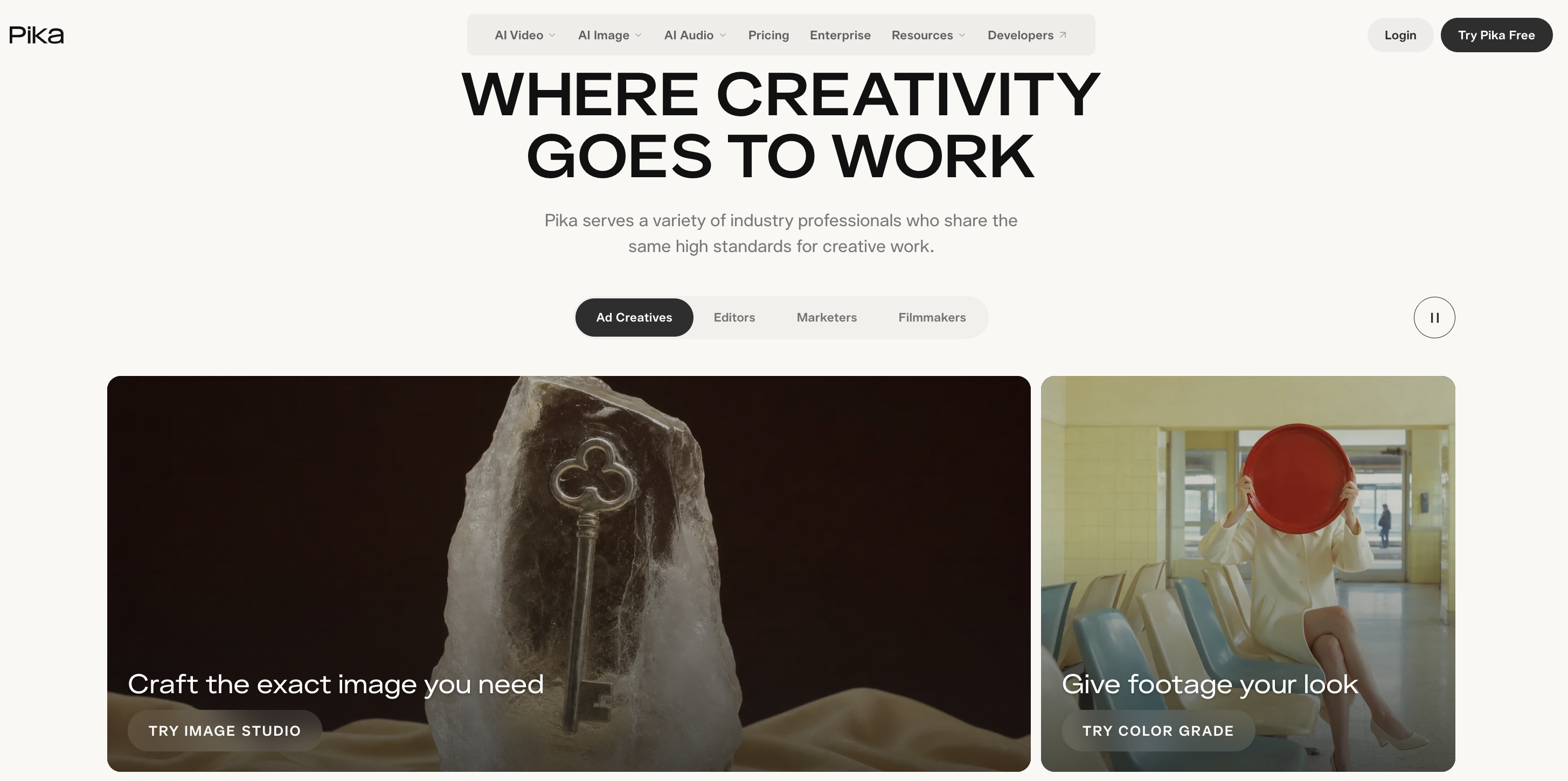
Step 1: Decide What Kind of Pika Video You Want
Before opening Pika, decide what the video is supposed to do. This sounds obvious, but it is where many AI video prompts fail.
A prompt like “make a cool video” gives the model almost no direction. A better starting point is to choose a specific format: a product teaser, a cinematic scene, a character moment, a meme clip, a looping social video, a short film shot, or an animated image.
If you want a social video, think about the first two seconds. If you want a product video, think about what the viewer should notice first. If you want a cinematic clip, think about camera movement, lighting, and mood.
Pika works better when the idea has a clear visual job.
Step 2: Write the Prompt Like a Shot Description
For text-to-video, write your prompt like you are describing a camera shot, not like you are searching the web.
Instead of writing:A futuristic city
Write something closer to:A slow cinematic drone shot over a futuristic city at night, neon signs reflecting on wet streets, soft rain, dramatic blue and magenta lighting, smooth camera movement, realistic sci-fi atmosphere
The difference is control. The second prompt tells the model the subject, setting, time, lighting, camera movement, texture, and mood.
For Pika, a useful prompt usually includes the main subject, the action, the environment, the camera movement, the lighting, and the style. You do not need to make it extremely long. You just need enough information for the model to understand the shot.
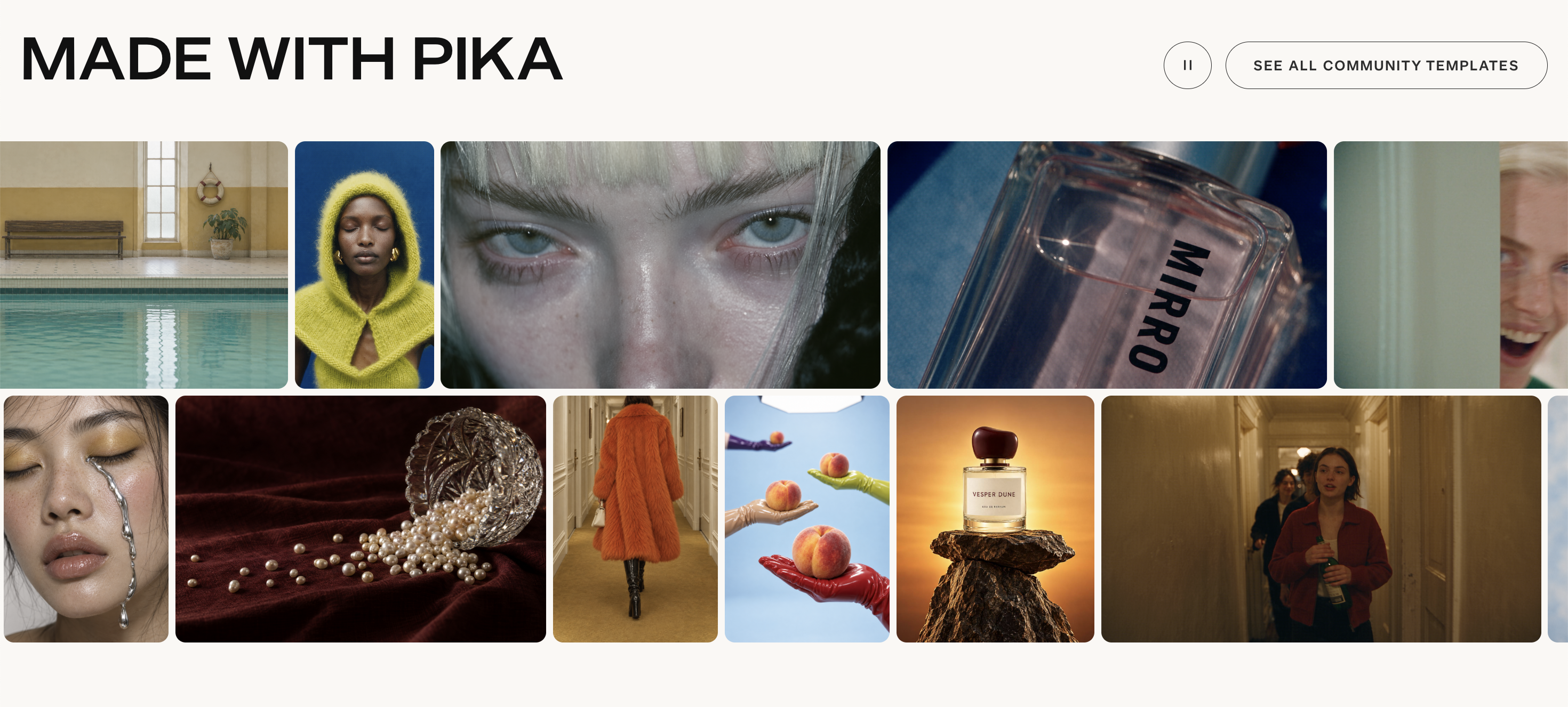
Step 3: Use Image-to-Video When You Need More Consistency
If you already have a strong image, use it. Image-to-video is often more predictable than text-to-video because the model has a clear visual reference.
This is especially useful for product shots, AI-generated characters, fashion images, posters, thumbnails, concept art, and brand visuals. The image gives Pika the composition, subject, and visual style. Your prompt can then focus on motion.
For example, if you upload a product image, the prompt should not restate everything in the photo. Instead, describe how the video should move:
Slow camera push-in, soft studio light, subtle product rotation, clean premium commercial style, gentle reflections, elegant motion
For a portrait, you might write:
The person turns slightly toward the camera, hair moving gently in the wind, soft cinematic lighting, shallow depth of field, calm emotional mood
This approach gives you more control because the image defines the look and the prompt defines the motion.
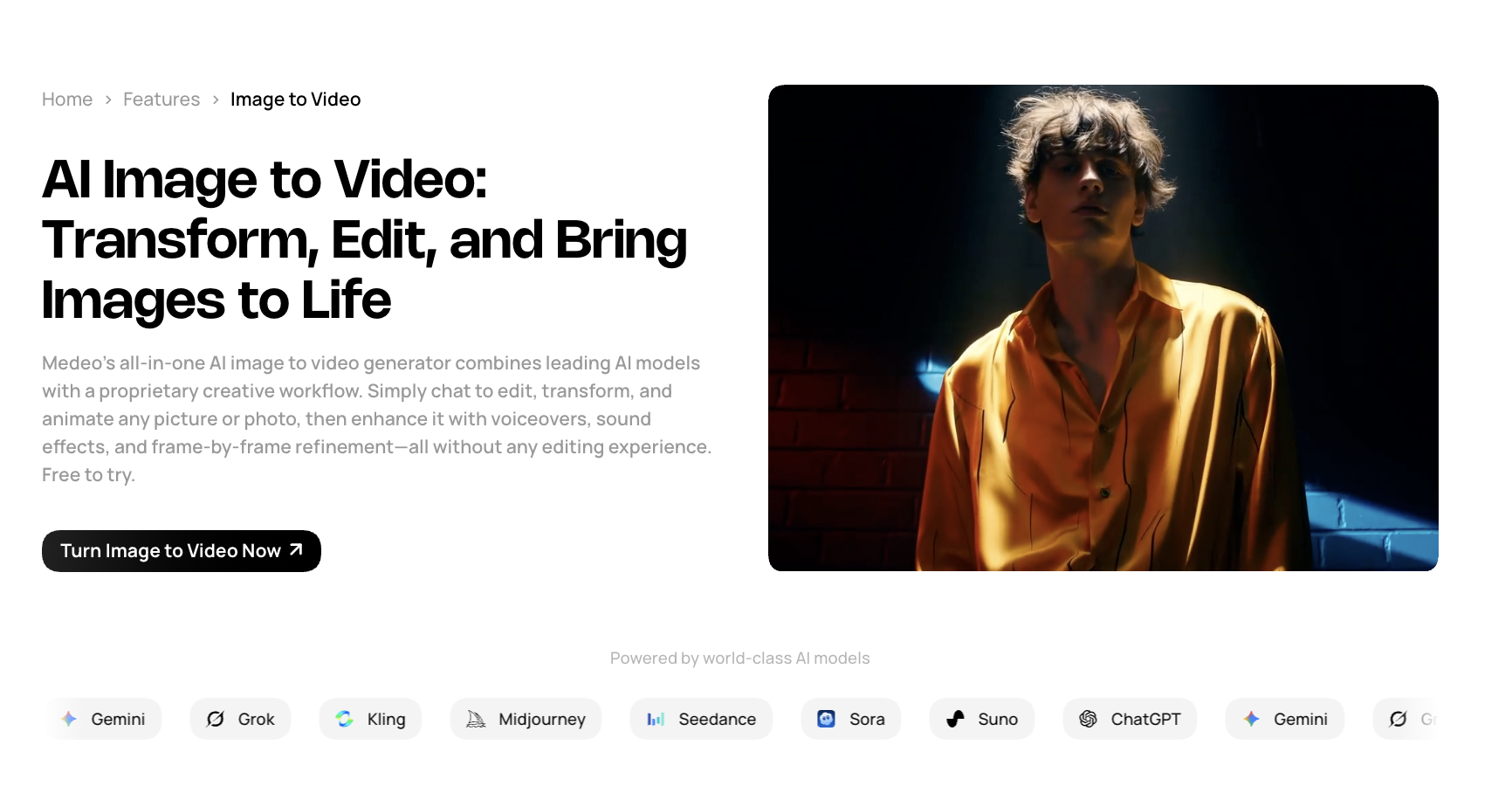
If your workflow starts from images often, Medeo’s image-to-video page is also a natural fit:
Step 4: Keep the Motion Simple at First
AI video models can struggle when a prompt asks for too much movement at once. If you ask for a person running, jumping, turning, changing clothes, holding an object, and moving through a complex crowd in one short clip, the result may become messy.
Start with one main motion. A camera push-in. A slow turn. A product rotation. A character looking up. A car passing through a neon street. A dress moving in the wind. A hand lifting a cup.
Simple motion often looks more polished than ambitious motion. Once the first version works, you can experiment with more complex movement.
This is one of the most important habits for using Pika well: generate a clean shot before you try to generate a complicated shot.
Step 5: Extend the Clip Only After the First Shot Works
Pika includes an Extend Video feature, which can make a clip longer by generating extra frames. This is useful, but it works best when the original clip already has a clear direction.
If the first clip has unstable movement, strange composition, or unclear subject placement, extending it may carry those issues forward. But if the first clip has a strong opening, extension can help you build a longer moment.
A good workflow is to generate a short clip first, pick the cleanest version, then extend only the one that already feels stable.
For social content, extension can help create a smoother loop or give you enough footage to add captions, music, or a final call-to-action.
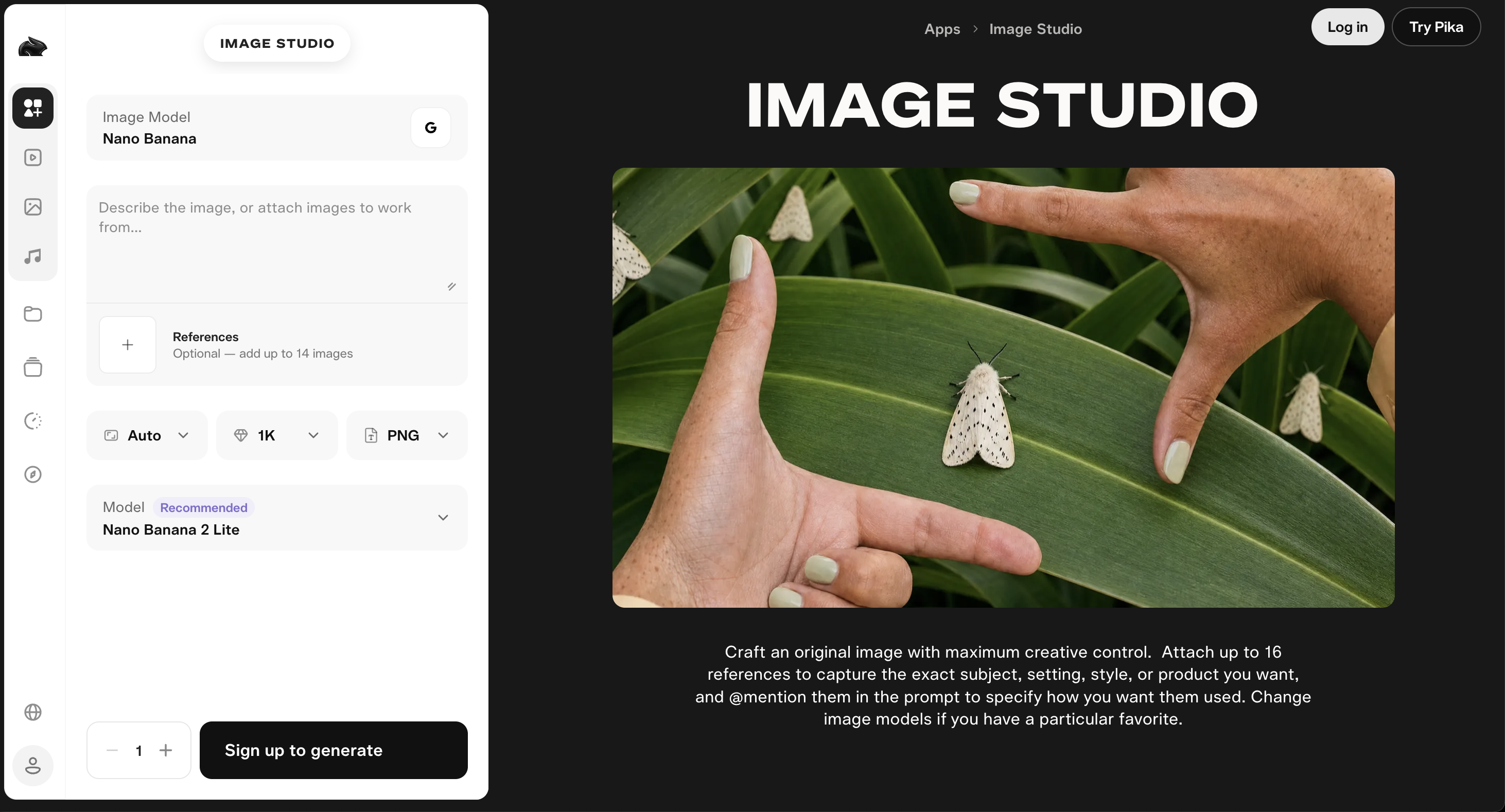
Step 6: Use Color and Sound to Make the Video Feel Finished
A raw AI video can look interesting but still feel unfinished. Pika’s Color Grade and Soundtrack tools are useful because they focus on mood.
Color grading changes how a clip feels. Warm tones can make a product video feel inviting. Cooler tones can make a scene feel futuristic. Higher contrast can make a shot feel more dramatic. Softer contrast can make it feel more editorial or emotional.
Sound also matters more than many creators expect. A clip with matching ambience, music, or subtle effects often feels more intentional. Even a simple scene can feel more expensive when the sound supports the motion.
If the video is for TikTok, Reels, or Shorts, think about rhythm. If the video is for a product page, think about polish. If the video is for a story or concept, think about atmosphere.
Pika Prompt Formula
A useful Pika prompt can follow this structure:
Subject + action + setting + camera movement + lighting + mood + style
Here is an example:
A luxury skincare bottle slowly rotating on wet stone, soft morning light, close-up macro camera, gentle mist in the background, elegant commercial style, clean premium beauty ad
Here is another:
A young explorer standing at the entrance of a glowing cave, camera slowly pushes forward, dust particles floating in the air, cinematic fantasy lighting, mysterious and adventurous mood
The goal is not to write the longest prompt. The goal is to make the shot easy to understand.
Common Pika Mistakes to Avoid
The most common mistake is asking for too many actions in one short clip. AI video works better when the motion has one clear focus.
Another mistake is ignoring the camera. If you do not describe the camera, the video may feel random. Words like close-up, wide shot, slow push-in, handheld, drone shot, orbit shot, or static camera can help.
A third mistake is using vague style words without context. “Cinematic” helps, but “cinematic close-up with warm backlight and shallow depth of field” is much stronger.
Finally, do not judge Pika only by the first generation. AI video is iterative. The second or third prompt is often where the idea becomes usable.
When Pika Is the Right Tool
Pika is a good choice when you want to create short AI clips quickly. It is useful for visual experiments, image animation, product motion tests, stylized social content, meme-like videos, mood clips, and creative idea testing.
It is also good when you enjoy experimenting with visuals and do not need a full production workflow every time.
If your goal is to make one striking clip, Pika can be a strong option.
When Medeo Is the Better Choice
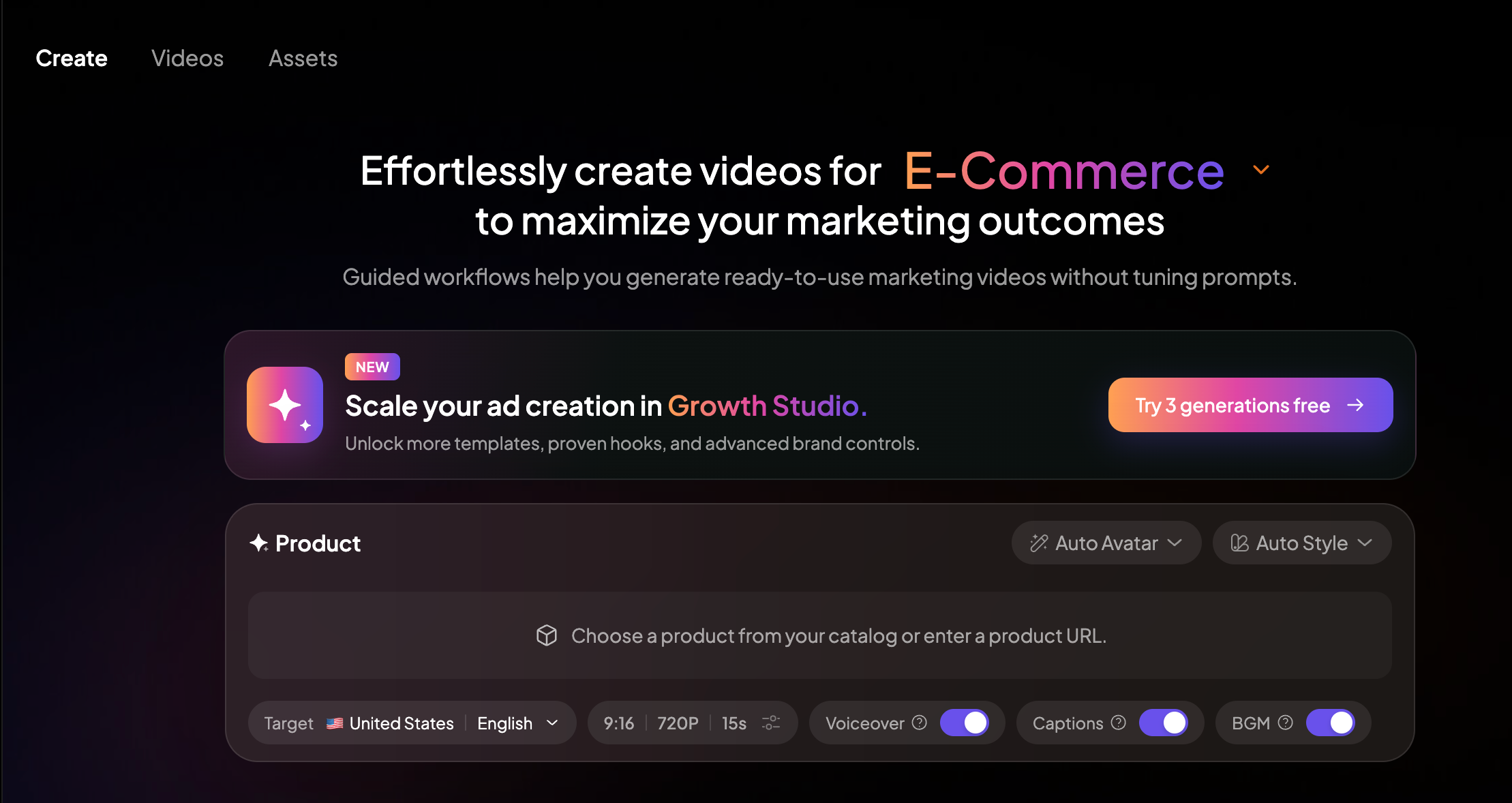
Medeo is the better choice when the video needs more structure. If you are making product videos, campaign content, social assets, URL-based videos, or multi-step creative projects, Medeo gives you a more practical workflow.
It is also better when you want to move between different input types. A real project may start with a product page, then need a script, then an image, then an animated clip, then several variations. Medeo is designed for that broader path.
Use Pika when the clip is the goal.
Use Medeo when the full video workflow is the goal.
FAQ
What is Pika AI?
Pika AI is an AI creative platform for generating and editing videos, images, and audio. It can create videos from prompts, animate images, extend clips, adjust color, and add soundtrack-style audio.
How do you use Pika AI?
Start by choosing the kind of video you want, then write a clear prompt describing the subject, action, setting, camera movement, lighting, and mood. You can also upload an image and use Pika to turn it into a video.
Is Pika good for image-to-video?
Yes. Pika is especially useful when you already have a strong still image and want to add motion, camera movement, or atmosphere.
Can Pika make longer videos?
Pika offers an Extend Video feature that can make clips longer by generating additional frames. It works best when the original clip is already stable and visually clear.
Is Pika free?
Pika has a free plan, but the official pricing page shows that free users have limited access and no commercial license. Paid plans provide monthly credits and additional usage options. Pricing can change, so check Pika’s official pricing page before subscribing.
What is the best Pika alternative?
Medeo is a strong Pika alternative if you want a broader AI video workflow. It supports text-to-video, image-to-video, URL-to-video, idea-to-video, and product video creation.
Is Medeo better than Pika?
Medeo is better if you need a flexible workflow for different kinds of video projects. Pika may be better if you mainly want to generate or enhance short creative clips inside Pika’s own toolset.
Can I use Pika for product videos?
Yes, Pika can help generate product-style clips, especially if you have a strong product image. For a more product-focused workflow, Medeo’s product video generator may be more practical.
Final Take
Pika AI is best when you treat it like a motion sketchpad. It is fast, visual, and useful for turning prompts or images into short creative clips. The best results come from clear shot descriptions, simple motion, strong input images, and careful iteration.
But if your goal is not just to make one clip, Medeo may be the better choice. It gives you more ways to start, more formats to explore, and a broader workflow for turning ideas, images, URLs, and products into videos.
Pika helps you create a moment. Medeo helps you build the video around it.