InVideo AI is popular because it gives creators a fast way to turn prompts, scripts, articles, product ideas, and rough concepts into complete videos. Instead of starting with a blank timeline, users can describe the kind of video they want, choose a workflow, generate a draft, edit it with text commands, and export a finished result.
That sounds simple. And for many users, it is.
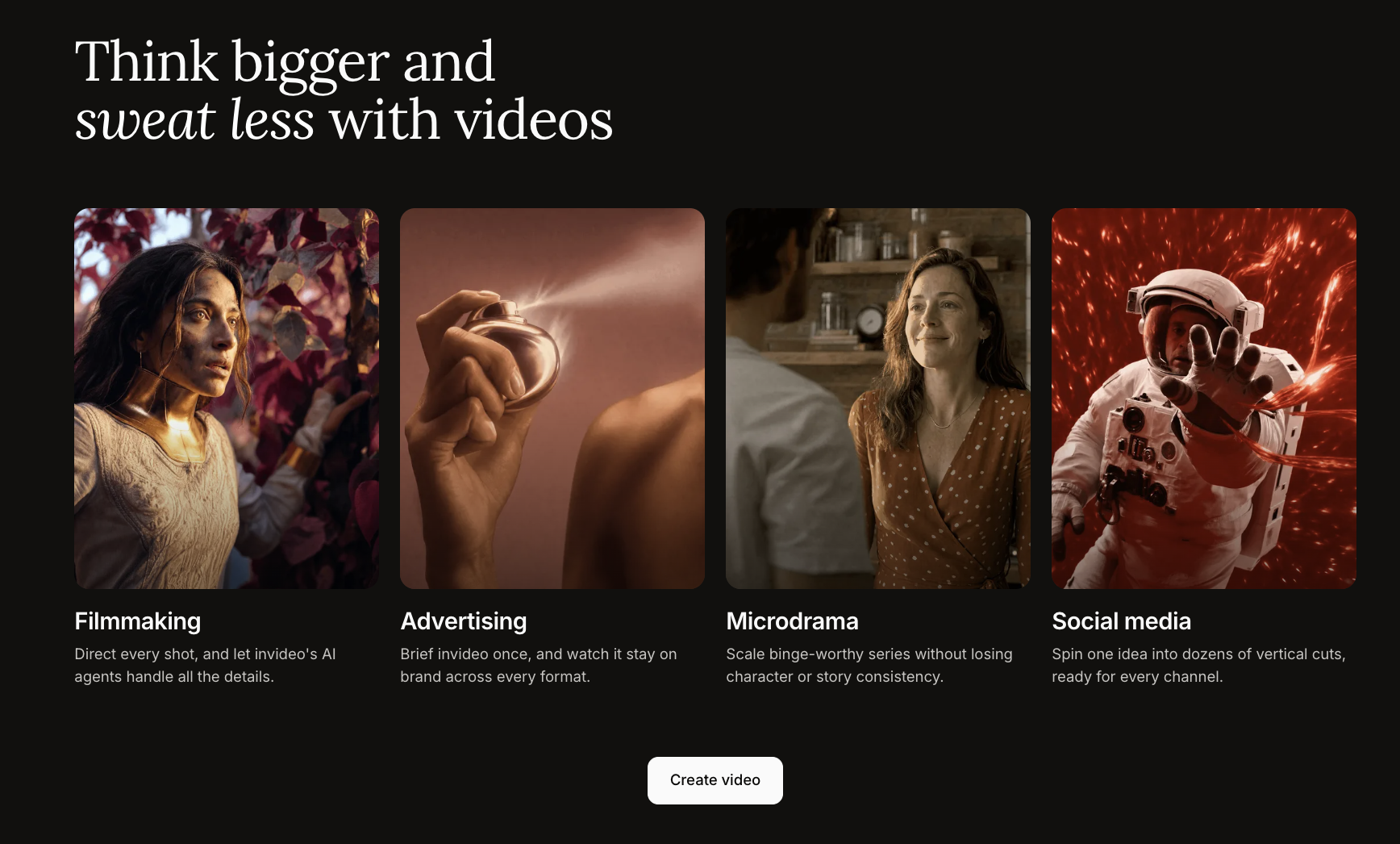
But the real challenge with InVideo AI is not generating a video. The challenge is generating a video that does not feel like a generic stock-footage montage with a voiceover.
This guide explains how to use InVideo AI more strategically, where it works best, where it may feel limited, and how Medeo can support the parts of the workflow that need stronger AI video generation, script planning, product visuals, model-based creation, and creative refinement.
What Is InVideo AI?
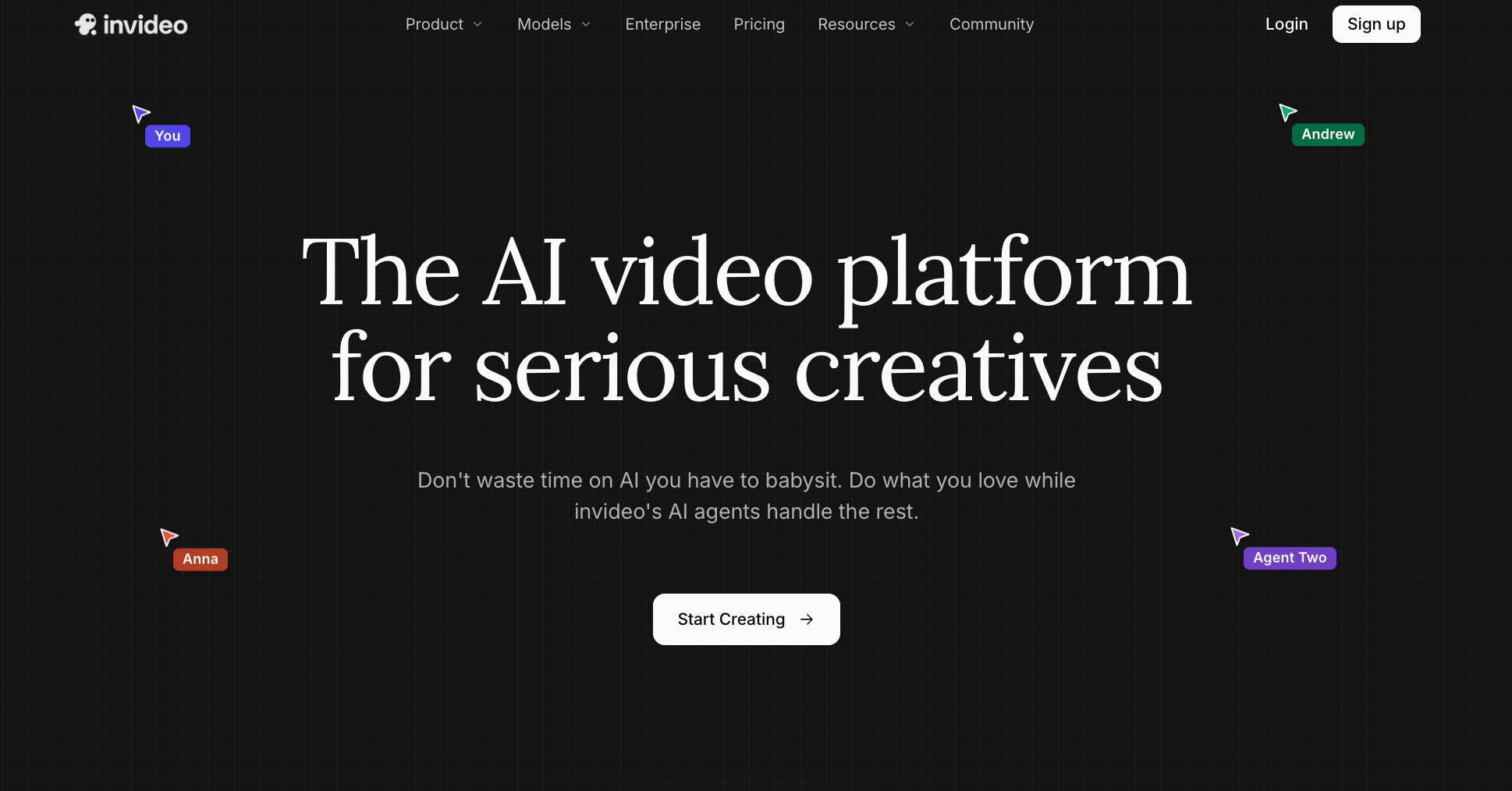
InVideo AI is an AI video creation platform that helps users generate videos from text prompts, scripts, URLs, and structured workflows. Its official site highlights tools such as AI Video Generator, AI Avatar Generator, Text to Video, Image to Video, UGC Ads, AI Animation Generator, and AI Ad Generator.
InVideo also lists access to multiple AI video models, including Google Veo 3.1, Sora 2, Kling AI, Wan AI, Pixverse AI, Hailuo AI, and Seedance. This makes it more than a basic template editor. It is positioned as a broader AI video workspace for creators, marketers, YouTubers, educators, and business teams.
Competitor blogs usually describe InVideo AI as strong for fast video drafts, faceless YouTube content, social media videos, explainer videos, and marketing clips. They also tend to mention the same weaknesses: pricing can become complicated, outputs still need review, and users may need more control if they want highly original or brand-specific videos.
That is the right way to think about it. InVideo AI can save time, but it works best when users guide it carefully.
Start with the Job, Not the Tool
Before using InVideo AI, decide what the video is supposed to do.
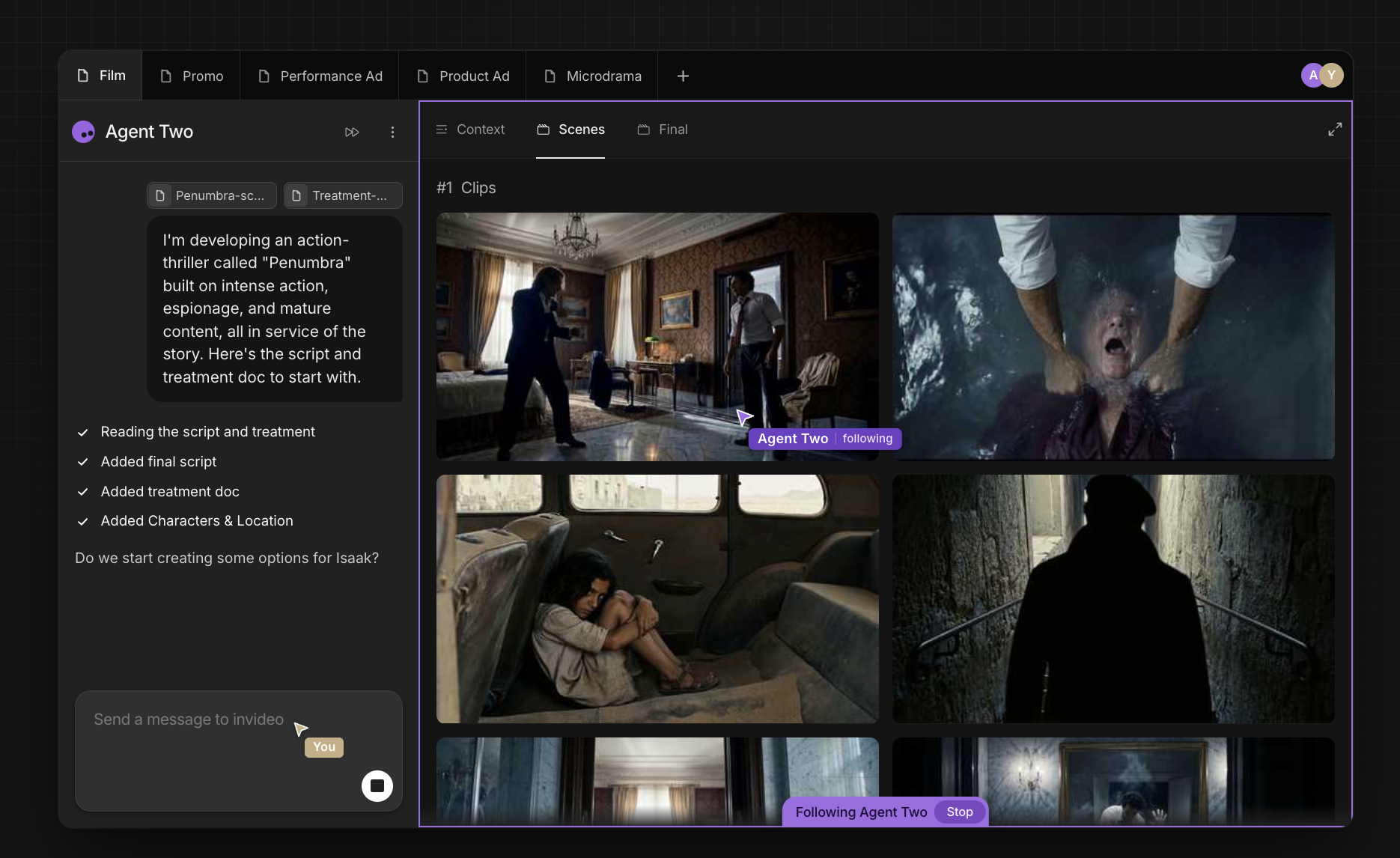
A YouTube explainer is not the same as a TikTok ad. A product demo is not the same as a motivational short. A faceless channel video is not the same as a brand campaign. If you start with a vague prompt, the AI may create something that looks complete but feels forgettable.
A better starting question is:
What should the viewer understand, feel, or do after watching this video?
If the answer is clear, the prompt becomes much stronger.
For example, instead of writing: Create a video about healthy morning routines.
Write:
Create a 60-second YouTube Shorts script and video about three realistic morning habits for busy office workers. Use a calm but practical tone, quick pacing, clean modern visuals, soft background music, and a final call-to-action asking viewers to save the video.The second prompt gives InVideo AI a real direction. It defines audience, length, platform, tone, structure, style, and ending.
If you are still shaping the idea before generating a video, Medeo’s idea-to-video workflow is a useful alternative starting point
Use InVideo AI when you already know the content format. Use an idea-first workflow when the concept still needs structure.
Choose the Right InVideo AI Workflow
InVideo AI is not only one prompt box. Its own tutorial page describes several video generation workflows, including YouTube Shorts, YouTube explainer, recent events video, and script-to-video. These workflows matter because they guide the AI toward a more specific output.
If you are creating short social content, use a Shorts-style workflow.
If you already have a script, use script-to-video instead of asking the AI to rewrite everything.
If you are making a topical video, use a workflow that can reference recent information or external pages, but always fact-check the final result.
If you want a longer educational video, choose a workflow that supports more structure and pacing.
The mistake is treating every video as the same kind of generation. A good InVideo AI result starts with the right lane.
When the script is the core of the content, Medeo’s script-to-video feature is also a strong internal link to include.
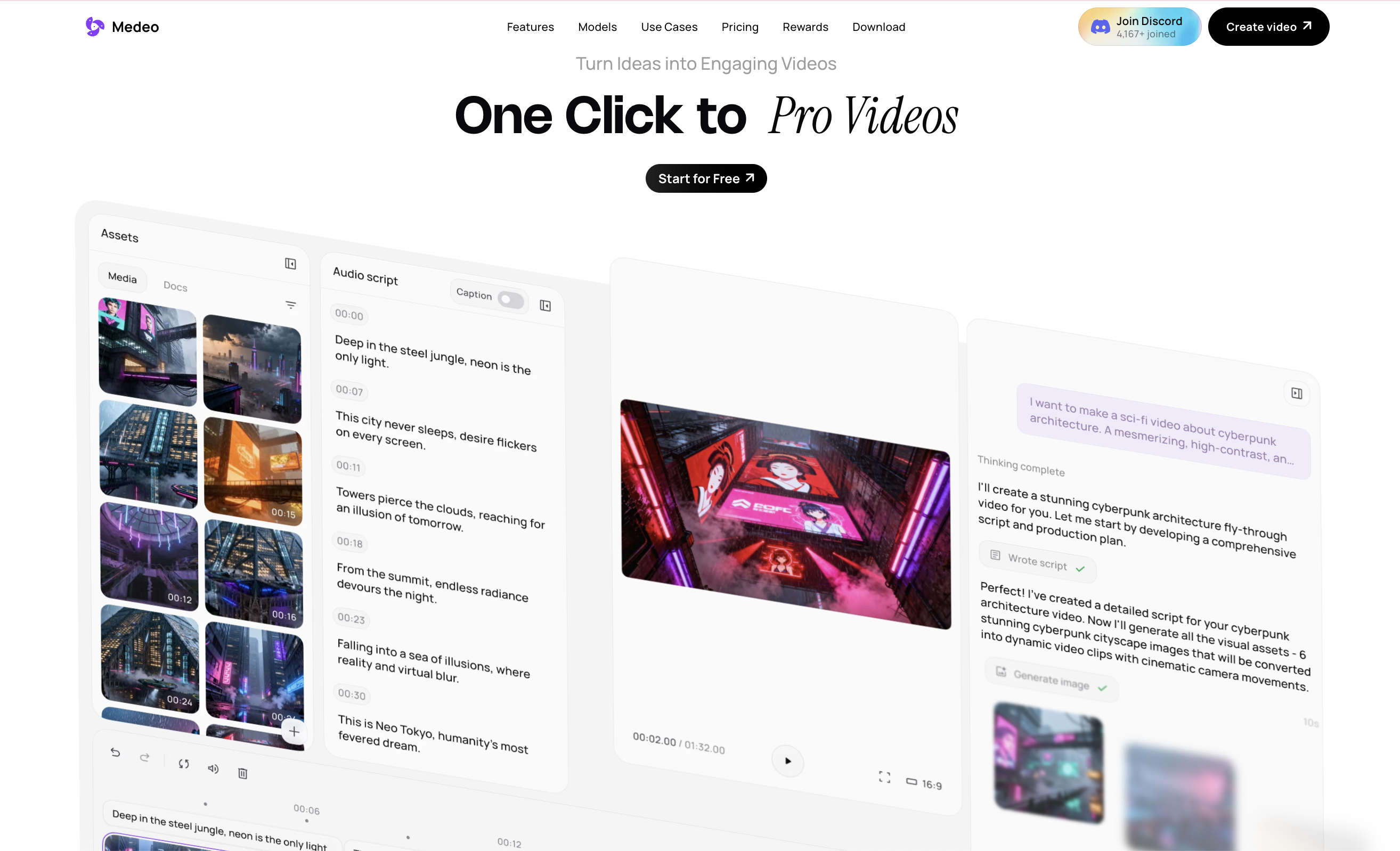
This is especially useful for creators who want to build the message first, then generate visuals around it.
Write Prompts That Control Structure
Many AI video prompts focus too much on visual adjectives and not enough on structure.
A weak prompt says: Make it cinematic, engaging, viral, beautiful, professional, and modern.
A better prompt says:
Open with a direct hook. Use three short points. Keep each scene under six seconds. Use clean captions. Avoid exaggerated claims. End with a clear CTA.InVideo AI can generate scripts, scenes, voiceovers, stock footage, and music, but it needs boundaries. If you do not tell it the structure, it may produce a video that feels polished but flat.
A strong InVideo prompt should include:
The audience
The platform
The video length
The hook
The number of sections
The tone
The visual style
The voiceover style
The call-to-action
Use InVideo AI for Draft Zero
The healthiest way to use InVideo AI is to treat the first output as draft zero.
Draft zero is not the final video. It is a starting point that gives you script, pacing, visuals, narration, and structure to react to. This mindset helps avoid disappointment.
After the first generation, review the video for five things.
Does the opening hook work?
Do the visuals match the message?
Does the narration sound natural?
Are there any factual errors?
Does the video feel specific to your audience?
If the answer is no, edit before exporting.
Competitor reviews often make this point in different ways. Some say InVideo is good for first drafts but limited for exact control. Others describe it as useful for marketers and creators who need speed, but still require human review. That is fair. InVideo AI can reduce production time, but it does not remove editorial judgment.
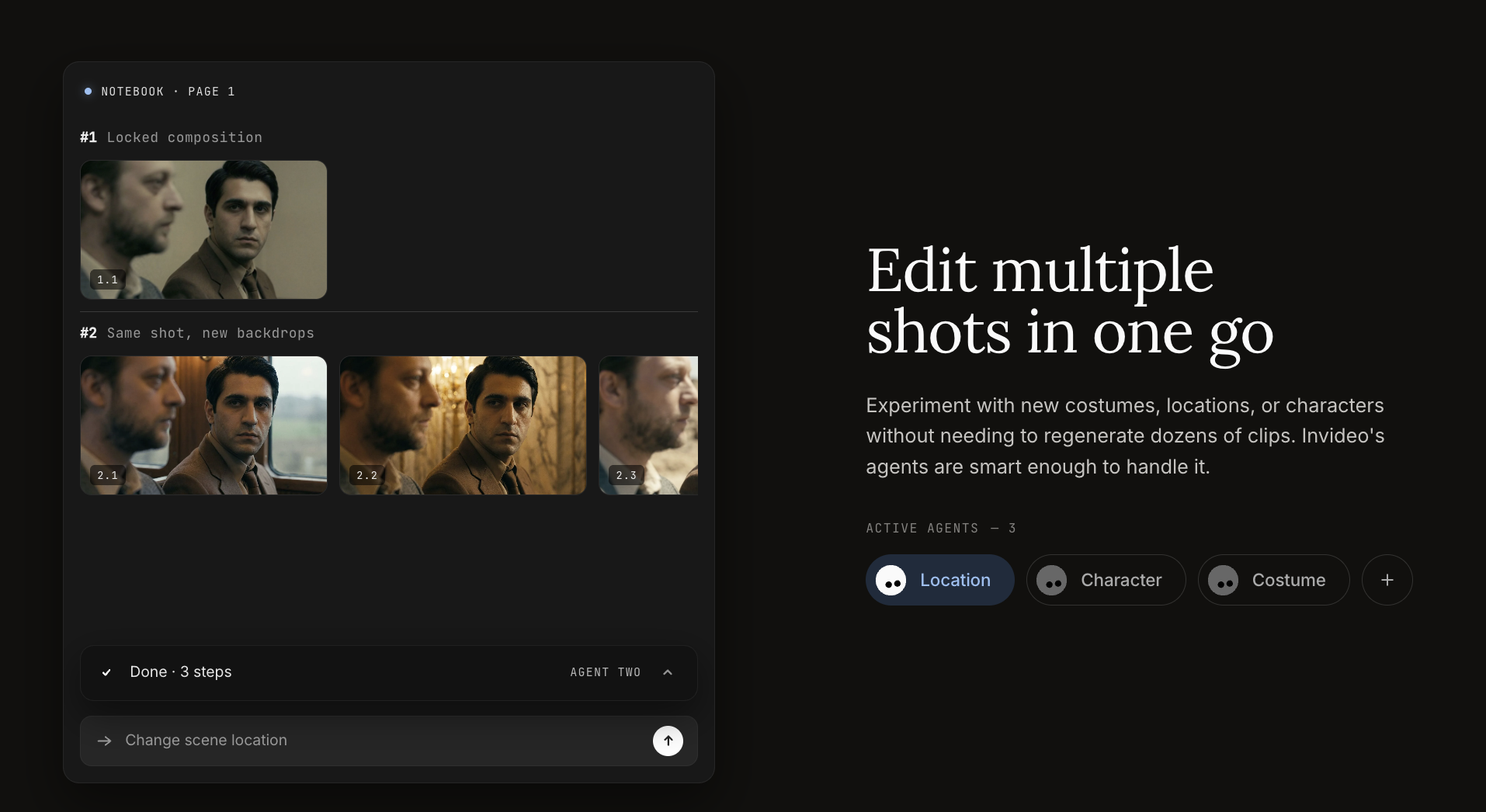
When an AI video feels boring, many users immediately blame the visuals. But often the real problem is the script. If the script is generic, the video will feel generic even with better footage.
Before replacing every scene, read the narration out loud. Does it sound like something a real person would say? Does each sentence move the video forward? Is the hook specific enough? Is the CTA clear?
If the script feels weak, edit that first. Then regenerate or adjust visuals.
For example, this is generic:
AI tools are changing the way we work and helping people become more productive.
This is stronger:
Most teams do not need more AI tools. They need one repeatable workflow that turns rough ideas into usable content faster.The second line has a point of view. AI video tools need that.
Use URLs Carefully
InVideo AI can reference blog posts or articles when creating videos. This is useful for repurposing existing content into video, especially for YouTube explainers, LinkedIn clips, product education, and SEO content distribution.
But URL-based generation can also create weak summaries if the source content is too long, too broad, or poorly structured.
If you are turning a webpage into a video, do not simply paste the URL and hope for the best. Add instructions.
Tell the AI which audience the video is for. Tell it which sections to prioritize. Tell it what tone to use. Tell it what to ignore.
For URL-based repurposing, Medeo’s URL-to-video feature is a natural related workflow:
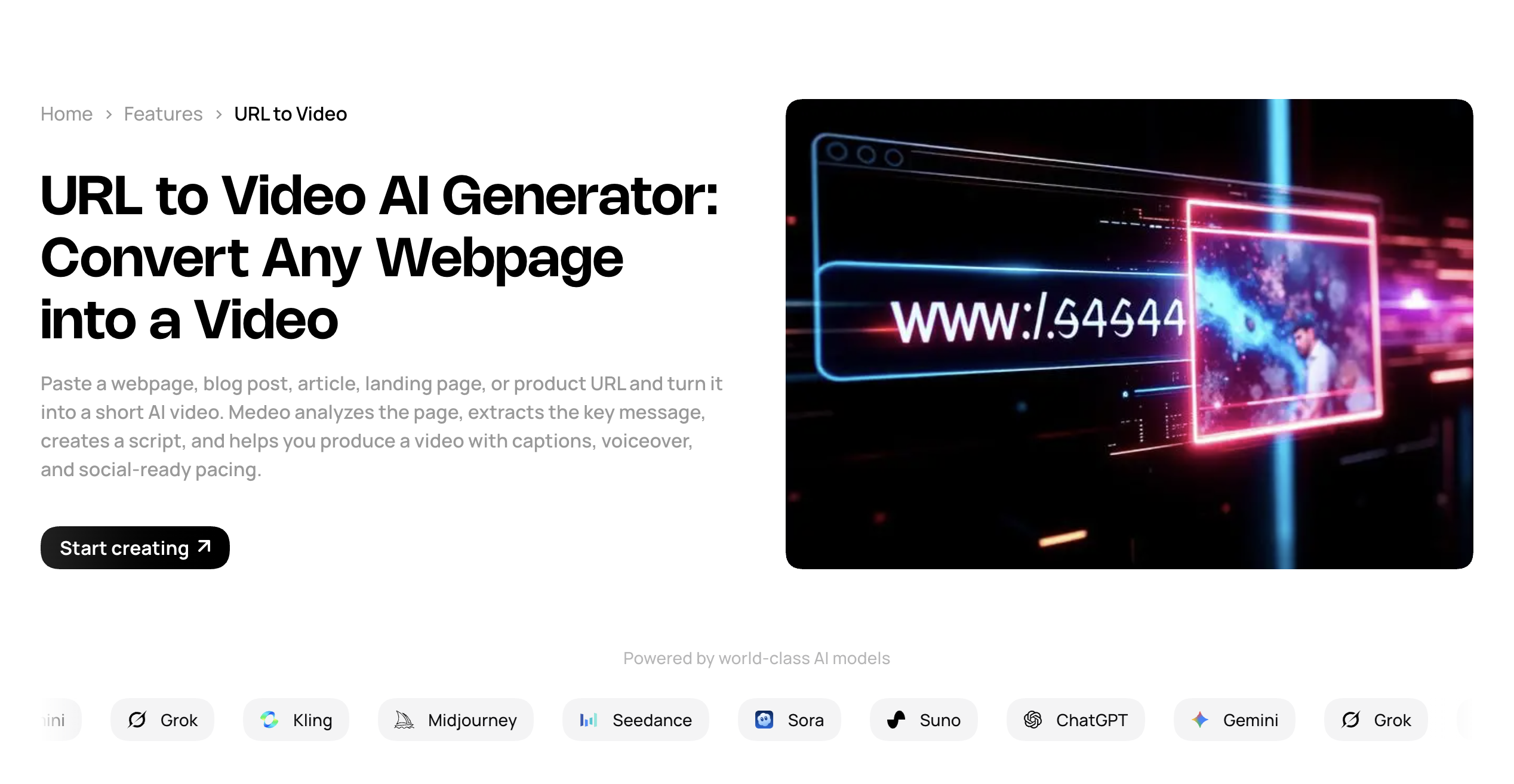
This works well when the source material already exists and the goal is to transform it into a more watchable video format.
Be Careful with Stock Footage
InVideo AI is useful partly because it can combine narration, media, captions, and music quickly. But that convenience can also create a common problem: videos that look too familiar.
Stock footage is not bad. It is often useful. But if every scene looks like generic business people walking through glass offices, the viewer may tune out.
To improve the result, give more visual direction.
Instead of asking for “business visuals,” ask for “close-up SaaS dashboard scenes, customer support screenshots, abstract data visualization, and clean product workflow visuals.”
Instead of asking for “fitness visuals,” ask for “quiet home workout scenes, realistic morning lighting, no extreme gym footage, no exaggerated body transformation shots.”
The more specific the visual direction, the less generic the output.
For product-focused content, Medeo’s product video generator can be a better fit when the goal is to create campaign visuals around a product rather than rely only on broad stock footage.
Use AI Avatars Only When They Add Trust
InVideo AI includes AI avatar tools. Avatars can be useful for tutorials, explainers, product walkthroughs, training videos, and multilingual content. But they should be used carefully.
An avatar is not automatically more engaging than a voiceover. If the avatar looks stiff, speaks too slowly, or does not match the brand, it can reduce trust.
Use avatars when the viewer needs a human-like guide. Avoid them when the video would be stronger with product visuals, screen recordings, animation, or a direct voiceover.
If your workflow depends heavily on presenter-style videos, Medeo’s talking avatar page is a useful internal link:
This gives readers another option for avatar-led video creation without repeating the same generic text-to-video link.
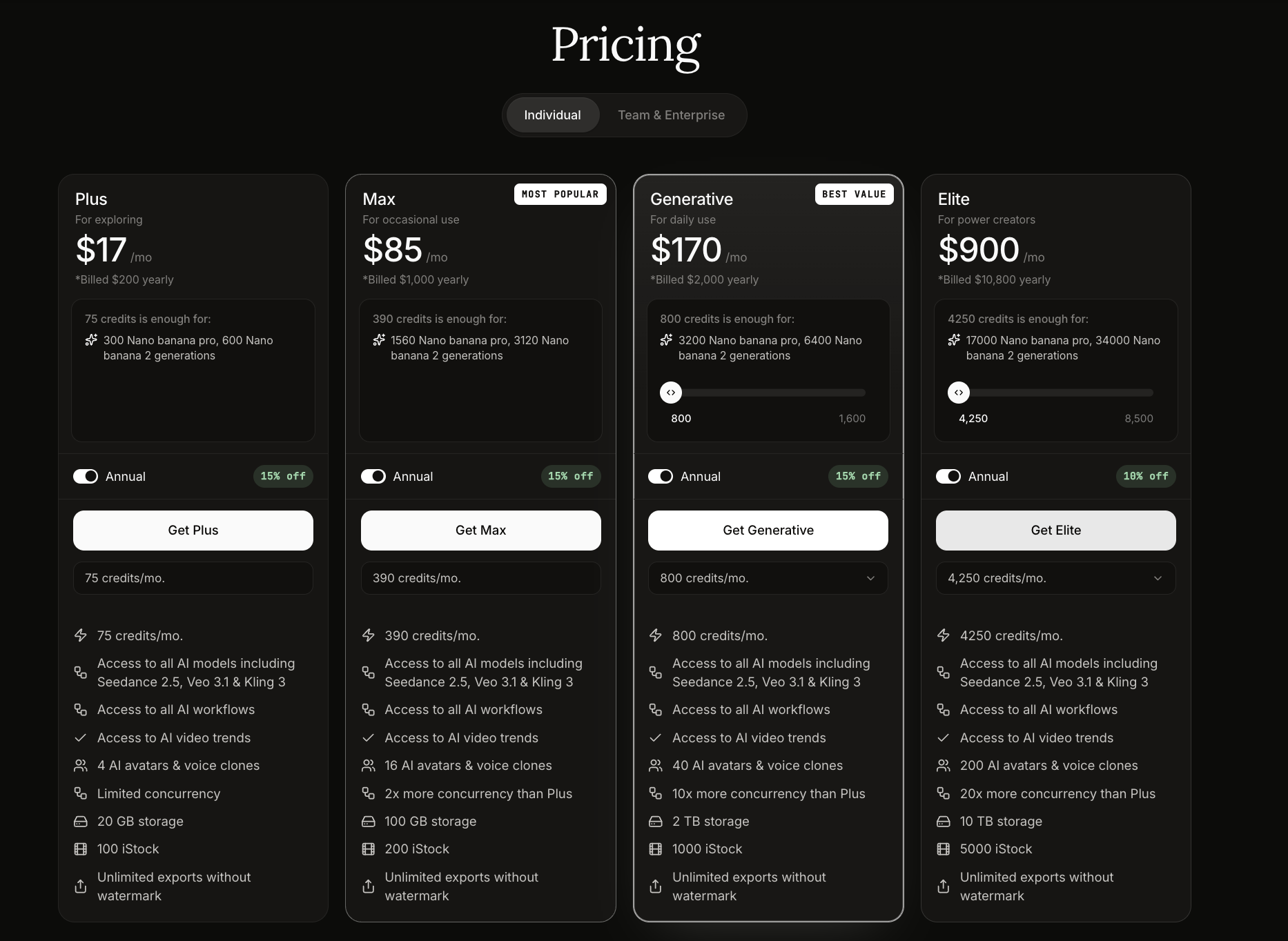
Understand InVideo AI Pricing Before Scaling
InVideo AI pricing has changed over time, and competitor blogs often focus heavily on credits, export limits, AI minutes, avatars, voice clones, storage, and stock assets.
As of August 18, 2026, InVideo’s official pricing page lists plan-based access with different credit levels and usage limits. Third-party reviews often describe plans such as Plus, Max, Generative, and higher enterprise-style tiers, with pricing and credits varying by billing period and use case.
Because pricing can change, users should check the official InVideo pricing page before subscribing.
The important point is this: do not evaluate InVideo only by monthly price. Evaluate it by approved video output.
If a plan gives you enough credits for many drafts but only a few finished videos, the real cost per usable video may be higher than expected.
Before paying, ask:
How many videos do I need per month?
How long are they?
Do I need watermark-free exports?
Do I need stock media licenses?
Do I need avatars or voice clones?
Will I regenerate often?
Will I use higher-resolution export?
This is especially important for teams. A solo creator can experiment casually. A marketing team needs predictable production cost.
How Medeo Fits as an InVideo Alternative
Medeo is not just a replacement for InVideo AI. It is better to position it as a different kind of video workspace.
InVideo AI is useful when you want to quickly assemble a video from a prompt, script, URL, media library, voiceover, and template-style structure.
Medeo is useful when you want AI video creation to be more model-driven and flexible. It can support workflows such as script-to-video, URL-to-video, product videos, talking avatars, AI model generation, video styling, and visual refinement.
A practical comparison looks like this:
Use InVideo AI when you want a fast edited draft.
Use Medeo when you want to create, generate, refine, and expand video assets across different AI workflows.
That is the better soft-sell angle. InVideo is strong for assembling videos quickly. Medeo is strong when creators want more routes into AI-generated video content.
What is InVideo AI?
InVideo AI is an AI video creation platform that helps users generate videos from prompts, scripts, URLs, and structured workflows. It can create videos with narration, visuals, music, captions, and editing options.
Is InVideo AI good for beginners?
Yes. InVideo AI is beginner-friendly because users can start with a prompt or workflow instead of editing from a blank timeline.
Can InVideo AI create YouTube videos?
Yes. InVideo AI is commonly used for YouTube explainers, faceless YouTube videos, YouTube Shorts, and educational video content.
Can InVideo AI turn a blog post into a video?
Yes. InVideo AI can reference articles or blog posts when generating videos. Users should still guide the tool with audience, tone, length, and platform instructions.
Does InVideo AI support avatars?
Yes. InVideo AI includes AI avatar tools, depending on the plan and workflow. Avatars can be useful for explainer videos, tutorials, and presenter-style content.
Is InVideo AI free?
InVideo AI has offered free or limited access at different times, but plan details can change. Check the official pricing page for the latest information on free access, credits, exports, and watermarks.
What is the best InVideo AI alternative?
Medeo is a strong alternative if you want broader AI video workflows, including script-to-video, URL-to-video, product videos, talking avatars, model-based video generation, and visual refinement.
Should I use InVideo AI or Medeo?
Use InVideo AI if you want a fast edited draft from a prompt, script, or article. Use Medeo if you want to create and refine video assets across multiple AI workflows and models.