AI B-Roll Generator Add Dynamic B-Roll to Any Video
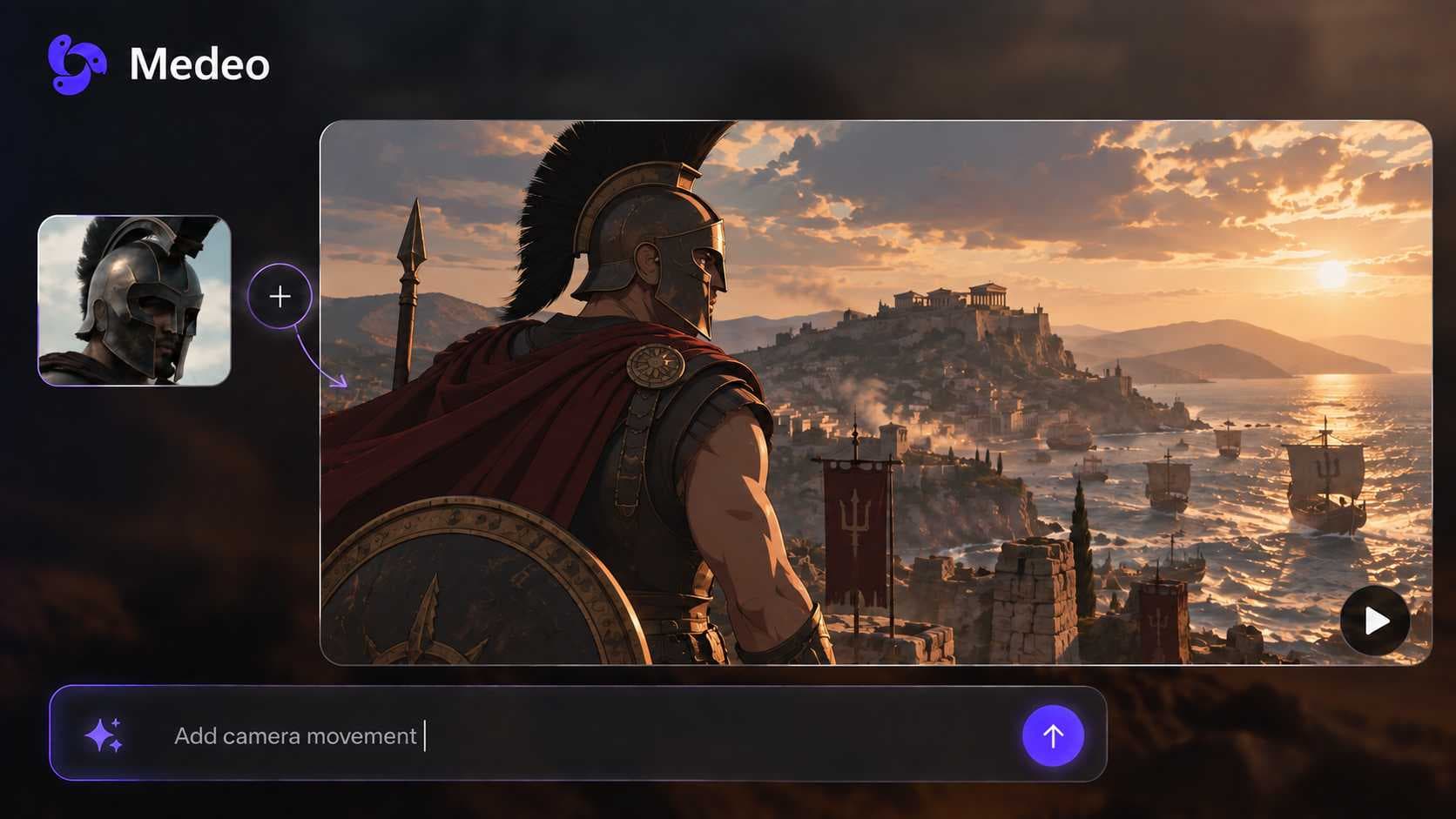
Make your video edits pop with Medeo's AI-powered B-Roll Generator. Create engaging, relevant B-roll footage that enhances your video storytelling in seconds.

Powered by world-class AI models


What is an AI B-Roll Generator?
An AI B-Roll Generator is a powerful tool that automatically creates supplementary footage to enhance your videos. Simply upload your content, and the AI analyzes it to select or generate contextually relevant B-roll that adds depth, visual interest, and professional polish to your storytelling—all in minutes.
Transform Raw Footage into Cinematic Videos
See how B-roll enhances your video storytelling
Before
Plain talking-head video

After
Dynamic, engaging content

Why Choose Medeo's B-Roll Generator?
See how B-roll enhances your video storytelling
Automated Brilliance
AI curates clips so good, they deserve an award. No manual searching required.
Stock Footage Integration
Pull from a vast library of high-quality stock footage to nail every mood and moment.
Dynamic Storytelling
Highlight key moments with visuals that grip your viewers and enhance your narrative.
Lightning Fast
Generate polished B-roll clips faster than your coffee brews. Seconds, not hours.
Brand Customization
Add logos, colors, and your unique style for perfectly branded content.
Seamless Formats
Works like magic with any aspect ratio—9:16, 1:1, 16:9, you name it.
Perfect for Every Video Type
Podcasts & Interviews
Add visual depth to talking-head content and keep viewers engaged throughout long conversations.
Educational Videos
Illustrate concepts with relevant visuals that enhance learning and retention for your students.
Marketing Videos
Create compelling product demos and brand stories with professional B-roll that converts.
Corporate Communications
Elevate internal videos and presentations with polished footage that maintains professionalism.
Vlogs & Content Creation
Transform everyday content into cinematic experiences that stand out on social media.
Social Media Content
Generate scroll-stopping B-roll optimized for TikTok, Instagram Reels, and YouTube Shorts.
How to Create B-Roll with AI
Step 1
Upload Your Video
Got a vlog, tutorial, podcast, or any video content? Simply upload it to get started.
Step 2
Choose Your B-roll Type
Select AI-generated magic or pick from our extensive stock footage library. Your choice.
Step 3
Generate & Fine-Tune
Hit the button and watch AI create dazzling B-roll in seconds. Tweak timing and placement with a click.
Step 4
Download and Share
Export your masterpiece and drop jaws across every social platform.
Give each cutaway a storytelling job
A useful B-roll shot answers a question raised by the narration. Before describing a beautiful image, decide what the viewer needs to understand at that moment.
Establish the setting
For a story about a neighborhood bakery, open with the storefront before moving to the mixing bowl. This gives the close-up a place in the story instead of leaving viewers to guess where the action happens.
Make a process visible
Pair an explanation of order packing with shots of folding a box, placing an item, and sealing the package. Ask for one clear action per scene so the sequence illustrates the process without cramming every action into one frame.
Show the useful detail
When a narrator describes a backpack pocket, a close view of that pocket is more informative than another walking shot. Upload a product reference and review the result against it before treating the image as a factual demonstration.
Mark a change of thought
A quiet exterior can separate a discussion of a problem from the proposed solution. Describe the transition in your brief so the cutaway creates breathing room instead of interrupting an unfinished explanation.
Describe shots that belong in the same video
Include the subject, action, surroundings, and camera distance in your request. Repeating a few visual details helps communicate the intended connection between scenes.
A concrete interview cutaway
Try: Create supporting scenes for a baker discussing early mornings, showing flour on a wooden table and dough resting beside a window. Keep the light soft and the workspace modest so the visuals match the everyday tone of the interview.
An abstract idea with an anchor
For a narration about scattered attention, request a desk with unfinished notes and several open notebooks. Explain that the image is a visual metaphor; a literal office scene should not imply that a particular person or workplace was filmed.
A focused revision
If a shot feels unrelated, describe the missing connection: Replace the city skyline with a close view of a delivery box at an apartment door. A specific replacement request gives Medeo a clearer direction than asking for more exciting footage.
Check whether the B-roll helps the main story
Watch the sequence as an explanation before judging it as a collection of images. Attractive cutaways can still make a clear point harder to follow.
Step 1
Match the spoken noun
Listen for the person, object, or process named in the narration and inspect the accompanying scene. If the voice discusses packaging while the picture shows an unrelated warehouse, ask for a scene that addresses the packaging itself.
Step 2
Keep evidence distinct
Use your uploaded footage when the video needs to show an actual event, product operation, or location. Treat generated scenes as illustrations and describe them accordingly, especially when the overall video otherwise looks like a documentary or customer story.
Step 3
Review the vertical version
For a 9:16 edit, check that the relevant action remains visible alongside captions. A wide workshop scene may need a closer composition for TikTok or Reels, while a 16:9 YouTube version can give the surroundings more room.