Gemini Omni AI Video Generator: Create Videos up to 4K on Medeo
Use Gemini Omni 1.1 Flash, Google's video model, inside Medeo to generate video from a text prompt or a reference image. Render at 720p, 1080p, or 4K, then let the Medeo agent turn your clips into a finished video with voiceover, captions, and music.


What Is Gemini Omni?
Gemini Omni 1.1 Flash is a video generation model from Google, released in August 2026 and available on Medeo for text to video and image to video.

Google's video model inside your workflow
Use Gemini Omni without leaving Medeo. Generate a clip, compare it with other models on the same idea, and keep the one that fits best.
Up to 4K output
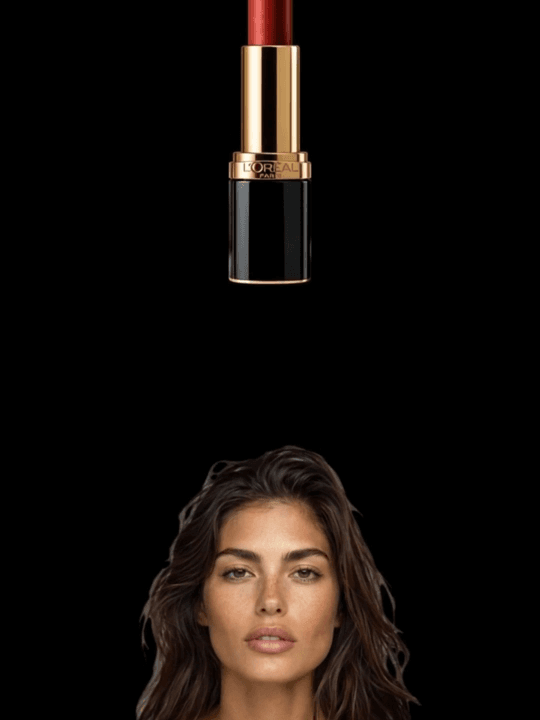
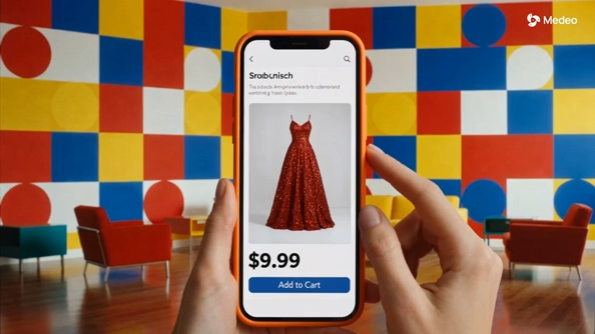
Gemini Omni is one of the video models on Medeo with a 4K option, useful for hero shots, product close-ups, and footage that will be shown on large screens.
Core Capabilities of Gemini Omni on Medeo
What you can do with Gemini Omni through Medeo.
Text to video
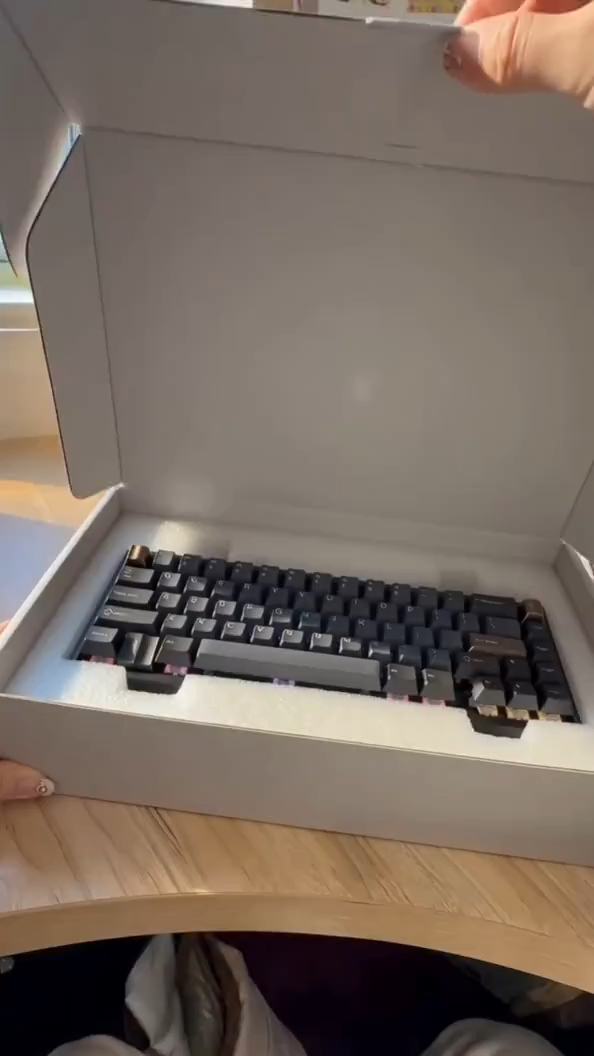
Describe the scene and the motion you want and generate a clip directly from the prompt.
Image to video
Start from a product shot, a character, or a key visual and bring it to life.
720p, 1080p, and 4K
Draft at 720p, render keepers at 1080p, and use 4K for the shots that need it.
Build complete videos
Combine Gemini Omni clips with shots from other models, voiceover, captions, and music in the same project.
How to Use Gemini Omni on Medeo
Step 1
Choose Gemini Omni
Start a creation in Medeo and select Gemini Omni as the video model, or ask the agent to use it.
Step 2
Write a prompt or add an image
Describe the shot or upload a reference image, and pick 720p, 1080p, or 4K.
Step 3
Generate and finish the video
Review the clip, ask for changes in the chat, and assemble it into a finished video.
Generate Gemini Omni Videos on Medeo
Credits shown are the per-second (or per-image) rates on Medeo at the time of writing and may change; the exact cost is always shown before you generate.
| Mode | Resolution | Credits |
|---|---|---|
| Text or image to video | 720p | 3.38 / second |
| Text or image to video | 1080p | 5.07 / second |
| Text or image to video | 4K | 10.14 / second |
Gemini Omni vs Veo 3.1 vs Kling 3.0 vs Seedance 2.5
Based on the options Medeo offers for each model.
| — | Gemini Omni | Veo 3.1 | Kling 3.0 | Seedance 2.5 |
|---|---|---|---|---|
| Text to video | Yes | Yes | Yes | Yes |
| Image to video | Yes | Yes | Yes | Yes |
| Native audio option | No | Yes | Yes | — |
| Max resolution | 4K | 4K | 4K | 1080p |
| Credits at 1080p | 5.07 / second | 6.66 / second | 3.136 / second | 13.65 / second |
| Credits at 4K | 10.14 / second | 13.34 / second | 11.768 / second | — |
Which Model Should You Choose?
Choose Gemini Omni for 4K without audio
It has the lowest 4K rate among these models on Medeo, a good fit when you will add voiceover and music in the edit.
Choose Veo 3.1 when you want sound in the clip
Veo 3.1 offers native audio alongside 4K.
Choose Kling 3.0 for budget 1080p
Kling 3.0 has the lowest 1080p rate here.
Choose Seedance 2.5 to transform existing footage
Seedance 2.5 also supports video to video on Medeo.
Start from a Recipe
Open a ready-made format on Medeo, replace the product or idea with yours, and pick Gemini Omni for the shots you generate.