Kling O1 AI Video Generator: Text and Image to Video on Medeo
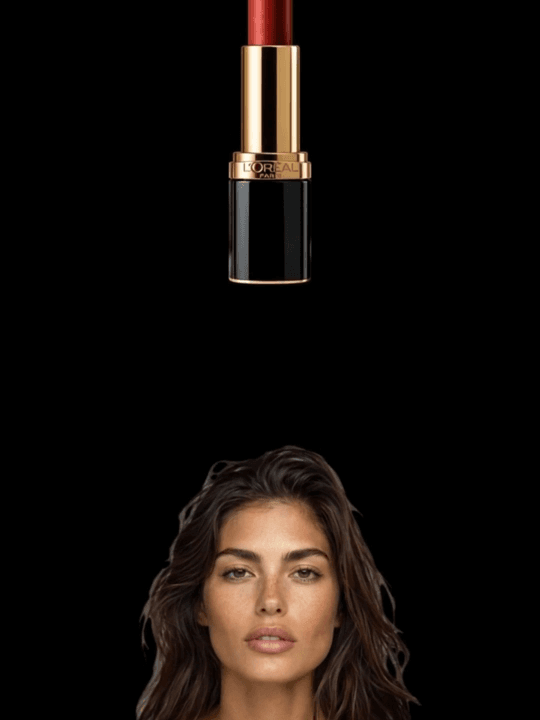
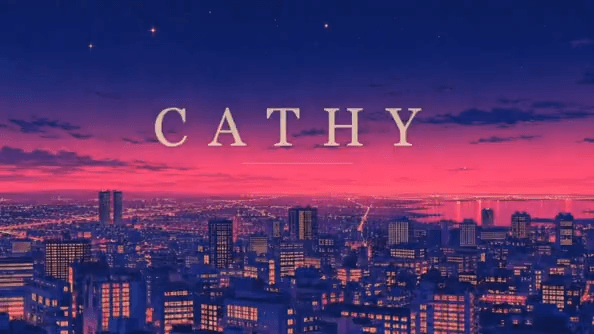
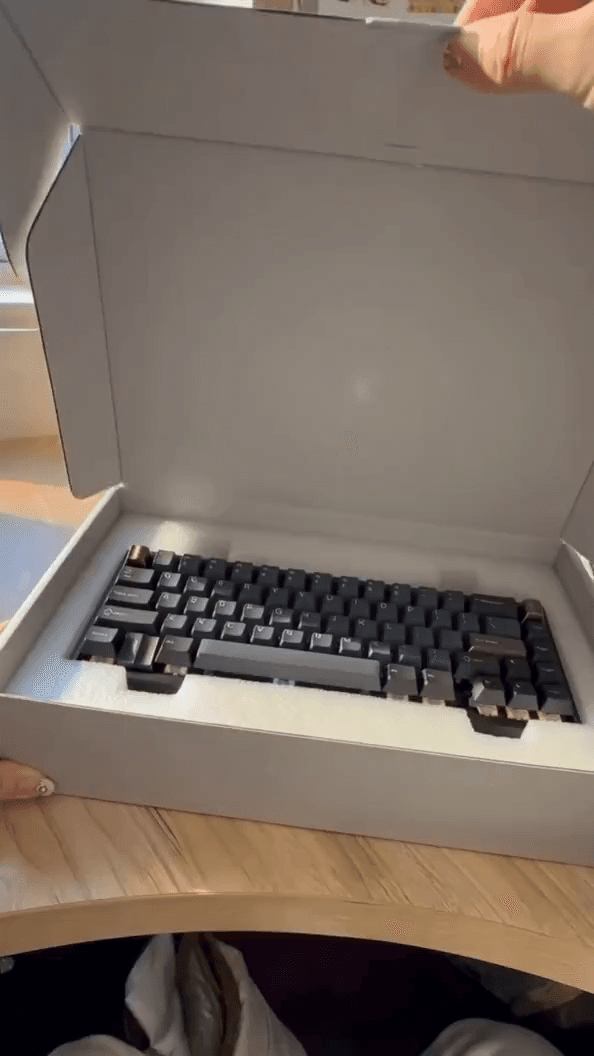
Use Kling O1, Kuaishou's video model, inside Medeo to turn a written idea or a reference image into a video clip. Generate in 720p or 1080p, add native audio when the scene needs sound, and keep building the result into a finished video with the Medeo agent.


What Is Kling O1?
Kling O1 is a video generation model from Kuaishou's Kling team. On Medeo you can use it for text to video and image to video, with or without generated audio.

Text and image to video in one model
Describe a scene in words, or start from an image so the subject, style, and composition stay close to what you already have. Kling O1 handles both on Medeo, so you do not need to switch tools between a prompt-first and an image-first workflow.
Optional native audio
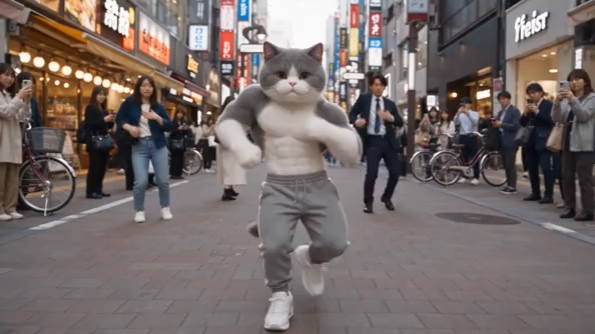
Kling O1 can generate a clip with sound in the same pass. Turn audio on when ambient sound or effects matter to the shot, or leave it off and add voiceover and music later in Medeo.
Core Capabilities of Kling O1 on Medeo
What you can do with Kling O1 when you use it through Medeo.

Text to video
Write the scene, the action, and the camera in plain language and get a clip that follows it.
Image to video
Upload a still and animate it, keeping the look of your reference image.
Video with sound
Generate the clip with native audio so the result is ready to watch without a separate sound pass.
720p and 1080p output
Draft quickly at 720p, then render the shots you keep at 1080p.
How to Use Kling O1 on Medeo
Pick the model, describe the shot, and let the agent handle the rest of the edit.
Step 1
Open Medeo and choose Kling O1
Start a new creation and select Kling O1 as the video model, or let the agent pick it for the shots where it fits.
Step 2
Describe the shot or upload an image
Write what should happen on screen, or add a reference image for image to video. Choose 720p or 1080p and whether you want audio.
Step 3
Generate, review, and assemble
Generate the clip, ask for changes in the chat, and combine it with other shots, voiceover, captions, and music into a finished video.
Generate Kling O1 Videos on Medeo
Credits shown are the per-second (or per-image) rates on Medeo at the time of writing and may change; the exact cost is always shown before you generate.
| Mode | Resolution | Credits |
|---|---|---|
| Text or image to video | 720p | 2.352 / second |
| Text or image to video, with audio | 720p | 3.528 / second |
| Text or image to video | 1080p | 3.136 / second |
| Text or image to video, with audio | 1080p | 4.704 / second |
Kling O1 vs Kling 3.0 vs Veo 3.1 vs Seedance 2.5
How Kling O1 compares with other video models available on Medeo, based on the options Medeo offers for each model.
| — | Kling O1 | Kling 3.0 | Veo 3.1 | Seedance 2.5 |
|---|---|---|---|---|
| Text to video | Yes | Yes | Yes | Yes |
| Image to video | Yes | Yes | Yes | Yes |
| Video to video | No | No | No | Yes |
| Native audio | Optional | Optional | Optional | — |
| Max resolution | 1080p | 4K | 4K | 1080p |
| Credits at 720p | 2.352 / second | 2.352 / second | 6.66 / second | 7 / second |
Which Model Should You Choose?
Choose Kling O1 for affordable 1080p clips with sound
It shares Kling 3.0's entry price at 720p and can add native audio, a good default for social clips and short scenes.
Choose Kling 3.0 when you need 4K
Kling 3.0 adds a 4K option on Medeo for shots that need the extra resolution.
Choose Veo 3.1 for premium cinematic shots
Use Veo 3.1 when realism and polish matter more than cost.
Choose Seedance 2.5 to transform existing footage
Seedance 2.5 is the option here that also supports video to video on Medeo.
Start from a Recipe
Recipes are ready-made video formats on Medeo. Open one, swap in your own idea, and choose Kling O1 for the shots you want to generate with it.