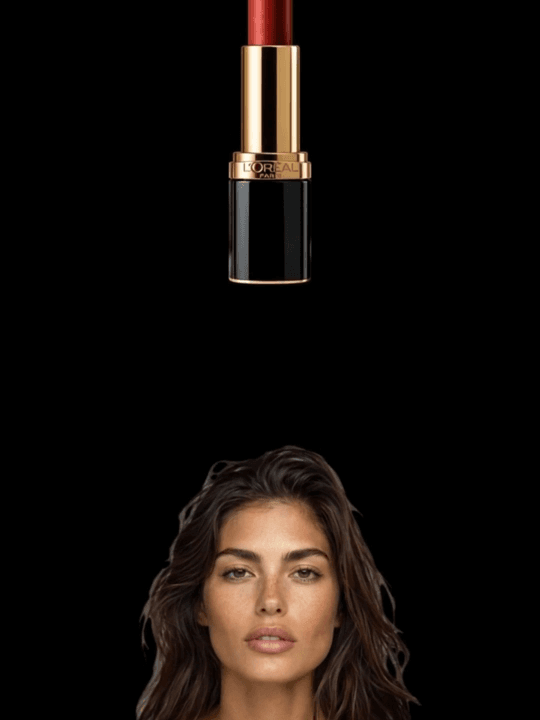
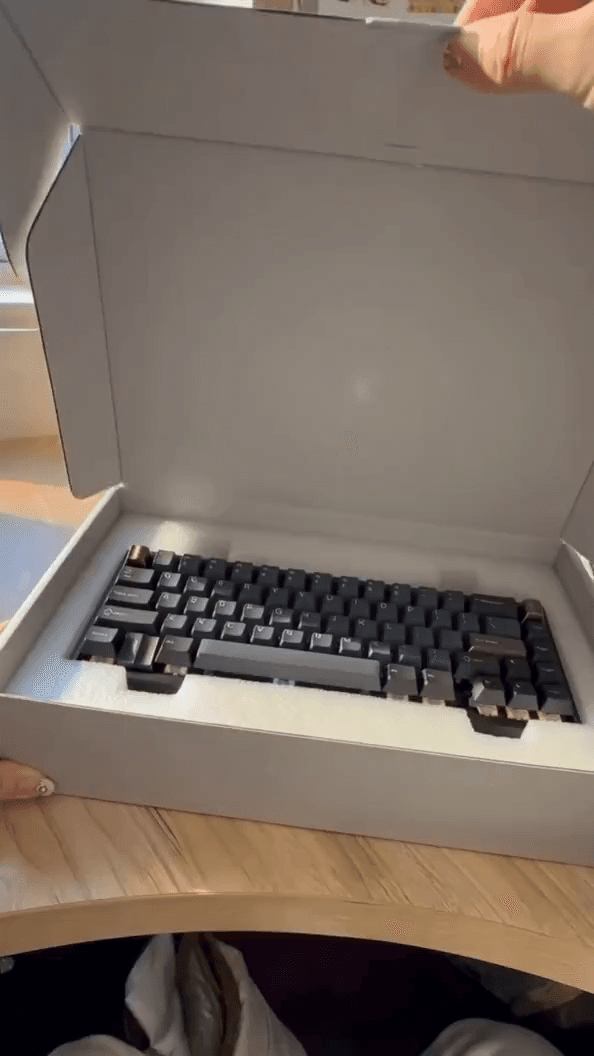
PixVerse V6 AI Video Generator with Start and End Frame Control
Use PixVerse V6 and PixVerse C1 inside Medeo to turn a prompt or an image into video. Set the first and last frame to control where a shot begins and ends, add native audio, and render in 720p or 1080p before finishing the video with the Medeo agent.


What Is PixVerse V6?
PixVerse V6 is a video generation model from PixVerse. Medeo also offers PixVerse C1, a sibling model with the same options.
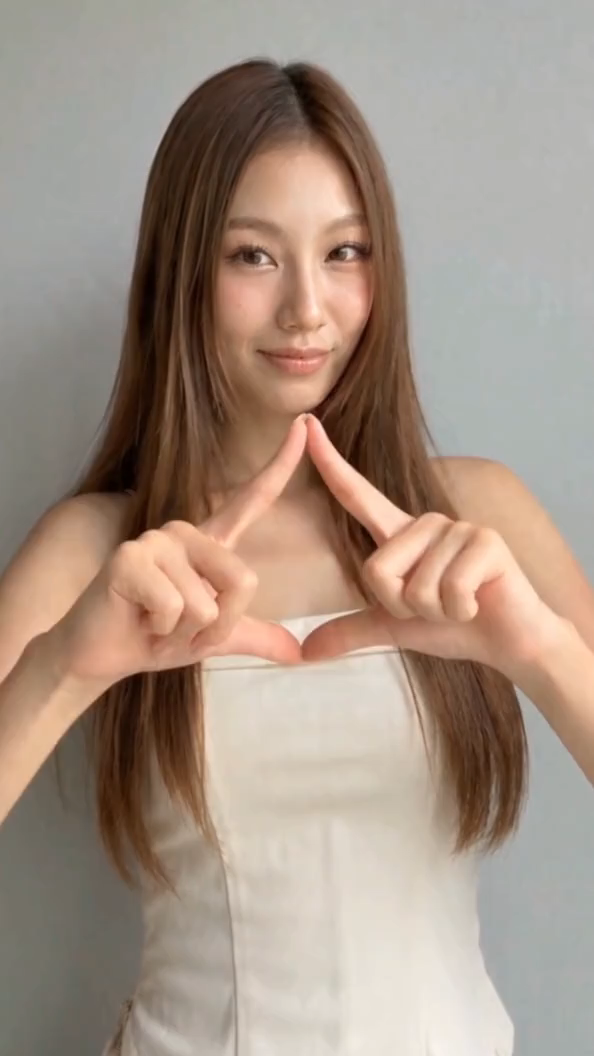
Start and end frame control
Give PixVerse a first frame and a last frame and it generates the motion between them. It is a practical way to control transitions, reveals, and before-and-after shots.
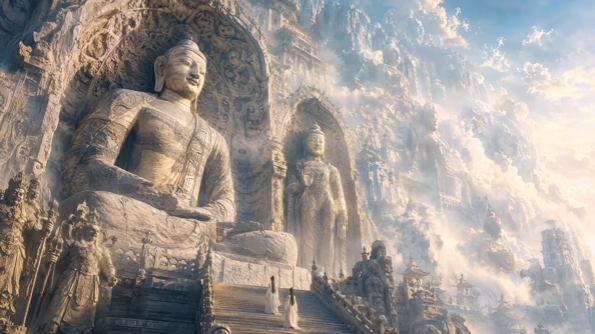
Two models, one page
PixVerse V6 and PixVerse C1 share the same modes and resolutions on Medeo, with slightly different rates. Try both on the same shot and keep the result you like.
Core Capabilities of PixVerse on Medeo
Text to video
Generate a clip directly from a written description.
Image to video
Animate a still image while keeping its style and subject.
Start and end frames
Lock the opening and closing frames to control exactly how a shot unfolds.
Native audio, 720p and 1080p
Add generated sound to the clip and render at 720p or 1080p.
How to Use PixVerse V6 on Medeo
Step 1
Choose PixVerse V6 or C1
Start a creation in Medeo and select the PixVerse model, or ask the agent to use it.
Step 2
Set the prompt, image, or frames
Describe the shot, upload a reference image, or provide both a start and an end frame. Pick 720p or 1080p and whether to include audio.
Step 3
Generate and finish
Review the clip, refine it in the chat, and assemble it with other shots, voiceover, and captions.
Generate PixVerse Videos on Medeo
Credits shown are the per-second (or per-image) rates on Medeo at the time of writing and may change; the exact cost is always shown before you generate.
| Mode | Resolution | PixVerse V6 | PixVerse C1 |
|---|---|---|---|
| Text or image to video | 720p | 1.88 / second | 2.08 / second |
| With audio | 720p | 2.5 / second | 2.71 / second |
| Text or image to video | 1080p | 3.75 / second | 3.96 / second |
| With audio | 1080p | 4.79 / second | 5.0 / second |
PixVerse V6 vs Kling 3.0 vs Seedance 2.0
Based on the options Medeo offers for each model.
| — | PixVerse V6 | Kling 3.0 | Seedance 2.0 |
|---|---|---|---|
| Text to video | Yes | Yes | — |
| Image to video | Yes | Yes | Yes |
| Start and end frame | Yes | — | — |
| Native audio option | Yes | Yes | — |
| Max resolution | 1080p | 4K | 4K |
| Credits at 720p | 1.88 / second | 2.352 / second | 4.48 / second |
Which Model Should You Choose?
Choose PixVerse V6 for controlled transitions on a budget
It has the lowest 720p rate here and supports start and end frames.
Choose PixVerse C1 to compare looks
Same options as V6 at a slightly higher rate; useful as a second take on the same shot.
Choose Kling 3.0 when you need 4K
Kling 3.0 adds 4K output on Medeo.
Choose Seedance 2.0 for reference-heavy image to video
Seedance 2.0 is a strong option when the shot starts from detailed references.
Start from a Recipe
Open a ready-made format on Medeo, adapt it to your idea, and choose PixVerse for the shots you generate.