Reference to Video – Turn Ideas into Videos
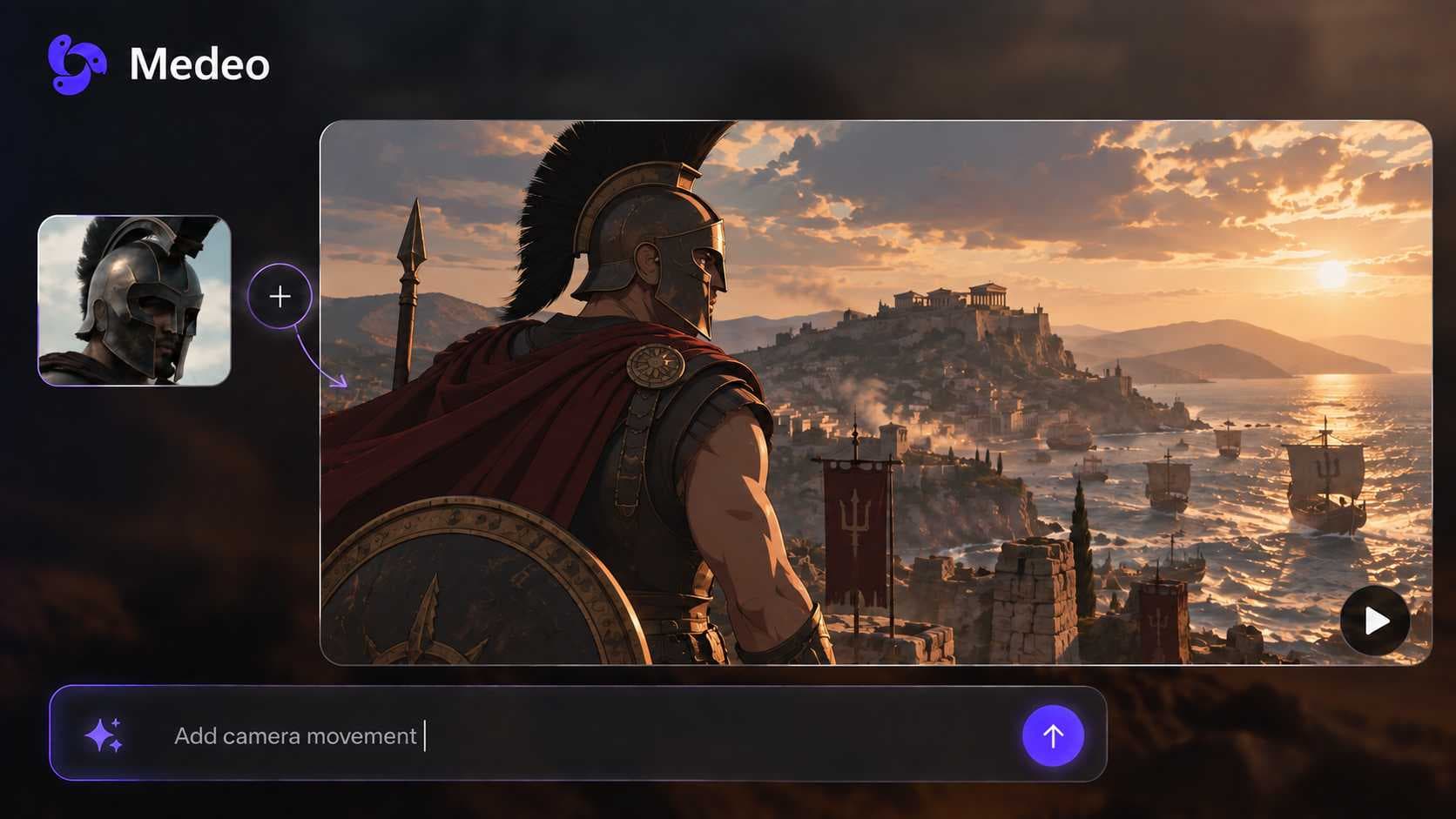
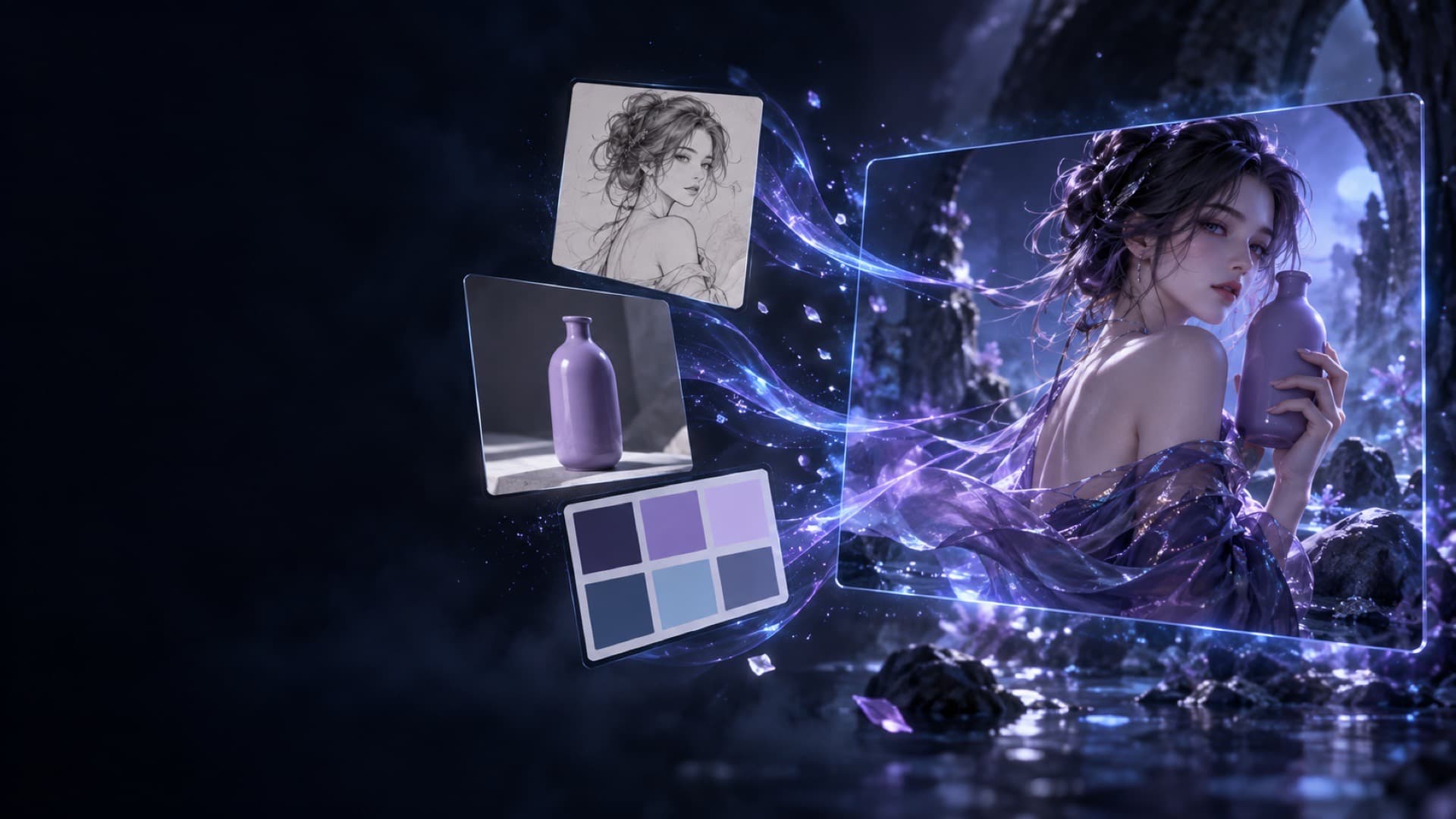
Upload images, video clips, or even describe a style—and Medeo transforms your references into fully animated videos. This reference to video AI generator is built for creators who want speed, consistency, and control without editing complexity.
Key Benefits
Everything You Need to Turn References Into Real Videos
Explore how reference video AI generation, video reference for consistent characters, and how to turn clip-based input into cinematic outputs work together for modern storytelling workflows.

Multi-Modal Input
Use Images, Videos, or Just an Idea
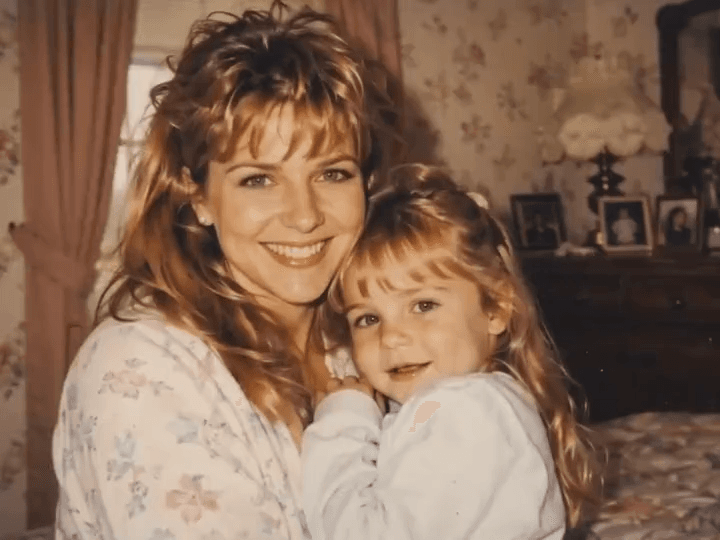
Medeo doesn’t limit you to static images. This reference to video AI generator lets you start from photos, video clips, or even a text description—giving you full creative flexibility.

Character & Style Consistency
Keep Visual Identity Across Every Scene
Whether you're using one reference or multiple, Medeo maintains consistent characters, styles, and visual tone. Ideal for storytelling, branding, and multi-scene content.

Chat-Based Creation
Build and Edit Videos Like a Conversation
Instead of complex editing tools, just tell Medeo what you want. This reference to video AI generator lets you generate and refine videos using simple chat prompts.

Motion & Scene Control
Add Movement Without Touching a Timeline
Turn references into dynamic scenes with camera motion, transitions, and pacing—all automatically handled by Medeo.

Production-Ready Output
Export Videos Ready to Publish Anywhere
Create videos optimized for TikTok, YouTube, and ads. Medeo ensures your reference-based videos are formatted and polished for immediate use.
From Reference to Video in Four Simple Steps
No editing experience needed.
Step 1
Add Your Reference
Upload images, video clips, or describe a visual idea. Medeo supports flexible inputs for any type of reference-based creation.
Step 2
Generate the First Version
Enter a prompt and let Medeo turn your references into a structured video with motion, scenes, and flow.
Step 3
Refine with Chat
Make adjustments instantly—change scenes, pacing, or style by simply telling Medeo what to improve.
Step 4
Export and Share
Download your video in the right format for your platform, ready to publish without further editing.
Designed for Creators Who Work Fast and Think Visually
Short-Form Video Creators
Turn references into TikTok or Reels content quickly using an online reference to video generator.
Idea-Driven Creators
Start with a rough idea or style reference and let Medeo build the video for you—no need for assets upfront.
Story-Based Creators
Create multi-scene videos with consistent characters using reference-based inputs.
Marketing Teams
Transform product images or brand visuals into high-converting ads using AI video generation from references.
Voice & Subtitle Creators
Add narration and subtitles easily while generating videos from references in one workflow.
Social Media Managers
Produce platform-ready videos at scale using a fast and flexible reference to video AI tool.
Real Examples Created From References
Pick references that tell Medeo what to keep
Every reference answers a question for the model: who is in the shot, what the world looks like, or how things move. Choose each one for a single job and say what that job is in your prompt.
Characters: clear, front-facing images
Use a well-lit image where the face and outfit are fully visible. Two or three angles of the same character help more than many similar shots. Say which details must not change, such as hair color, a logo on a jacket, or glasses.
Style: one image per look
A single frame from a film, an illustration, or a brand photo works better than a collage. Name what you want from it, such as the color palette, the lighting, or the line style, so the model doesn't copy its subject as well.
Motion: short clips with one clear action
When you use a video as a reference, trim it to the movement you want, such as a camera push-in or a dance step. A short clip with one action gives more predictable results than a long clip with many cuts.
Fix drift scene by scene instead of starting over
Long, multi-scene videos are where references matter most. When one shot drifts from your references, fix that shot and keep the rest.
Name the scene and the problem
Tell Medeo which scene changed and how, for example: in scene three, the jacket turned blue, keep it red like the reference. Medeo regenerates that scene and leaves the others as they are.
Reuse a good frame as a new reference
If one generated shot looks exactly right, ask Medeo to use it as the reference for the next scenes. This keeps a character or setting stable across a longer story.
Keep your references with the project
Uploaded references stay in the project's assets, so you can come back later, add a scene, or make a new version without uploading them again.
Use rights-cleared material
Only use images, faces, and clips you own or have permission to use. For recognizable people, get their consent before you generate a video of them.