How to Use Dreamina AI: A Simple Tutorial for Creating AI Images and Videos
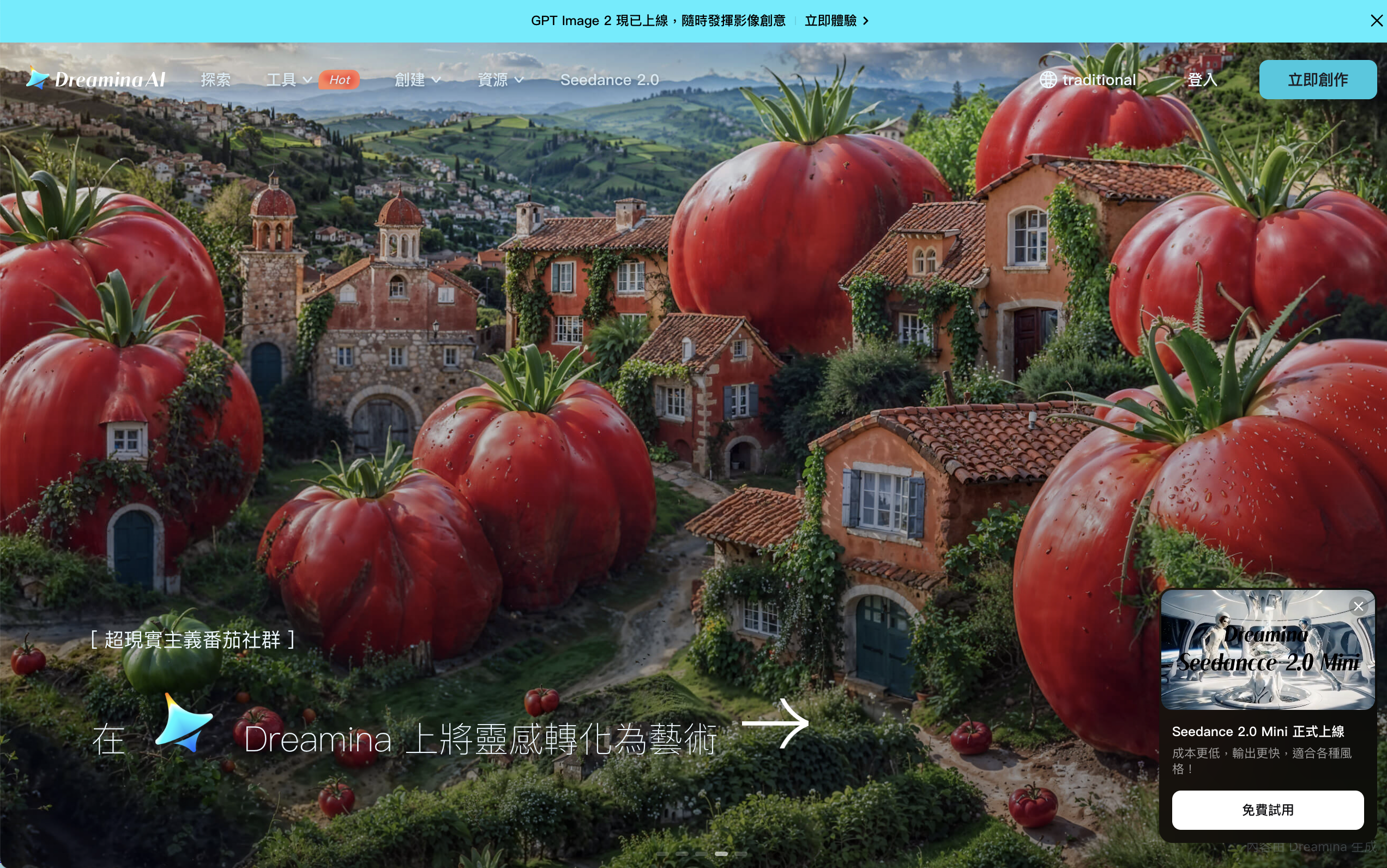
Dreamina AI is one of the easier AI creative tools to understand because it starts with a simple promise: turn ideas into images and videos. Built around CapCut’s creative ecosystem, Dreamina gives users access to AI image generation, AI video generation, image-to-video, style transfer, photo editing, and model-based video creation.
For beginners, Dreamina AI is useful because it does not feel like a technical model playground. You can start with a prompt, upload an image, adjust a few settings, and generate a visual result. That makes it appealing for creators who want AI videos for TikTok, YouTube Shorts, Reels, product visuals, story concepts, or quick social content.
This tutorial explains how to use Dreamina AI, what to prepare before generating, how to get better results, and when a more video-focused workspace like Medeo may be a better next step.
What Is Dreamina AI?
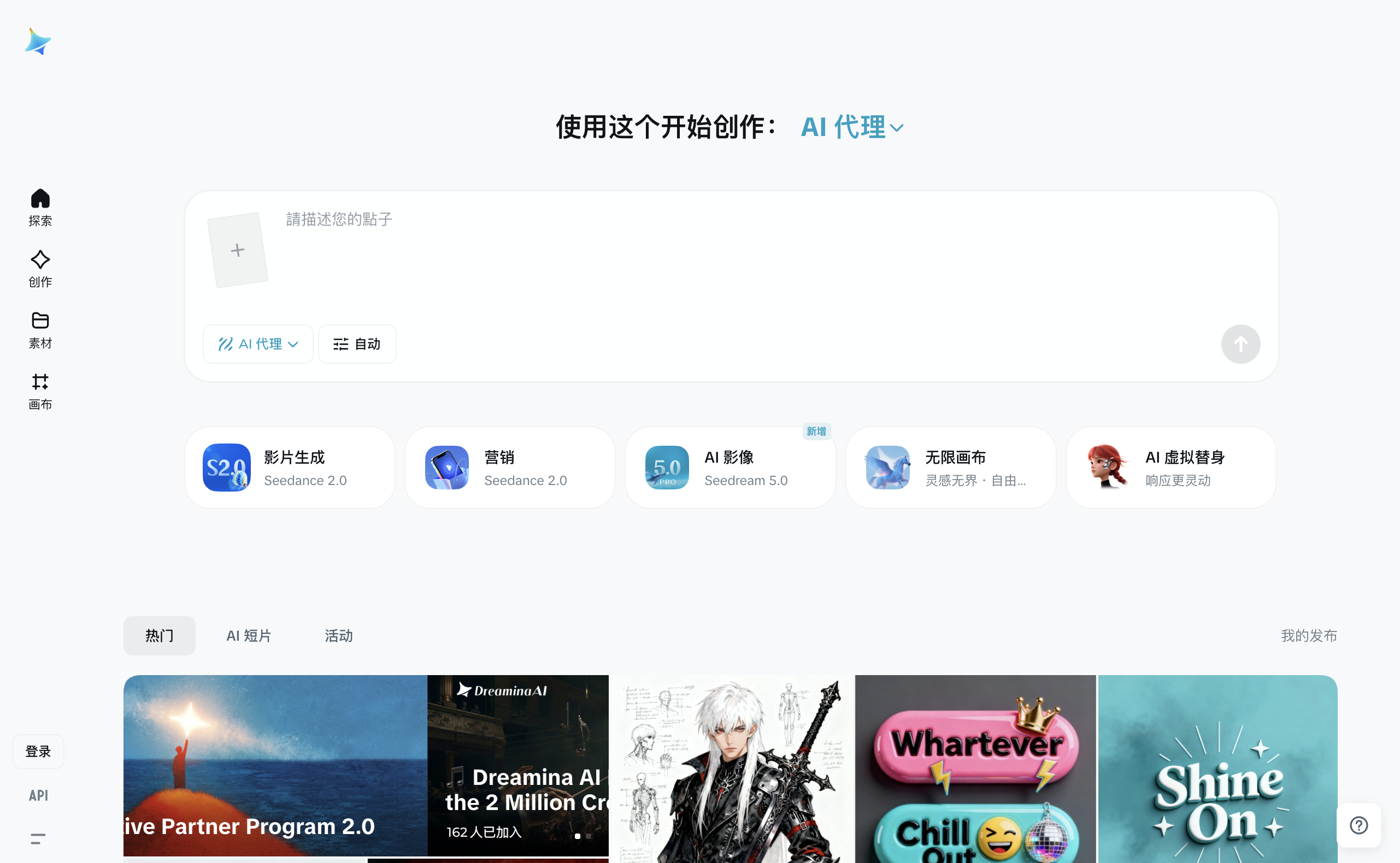
Dreamina AI is an AI image and video generator connected to CapCut. Its official site describes it as an all-in-one AI creative platform powered by advanced image and video generation models. Users can create images, generate videos, animate photos, edit visuals, apply styles, and work with models such as Seedance and Seedream depending on the selected workflow.
Dreamina is especially useful for creators who want a simple entry point into AI video generation. Instead of setting up models manually, users can choose a tool, enter a prompt or upload an image, and generate from the browser or mobile app.
The main use cases include text-to-video, image-to-video, AI image generation, product visuals, social content, cinematic clips, and creative storytelling.
Before You Start: Prepare the Idea First
Before opening Dreamina AI, it helps to know what kind of output you want.
A weak prompt like “make a cool video” usually gives the model too much freedom. A stronger prompt explains the subject, scene, action, lighting, style, camera movement, and mood.
For example, instead of writing:
A woman walking
Try:
A cinematic shot of a woman walking through a rainy neon street at night, soft reflections on the ground, slow camera push-in, realistic lighting, emotional mood
For image-to-video, the starting image matters even more. Use a clear image with a visible subject, clean composition, and enough detail for the model to understand what should move.
Step 1: Choose Image or Video Creation
Dreamina AI supports both image and video workflows, so the first decision is simple: do you want a still image or a moving clip?
Choose image generation if you need a poster, concept art, product visual, character design, social graphic, or style test.
Choose video generation if you need motion, camera movement, storytelling, a product clip, a short cinematic scene, or social video content.
If your goal is specifically video creation, Medeo may also be useful later in the process because it supports broader AI video workflows. For example, if you already have an image and want to animate it, Medeo’s image-to-video page is relevant.
Step 2: Enter a Prompt or Upload an Image
For text-to-video, write a prompt that describes what should happen in the scene. Include the action, environment, visual style, and camera behavior.
For image-to-video, upload a starting image and describe the motion you want. Dreamina’s own image-to-video resources explain that users can upload a first frame and optionally provide an ending frame for more control.
A good image-to-video prompt might be:
Animate this product image into a premium 6-second video. Add slow camera movement, soft studio lighting, subtle reflections, and a clean luxury advertising style.
This kind of prompt tells the model what to preserve and what to add.
Step 3: Adjust Format, Duration, and Model Settings
After adding your prompt or image, choose settings such as aspect ratio, duration, and model option if available.
Use vertical format for TikTok, Instagram Reels, and YouTube Shorts. Use horizontal format for YouTube, websites, presentations, or cinematic scenes. Use square format for some social posts and product showcases.
Dreamina’s official AI video generator page mentions settings such as aspect ratio and video duration, and also references models like Seedance for cinematic video generation. These settings matter because the same prompt can feel very different depending on the output format.
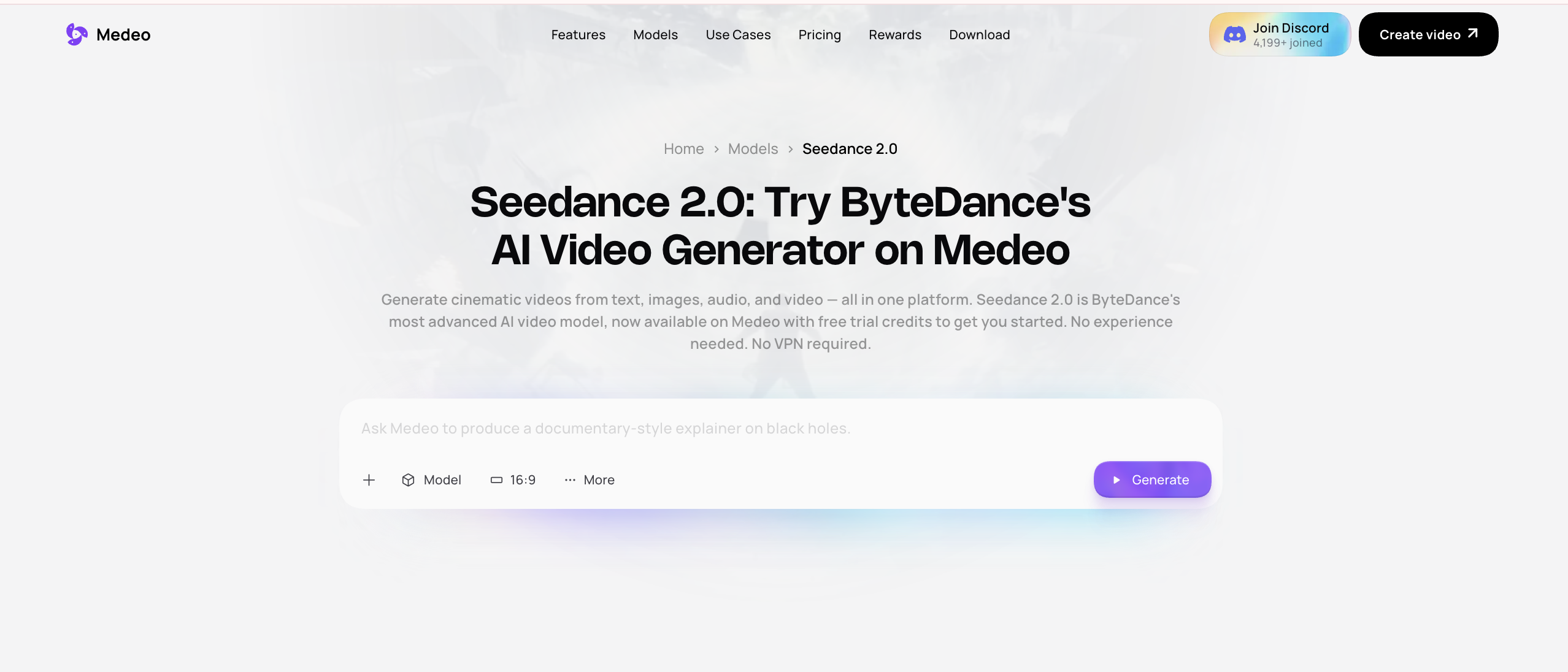
If you are comparing Seedance-style video generation outside Dreamina, Medeo also has a Seedance 2.0 page.
Step 4: Generate and Review the First Result
The first generation should be treated as a draft, not the final answer.
Check the motion first. Does it move naturally? Does the subject stay consistent? Does the camera behave the way you expected? Are there strange hands, distorted objects, unstable faces, or confusing motion?
Then check the message. If the video is for marketing, does it communicate the product clearly? If it is for storytelling, does the mood match? If it is for social media, does the first second feel strong enough?
AI video usually needs iteration. If the result is close but not right, revise the prompt instead of starting with a completely new idea.
Step 5: Enhance, Edit, and Export
Dreamina’s official tutorial flow includes previewing, enhancing, and downloading the result. Depending on the workflow, users may be able to upscale, refine, add soundtrack support, or continue editing inside CapCut-related tools.
This step is important because generated video often needs finishing. A raw AI clip may need trimming, captions, music, color adjustment, or a stronger opening.
If your generated clip feels interesting but not polished enough, you can use another workflow to continue improving it. For example, Medeo’s video colorizer page is useful when the goal is to improve the look of existing footage.
Dreamina Prompt Tips for Better Results
The best Dreamina prompts are specific but not overloaded. Give the model enough direction, but do not stuff the prompt with every visual adjective you know.
Start with the main subject. Add the action. Add the setting. Then add lighting, mood, style, and camera movement.
For video, motion words matter. Use phrases like “slow camera push-in,” “gentle handheld movement,” “the subject turns slightly,” “wind moves the fabric,” or “the camera circles around the product.”
For image-to-video, tell the model what should stay consistent. For example:
Keep the product shape, color, logo, and background unchanged. Add only subtle camera movement and soft light reflections.
This helps reduce unwanted changes.
When to Use Dreamina AI
Dreamina AI makes sense when you want a quick way to generate images or videos without setting up models manually. It is good for social clips, AI image experiments, image-to-video tests, simple product visuals, creative concepts, and CapCut-friendly workflows.
It is especially useful for creators who already use CapCut and want AI generation connected to a familiar editing ecosystem.
When to Use Medeo Instead
Medeo makes more sense when your goal is a broader video workflow rather than a single generation.
For example, if your idea starts as a rough concept rather than a finished prompt, Medeo’s Idea to Video workflow gives you a cleaner way to shape it
If your source material is an existing article, landing page, product page, or website, Medeo’s URL-to-video workflow is more direct.
If you are creating presenter-style content, tutorials, explainers, or spokesperson videos, Medeo’s talking avatar page is a better match.
Dreamina is good for generating AI visuals quickly. Medeo is stronger when you want to turn different kinds of source material into video content through a more connected workflow.
FAQ About Dreamina AI
What is Dreamina AI?
Dreamina AI is an AI image and video generator connected to CapCut. It helps users create images, generate videos, animate photos, edit visuals, and explore AI creative workflows.
Is Dreamina AI free?
Dreamina offers free access or free credits, but usage is limited. Credit amounts, generation costs, model access, and export rules may change, so users should check the official Dreamina pricing and product pages.
Can Dreamina AI create videos from images?
Yes. Dreamina supports image-to-video workflows where users upload an image and describe the motion or scene they want to generate.
Can Dreamina AI create videos from text?
Yes. Dreamina supports text-to-video generation. Users can write a prompt describing the subject, action, scene, style, lighting, and camera movement.
Is Dreamina AI good for beginners?
Yes. Dreamina is beginner-friendly because users can start with a prompt or image instead of setting up models manually.
What is the best Dreamina AI alternative?
Medeo is a strong Dreamina AI alternative if you want a broader AI video workflow that supports ideas, images, audio, videos, links, and specific video creation use cases.
Final Thought
Dreamina AI is a practical starting point for beginners who want to create AI images and videos quickly. It works best when you have a clear prompt, a strong starting image, and a simple creative goal.
But if your project needs more than one generation, Medeo may be the better next step. Dreamina helps you create a visual. Medeo helps you turn ideas, images, links, and other materials into a fuller video workflow.